
How to Create a Custom Sticker on Snapchat
Want to turn one of your photos into a sticker you can slap on your snaps? Creating a custom sticker on Snapchat takes just a few taps, right inside the editor, thanks to the scissors tool. Here's how to cut out your own sticker, step by step.
Prefer a video? Watch the full tutorial below.
Creating a custom sticker on Snapchat, step by step
Open Snapchat and pick a photo
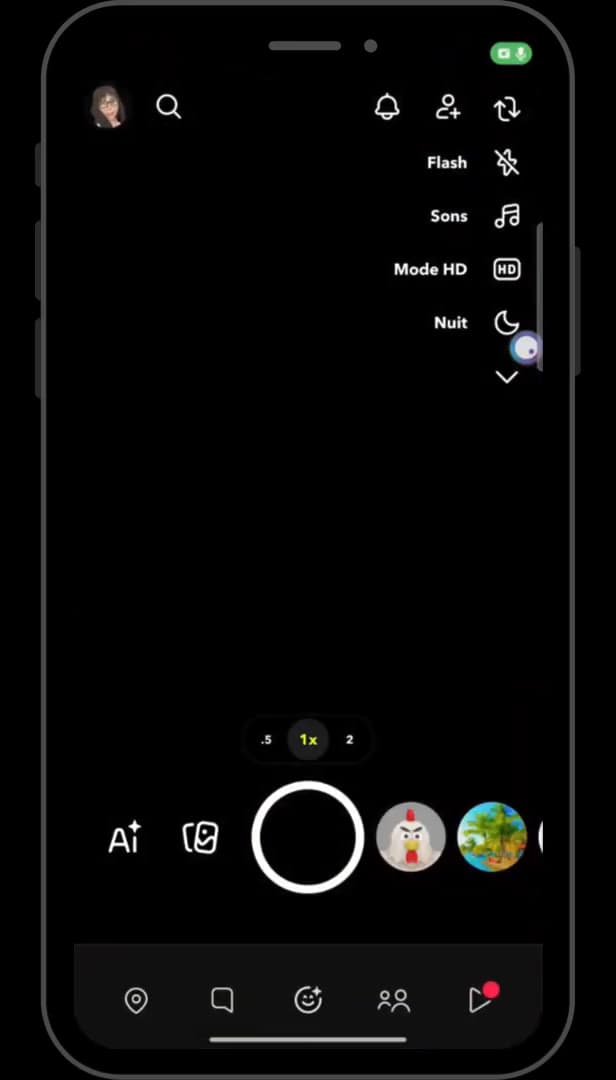
The image icon, to the right of the photo button, opens your gallery. Open "Snapchat". Take a photo, or tap the "image" icon to the right of the white button to pick a photo from your gallery, in the "Camera Roll" tab.
Open the photo's options
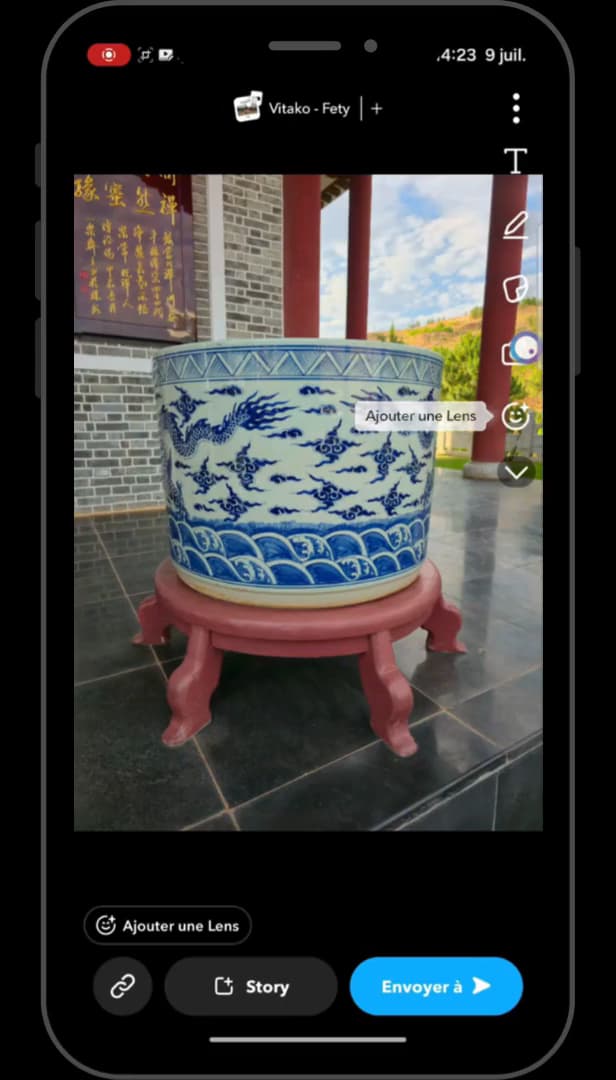
The down arrow expands all the photo's editing tools. Once the photo is open, tap the "downward-pointing arrow" on the right side of the screen to show all the editing options.
Tap the "scissors" tool
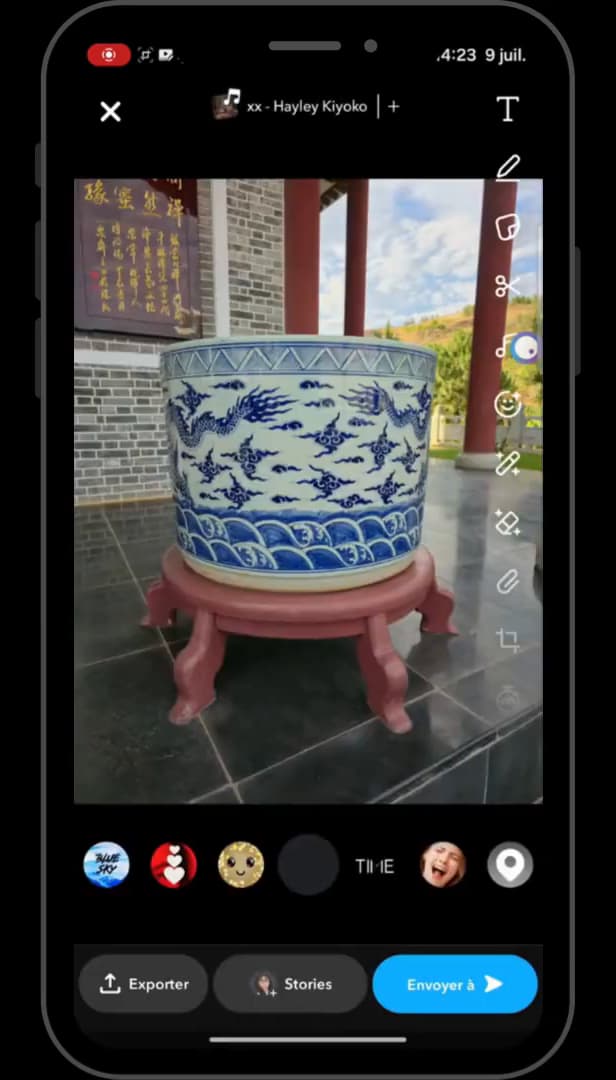
The scissors tool opens "Create Sticker" mode. In the options, scroll down to the "scissors" icon and tap it. "Create Sticker" appears at the top of the screen.
Cut it out, then finish
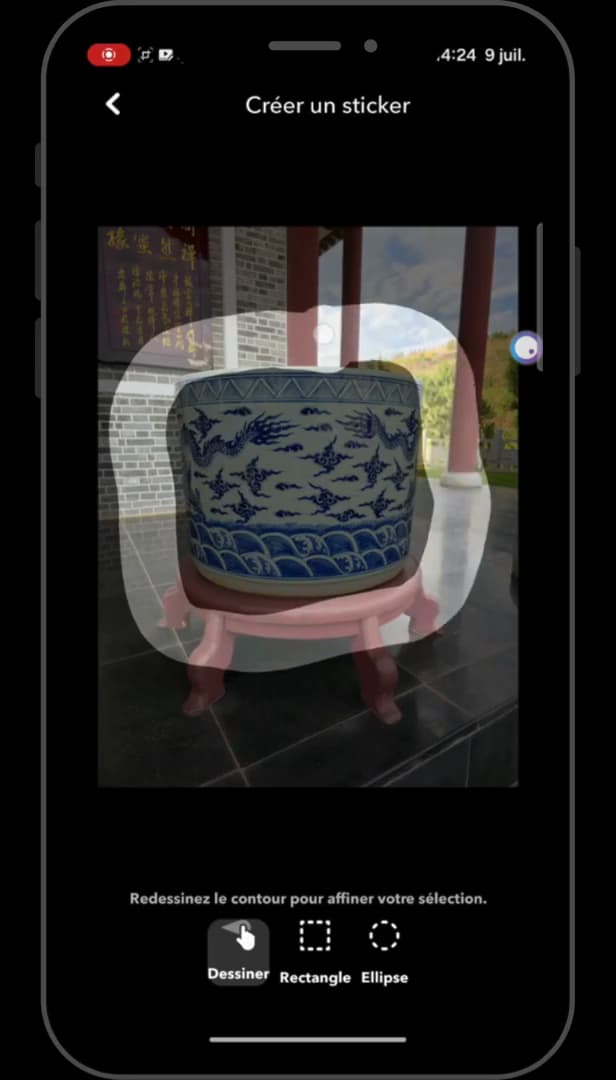
Once cut out, the sticker is ready to stick on your snaps. Trace the outline of the element you want to cut out (freehand, as a "rectangle" or an "ellipse"), then tap "Done". Your custom sticker is created.
Good to know
Your sticker appears on the photo: you can move it, resize it or rotate it with two fingers, then send it or save it.
Good to know
- The more precise your cutout, the cleaner the sticker: take the time to follow the outline.
- The stickers you create can be reused on your future snaps.
- To keep your creations, remember to save your Snapchat memories to your gallery.
Frequently asked questions
- Where is the tool to create a sticker on Snapchat?
- In the photo editor, on the right side of the screen: open the options with the down arrow, then tap the scissors icon to open "Create Sticker".
- Can I create a sticker from a photo in my gallery?
- Yes. Tap the image icon to the right of the photo button, open the "Camera Roll" tab and select the photo from your gallery before cutting it out.
- How do I reuse a sticker I created?
- Once created, your sticker is added to your list of custom stickers in Snapchat, accessible from the editor's stickers tool.
Related tutorials
 SnapchatHow to Create a Group Chat on SnapchatWant to chat with several people on Snapchat? Here's how to create a group, step by step.
 SnapchatHow to create a second Snapchat accountWant a second Snapchat account? Here's how to create one and switch between your accounts, step by step.
 SnapchatHow to change your email address on SnapchatWant to change the email linked to your Snapchat account? Here's how to do it, step by step.
 SnapchatHow to Change the Language on SnapchatIs Snapchat in the wrong language? Here's how to change the app's language, step by step.