
How to Change the Language on Snapchat
Is Snapchat showing up in a language you don't understand? You can change the language on Snapchat from the app's settings. Here's how to do it, step by step.
Prefer a video? Watch the full tutorial below.
Changing the language on Snapchat, step by step
Open "Language" in Settings
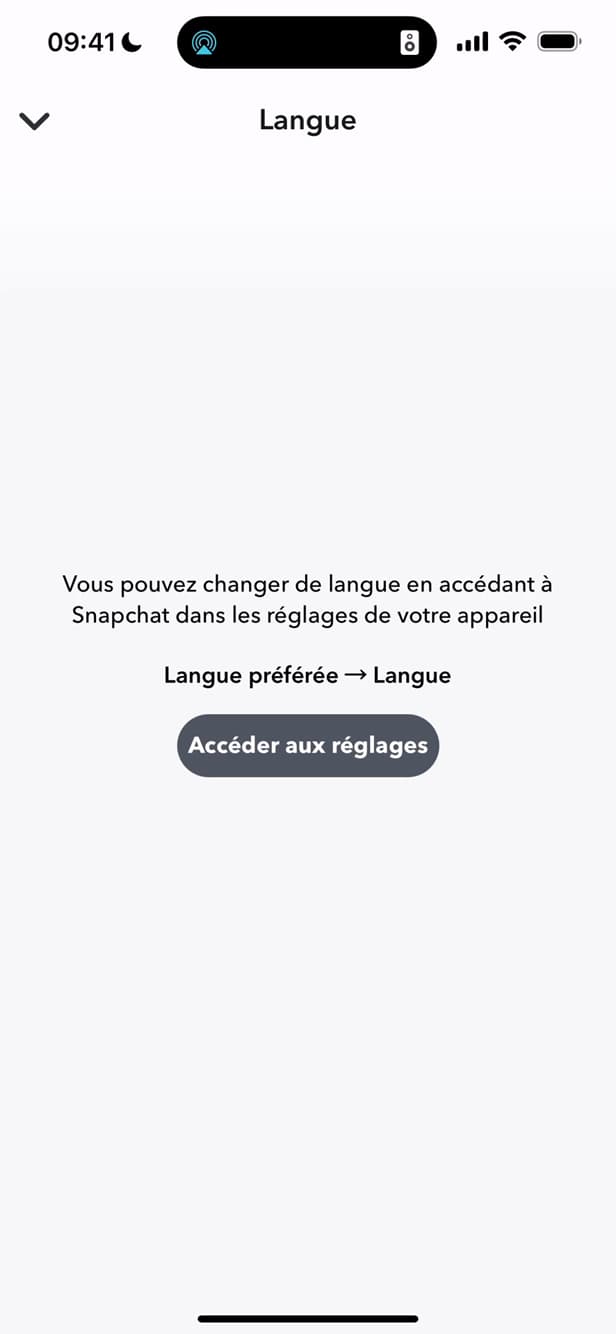
"Language" is found in Snapchat's settings. On your profile, open "Settings" (⚙️) and scroll down to "Language".
Choose the language
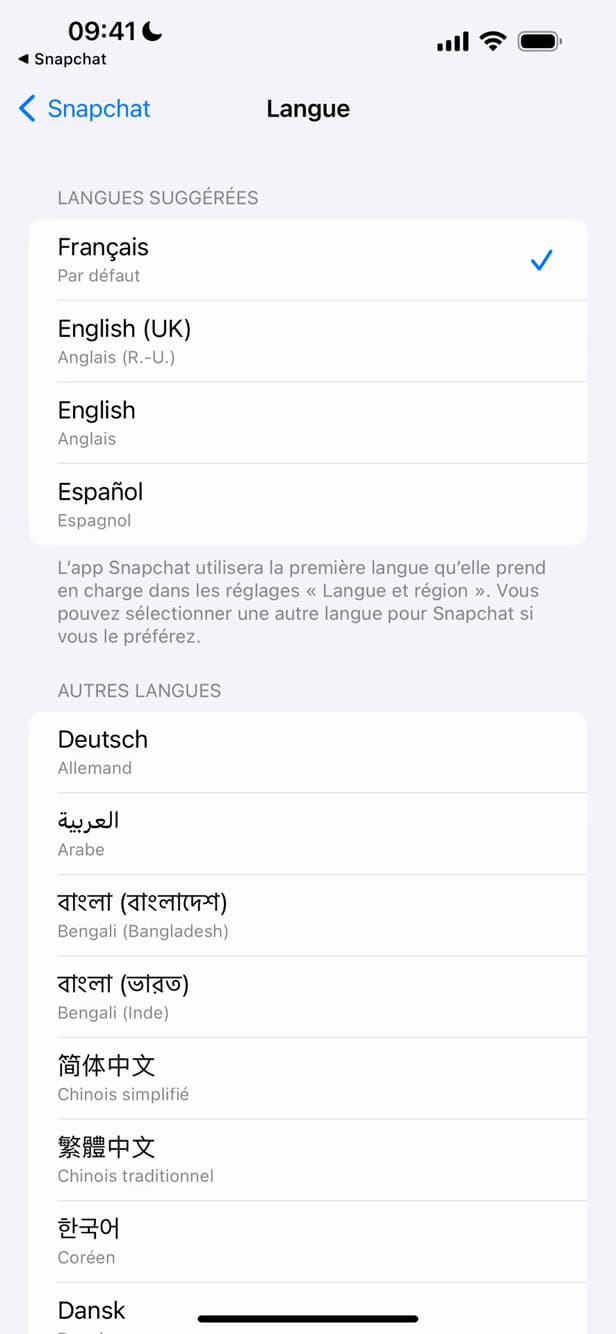
Select the language from the list provided. Under "Suggested languages" or "Other languages", select the one you want (e.g. "English").
The language is applied
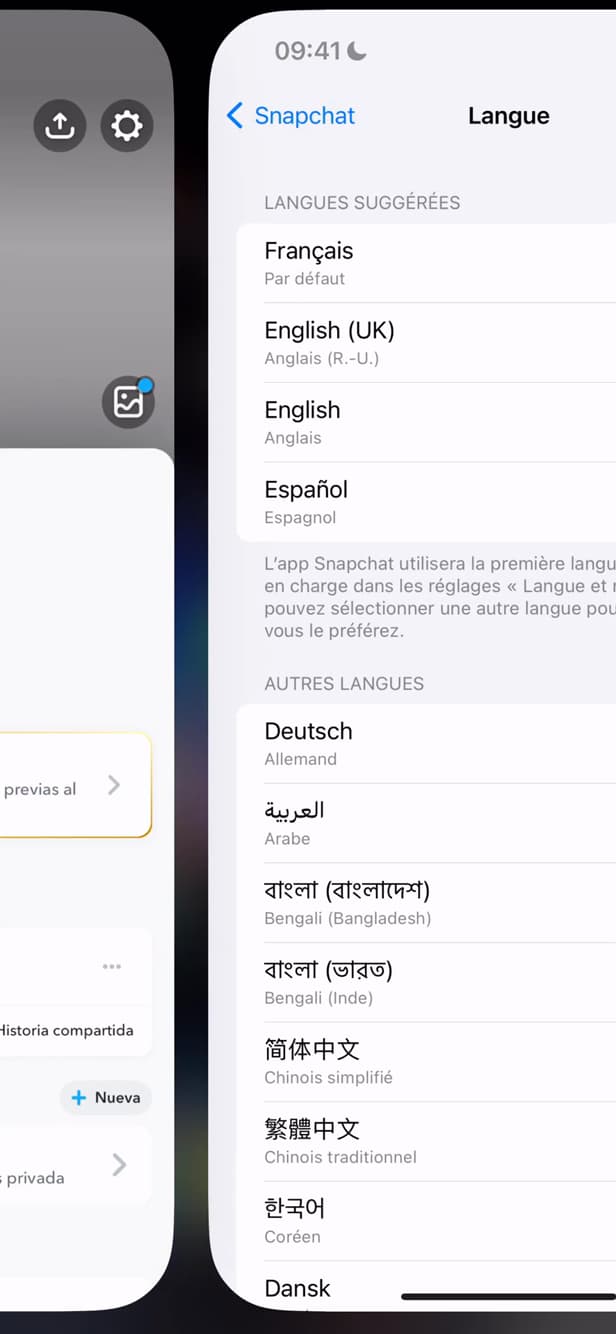
The new language applies to the app immediately. Snapchat switches straight away to the "language you chose".
Good to know
Snapchat now displays in the "language you chose", throughout the app. The setting is "specific to Snapchat" and doesn't affect your other apps.
Good to know
- This setting changes "only Snapchat": your phone's language stays the same.
- Some languages go through your device's "system settings".
- The change is "instant", with no need to restart the app.
Frequently asked questions
- Does changing Snapchat's language affect my phone?
- No. The setting applies only to Snapchat; your system language stays the same.
- Do I need to restart the app?
- No. The new language takes effect immediately, without closing and reopening Snapchat.
- Why do some languages send me to the phone's settings?
- On some devices, the app's language follows the system: Snapchat then sends you to your iOS/Android settings.
Related tutorials
 SnapchatHow to change your email address on SnapchatWant to change the email linked to your Snapchat account? Here's how to do it, step by step.
 SnapchatHow to Create a Group Chat on SnapchatWant to chat with several people on Snapchat? Here's how to create a group, step by step.
 SnapchatHow to Identify a Song on SnapchatIs music playing around you? Here's how to identify it with Snapchat (Shazam), step by step.
 SnapchatHow to Set the Snap Timer on SnapchatWant to choose how long a Snap stays on screen? Here's how to set its duration, step by step.