
How to Create a Group Chat on Snapchat
Want to plan an outing or chat with several friends at once? You can create a group chat on Snapchat (up to 200 people) in just a few taps. Here's how to do it, step by step.
Prefer a video? Watch the full tutorial below.
Creating a group chat on Snapchat, step by step
Open a new chat
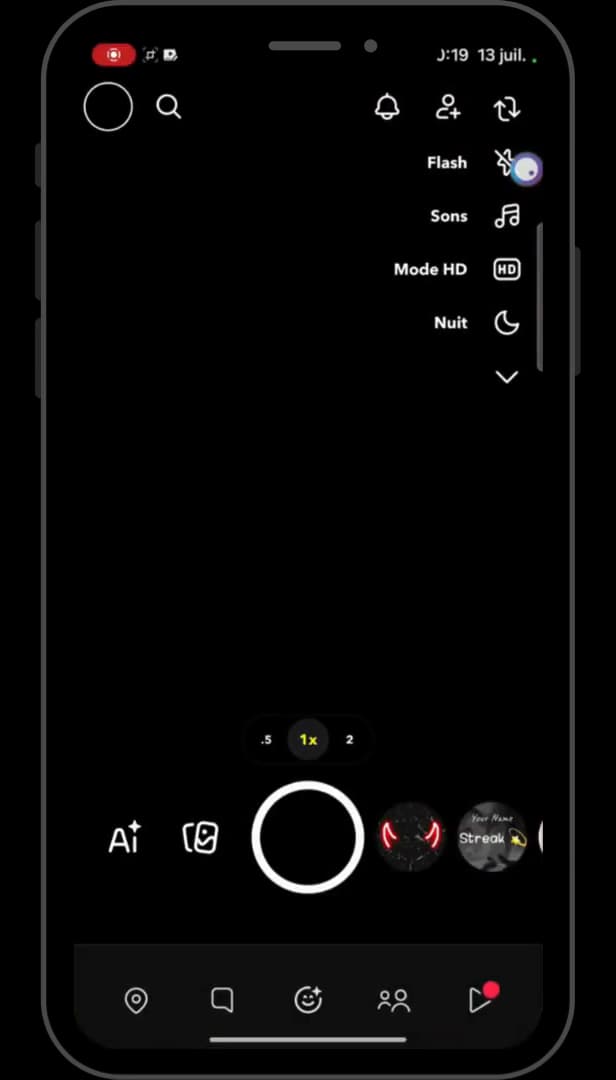
"New chat" lets you start a conversation or a group. On the "Chat" screen, tap the "new chat" icon (speech bubble) in the top right.
Select "New Group"

"New Group" lets you choose the participants. Tap "New Group", then check the friends you want to add (up to 200).
Name the group

"Chat with Group" creates the group conversation. Give the group a "name" (optional), then tap "Chat with Group".
Good to know
Your group is created: everyone can "chat, send Snaps" and see the messages. On Snapchat, group messages "disappear" by default after being viewed.
Good to know
- A Snapchat group holds up to "200 members".
- Snaps sent to the group "disappear" once seen by everyone (or after 24h).
- Any member can "add" other friends or "leave" the group.
Frequently asked questions
- How many people can be in a Snapchat group?
- A group can have up to 200 members.
- Do group messages disappear?
- Yes. Like other Snapchat chats, messages disappear by default after being viewed (or after 24 hours).
- Can you add members after creating the group?
- Yes. From the chat, open the group info to add new friends at any time.
Related tutorials
 SnapchatHow to create a second Snapchat accountWant a second Snapchat account? Here's how to create one and switch between your accounts, step by step.
 SnapchatHow to Create a Custom Sticker on SnapchatWant to turn a photo into a sticker on Snapchat? Here's how to cut out your own sticker, step by step.
 SnapchatHow to change your email address on SnapchatWant to change the email linked to your Snapchat account? Here's how to do it, step by step.
 SnapchatHow to Change the Language on SnapchatIs Snapchat in the wrong language? Here's how to change the app's language, step by step.