
How to change your email address on Snapchat
Changed addresses or want to secure your account? You can change your email address on Snapchat from the settings. Here's how to do it, step by step.
Prefer a video? Watch the full tutorial below.
Changing your email address on Snapchat, step by step
Open "Email Address"
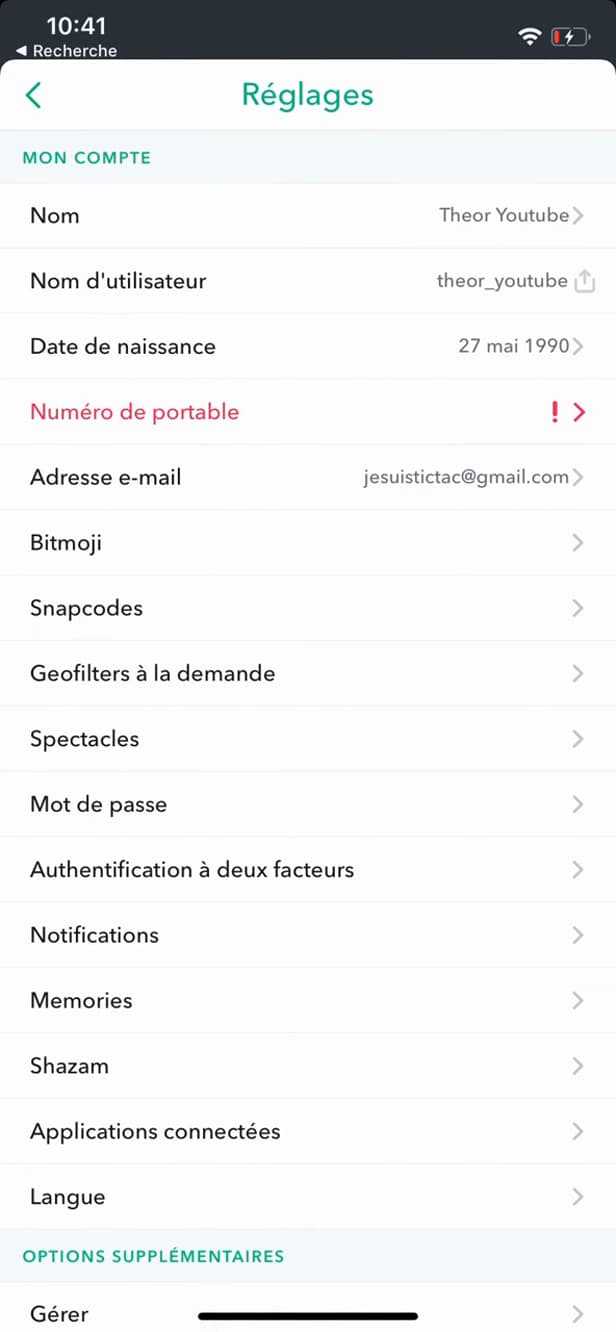
"Email Address" shows and lets you change your email. On your profile, open Settings (⚙️) and tap "Email Address".
Enter the new address
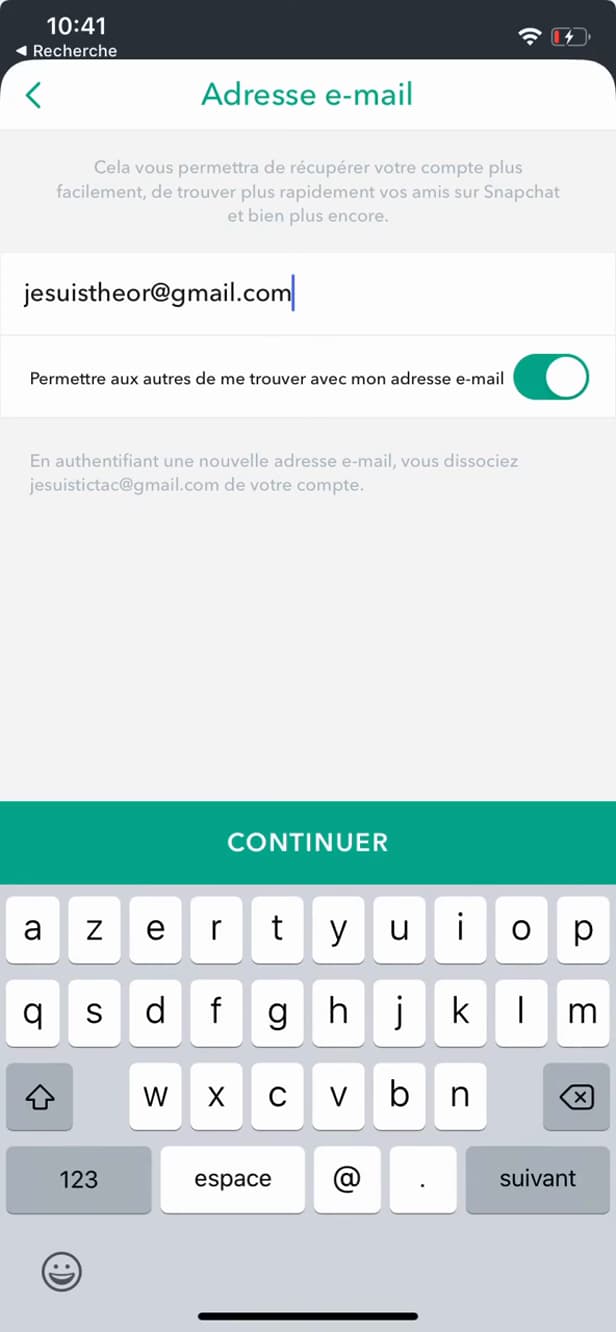
"Continue" submits the new address to be verified. Enter the new email address, then tap "Continue".
Verify your email
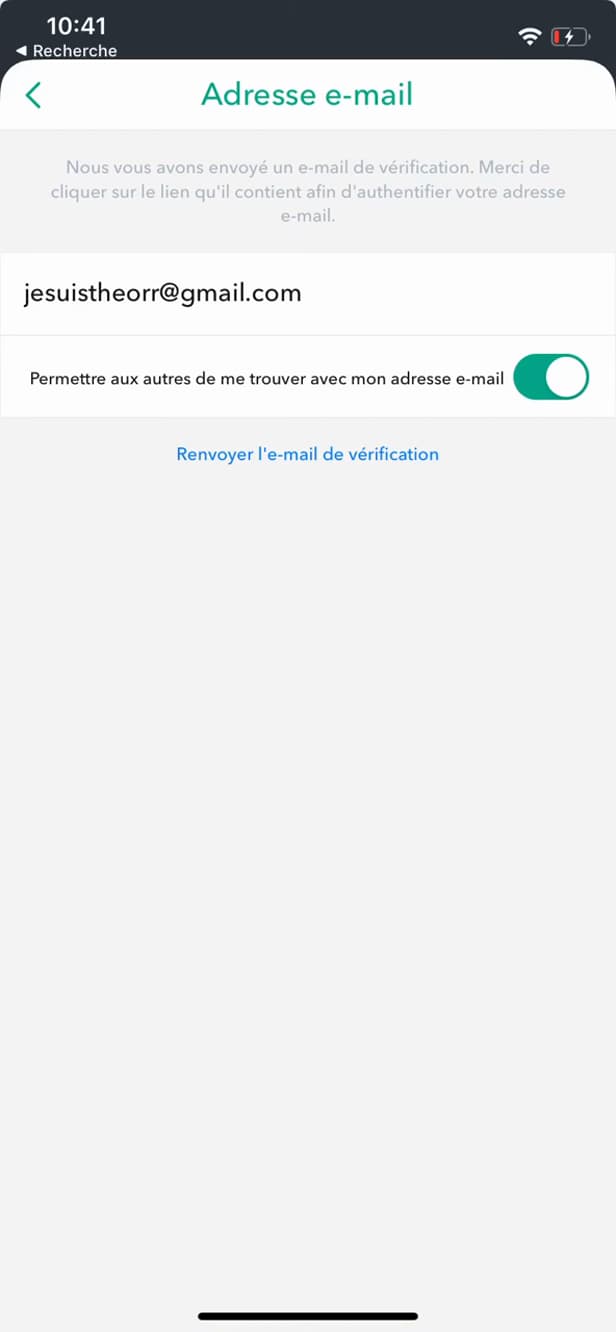
The link received by email confirms your new address. Snapchat sends a verification email: open it and click the link to confirm.
Good to know
Your new address is saved once verified. This email is used to recover your account and to receive security alerts.
Good to know
- Until you click the link, the old address stays active.
- Snapchat may ask for your password to confirm the change.
- An up-to-date address is essential for recovering a lost account.
Frequently asked questions
- Do I have to verify the new address?
- Yes. Snapchat sends a verification email: until you click the link, the new address isn't confirmed.
- Will Snapchat ask for my password?
- Often, yes: for security, Snapchat may require your password before saving a new email.
- What is the email used for on Snapchat?
- It lets you recover your account, reset your password and receive security notifications.
Related tutorials
 SnapchatHow to Change the Language on SnapchatIs Snapchat in the wrong language? Here's how to change the app's language, step by step.
 SnapchatHow to Create a Group Chat on SnapchatWant to chat with several people on Snapchat? Here's how to create a group, step by step.
 SnapchatHow to Identify a Song on SnapchatIs music playing around you? Here's how to identify it with Snapchat (Shazam), step by step.
 SnapchatHow to Set the Snap Timer on SnapchatWant to choose how long a Snap stays on screen? Here's how to set its duration, step by step.