
How to turn off Restricted Mode on YouTube mobile
Some videos not showing up or blurred on YouTube? That's the family filter. You can turn off Restricted Mode on YouTube in seconds from the app. Here's how to do it, step by step.
Prefer a video? Watch the full tutorial below.
Turning off Restricted Mode on YouTube, step by step
Open your Settings
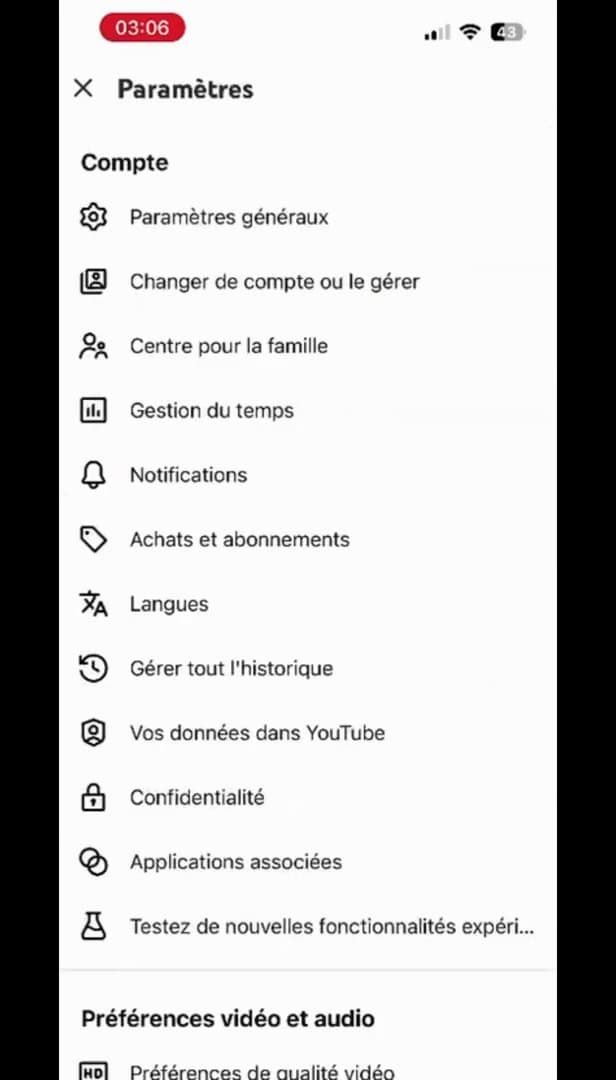
Open "Settings" from your profile photo. Open YouTube, tap your profile photo in the top right, then "Settings".
Open "General"
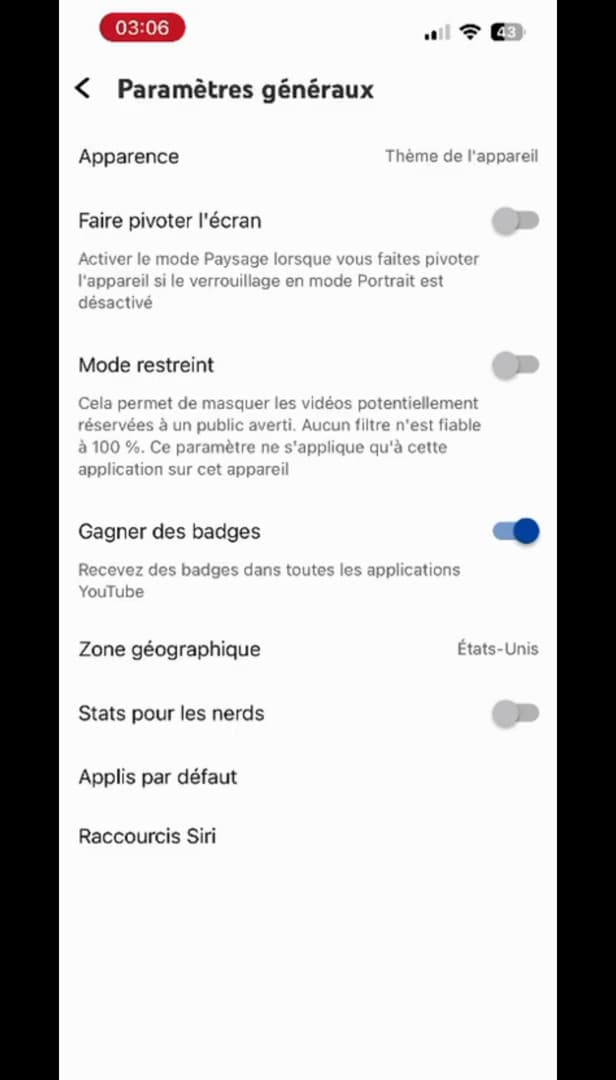
The "Restricted Mode" option is under "General". In settings, open "General". That's where you'll find the "Restricted Mode" option.
Turn off "Restricted Mode"
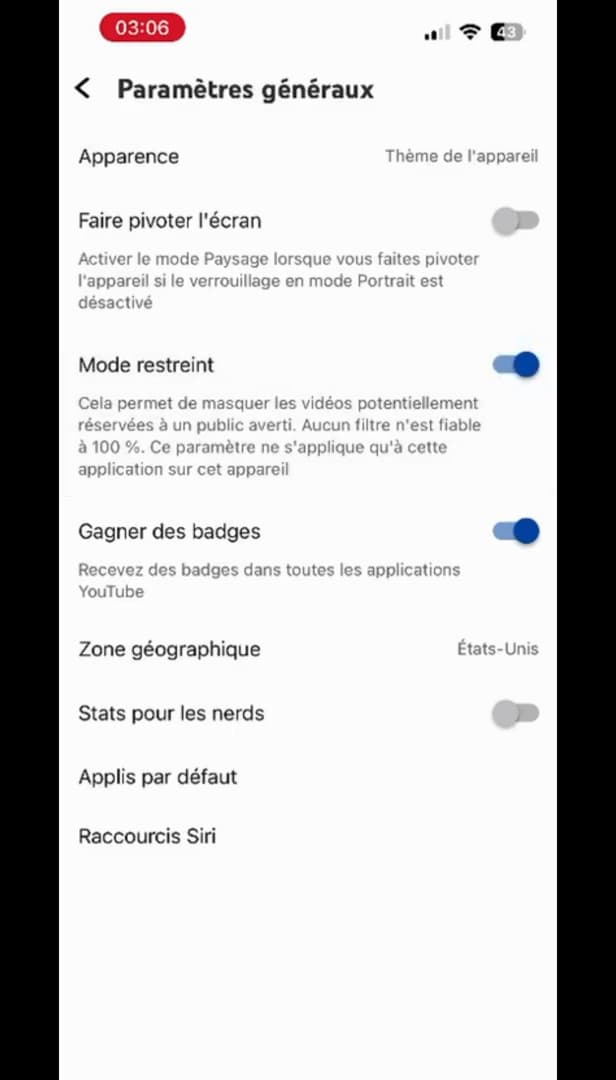
Set "Restricted Mode" to gray to show everything again. Tap the "Restricted Mode" toggle to turn it off (it turns gray). All videos reappear.
Good to know
Restricted Mode is off: YouTube no longer applies a filter and shows all videos again. This setting is specific to this device and this account.
Good to know
- Restricted Mode is set per device: repeat the steps on your other screens if needed.
- On a school or company network, the filter may be enforced and can't be turned off.
- On a supervised (child) account, only the parent can change this setting.
Frequently asked questions
- Restricted Mode keeps coming back, why?
- It may be enforced by the network (school, company) or by parental controls. In those cases, you can't turn it off yourself.
- Does the setting apply everywhere?
- No, it's specific to each device and browser. Turn it off on each screen where you need to.
- Where do I find Restricted Mode on YouTube?
- Profile photo › Settings › General › Restricted Mode.
Related tutorials
 YouTubeHow to change the quality of a YouTube videoIs a YouTube video blurry or using too much data? Here's how to change its quality, step by step.
 YouTubeHow to delete your search history on YouTubeWant to clear your searches and watched videos on YouTube? Here's how to delete your history, step by step.
 YouTubeHow to Find Your YouTube Channel LinkWant to share your YouTube channel link? Here's how to copy it, step by step.
 YouTubeHow to Stop Seeing a YouTube ChannelA YouTube channel bothering you? Here's how to hide it and stop it being recommended, step by step.