
How to delete your search history on YouTube
Want to tidy up or start fresh? You can delete your search history on YouTube (and your watched videos) in just a few taps. Here's how to do it, step by step.
Prefer a video? Watch the full tutorial below.
Deleting your YouTube history, step by step
Open "Your data in YouTube"
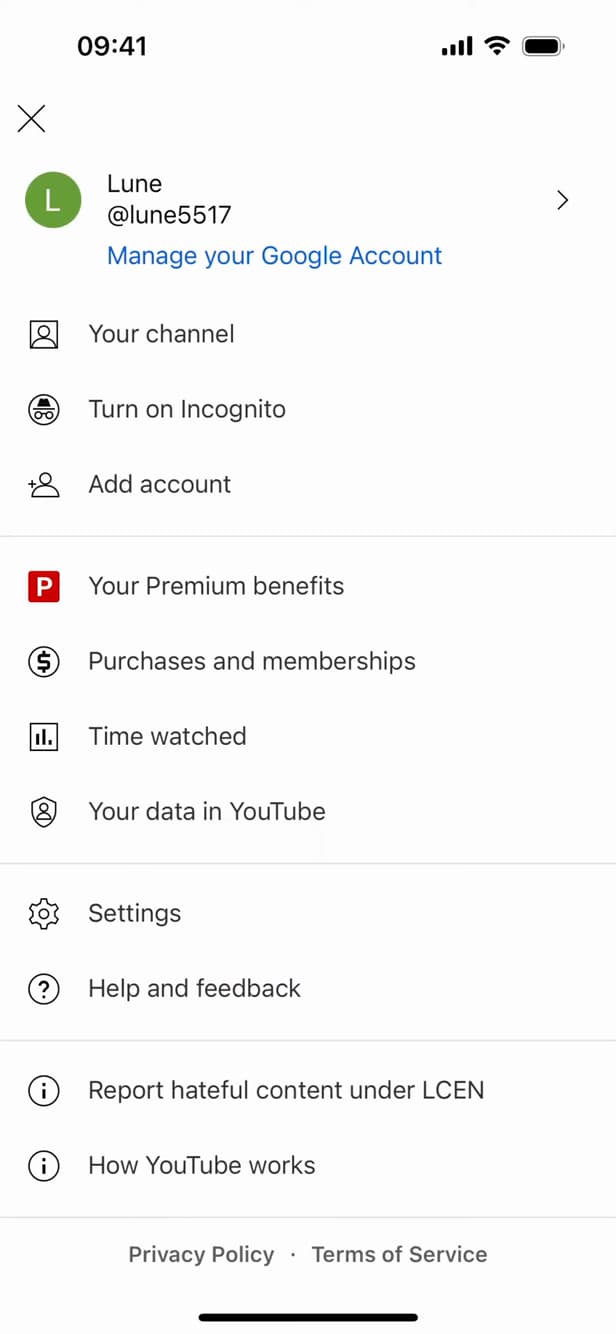
"Your data in YouTube" brings your history together. Tap your "profile picture" in the top right, then "Your data in YouTube".
Open "YouTube History"
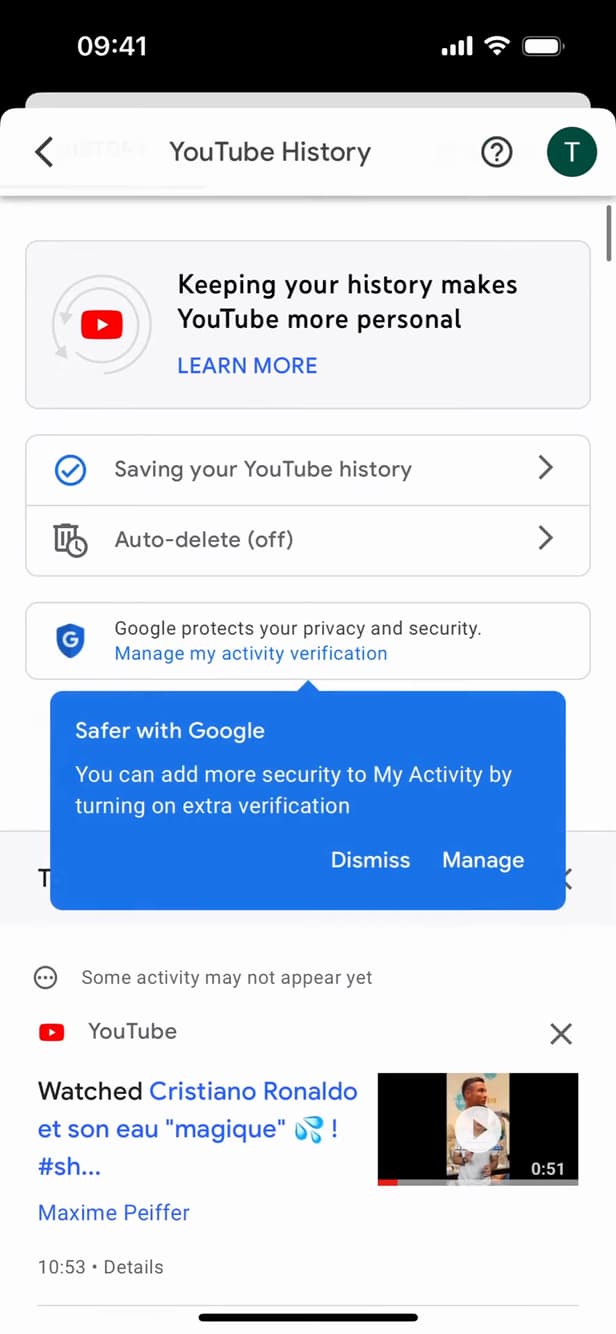
"YouTube History" lists your searches and watched videos. Open "YouTube History". Here you can see your watched videos and your searches.
Delete all history
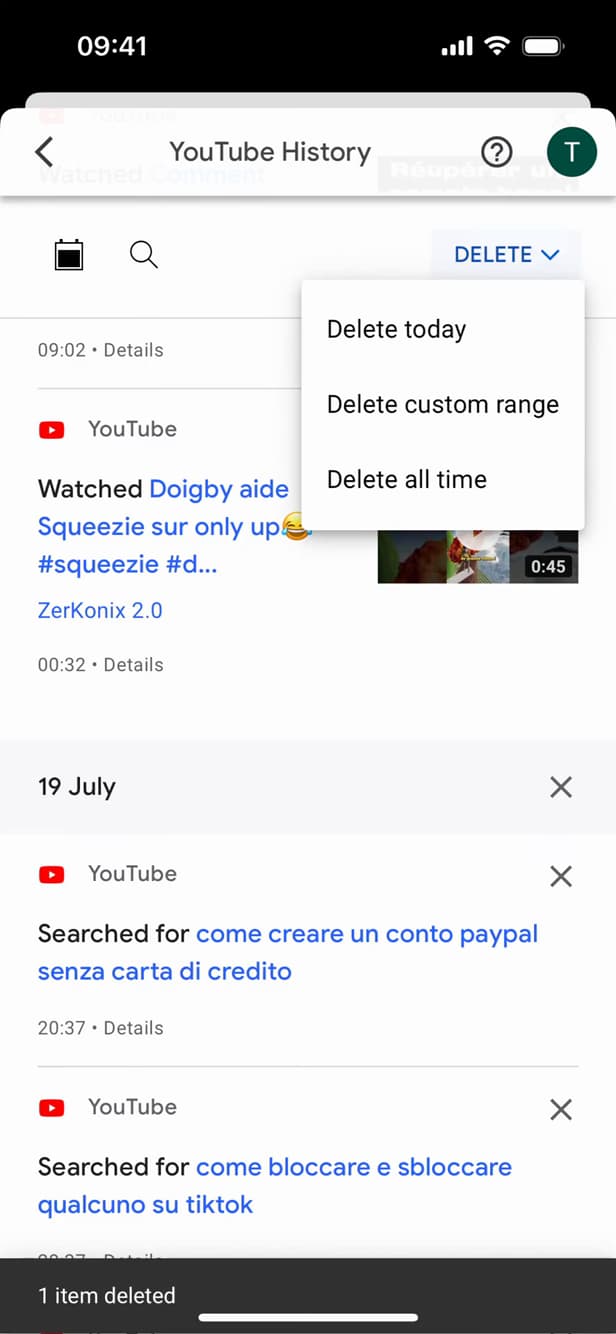
"Delete all time" wipes your entire history. Tap "Delete", then choose "Delete all time" (or a specific period). Confirm.
Good to know
Your history is "cleared". YouTube relies on it for its recommendations: they'll be "reset" for a while. You can also turn on "auto-delete".
Good to know
- "Auto-delete" clears your history every 3, 18 or 36 months.
- You can "pause" your history to stop recording anything.
- Deleting your history temporarily "resets" your recommendations.
Frequently asked questions
- Can I clear only my searches?
- Yes. In the history, you can target the search history specifically, or delete everything at once with "Delete all time".
- How do I avoid saving my history?
- Pause the "Search history" and the "Watch history" in "Your data in YouTube".
- Is the deletion permanent?
- Yes. Once deleted, the history can't be recovered and no longer influences your recommendations.
Related tutorials
 YouTubeHow to change the quality of a YouTube videoIs a YouTube video blurry or using too much data? Here's how to change its quality, step by step.
 YouTubeHow to Find Your YouTube Channel LinkWant to share your YouTube channel link? Here's how to copy it, step by step.
 YouTubeHow to Stop Seeing a YouTube ChannelA YouTube channel bothering you? Here's how to hide it and stop it being recommended, step by step.
 YouTubeHow to turn off Restricted Mode on YouTube mobileAre videos hidden on YouTube? Here's how to turn off Restricted Mode on mobile, step by step.