
How to Find Your YouTube Channel Link
Want to share your channel on social media or your business cards? You can find your YouTube channel link and copy it in a few taps. Here's how, step by step.
Prefer a video? Watch the full tutorial below.
Finding your YouTube channel link, step by step
Open your channel
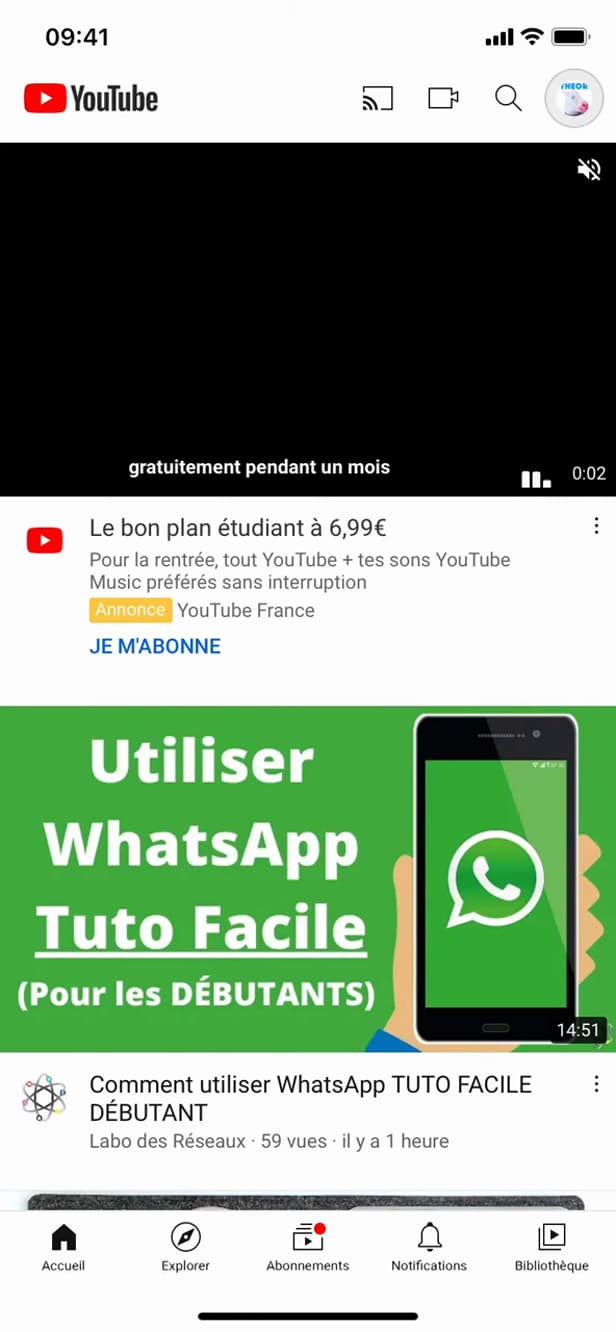
"Your channel" opens the public page of your channel. Tap your "profile picture" › "Your channel" to open the channel page.
Open "Share"
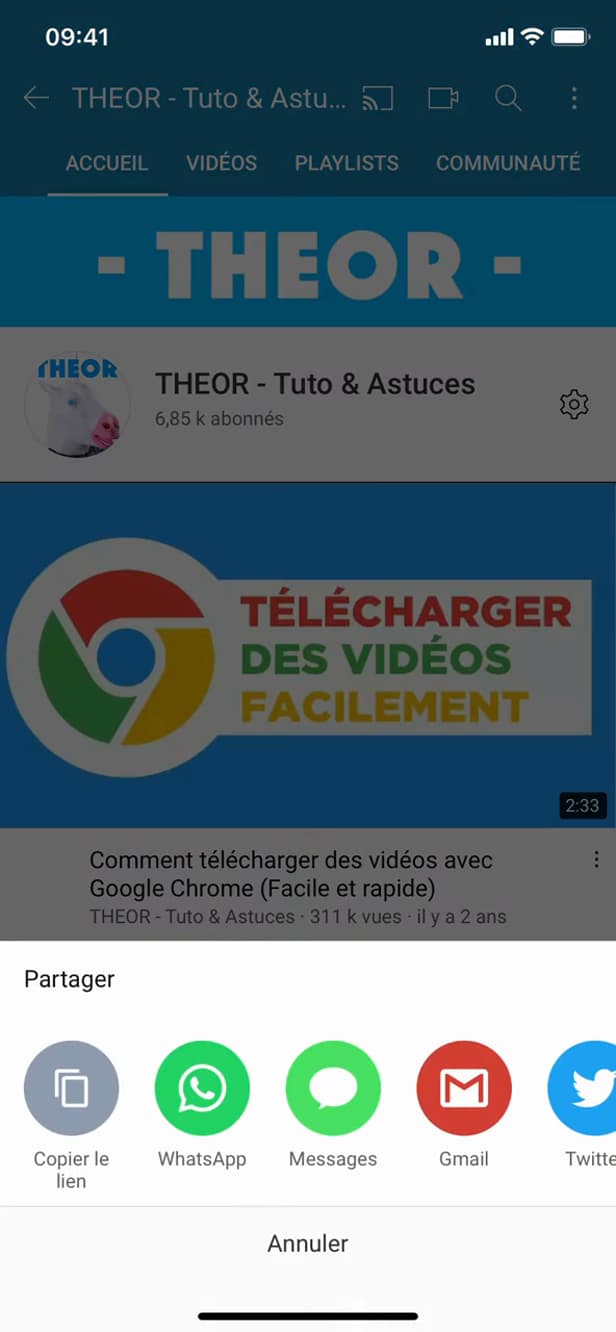
"Share channel" opens the options for sending the link. Tap "⋯" (or the "Share" button), then choose "Share channel".
Copy the link
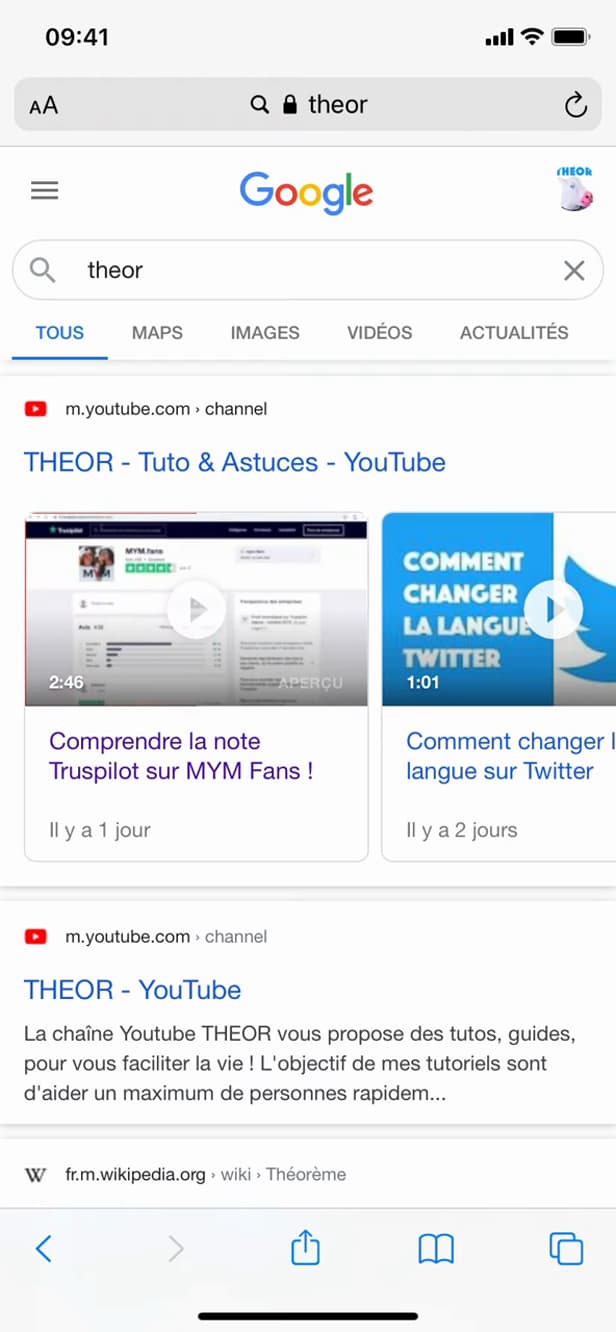
"Copy link" puts the channel's URL on your clipboard. Tap "Copy link": the channel's URL is now on your clipboard.
Good to know
You now have the "direct link" to your channel, ready to be "pasted" anywhere. YouTube also offers a "custom handle" (@username) that's easier to remember.
Good to know
- A "@handle" gives you a short link like youtube.com/@yourhandle.
- You can share the channel "directly" to another app via "Share".
- The link works the same on "mobile" and on "desktop".
Frequently asked questions
- How do I get a shorter link for my channel?
- Set a custom handle (@username) in your channel settings: your link becomes youtube.com/@yourhandle.
- Is the channel link the same everywhere?
- Yes. The copied link works on mobile and desktop and leads to the same channel page.
- Can I share my channel without copying the link?
- Yes. The "Share" menu lets you send the channel straight to another app (messages, social media, etc.).
Related tutorials
 YouTubeHow to Stop Seeing a YouTube ChannelA YouTube channel bothering you? Here's how to hide it and stop it being recommended, step by step.
 YouTubeHow to change the quality of a YouTube videoIs a YouTube video blurry or using too much data? Here's how to change its quality, step by step.
 YouTubeHow to delete your search history on YouTubeWant to clear your searches and watched videos on YouTube? Here's how to delete your history, step by step.
 YouTubeHow to turn off Restricted Mode on YouTube mobileAre videos hidden on YouTube? Here's how to turn off Restricted Mode on mobile, step by step.