
How to Share Your Location on WhatsApp
Want to show a friend where you are, or share your route in real time? WhatsApp lets you share your location in seconds, on both iPhone and Android. You can send your current position or turn on live sharing so the person can follow you on a map. Here's how to do it, step by step.
Prefer a video? Watch the full tutorial below.
Sharing your location on WhatsApp, step by step
Open the chat in WhatsApp

Start by opening the relevant chat in WhatsApp. Launch "WhatsApp" and open the "chat" with the person you want to send your location to.
Open location sharing
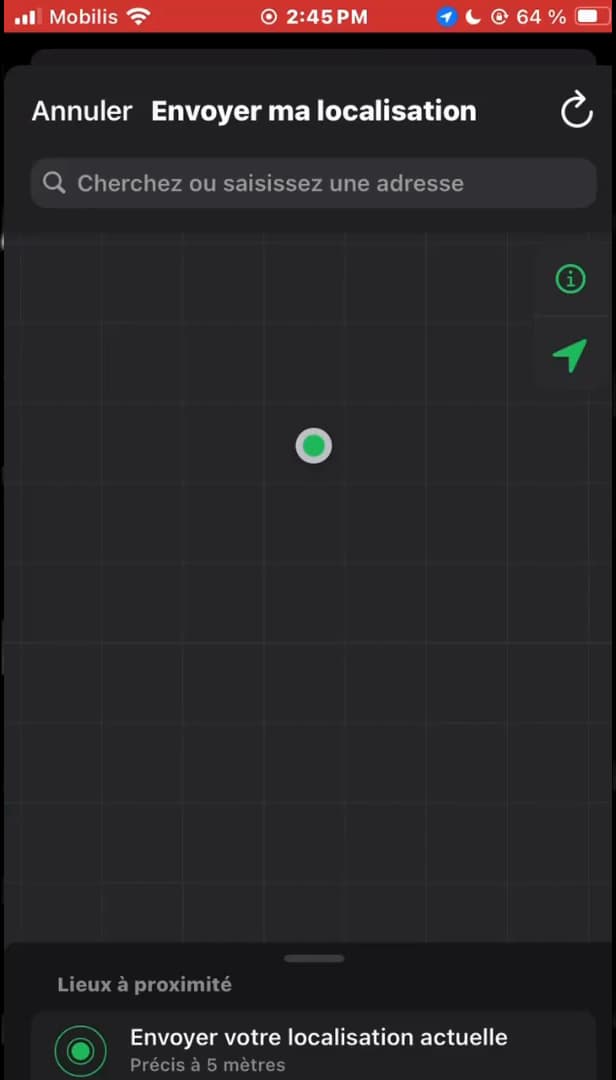
The "Location" option opens a map centered on your position. Tap the "paperclip" icon (Android) or the "+" at the bottom left (iPhone), then choose "Location." If WhatsApp asks, "allow" access to your location.
Choose and send your location
Choose your current location or live sharing, then send. Tap "Send your current location" to share where you are, or "Share live location" if you want the person to follow you in real time. Your location is sent to the chat right away.
Good to know
"Live sharing" stops automatically after the duration you choose (15 minutes, 1 hour or 8 hours), and you can "stop it at any time" from the chat.
Good to know
- Live location requires your phone's "GPS" to be turned on.
- The person doesn't need to share their location back.
- To stop sharing, open the chat and tap "Stop sharing."
Frequently asked questions
- What's the difference between current location and live location?
- Current location sends a fixed point at that moment. Live location updates your position in real time for a set duration, ideal for a journey.
- Can the person track me indefinitely?
- No. Live sharing stops automatically after the duration you choose, and you can stop it whenever you want.
- How do I share my location on iPhone?
- Open the chat, tap the + at the bottom left, choose Location, allow access, then send your current or live location.
Related tutorials
 WhatsAppHow to send a voice message on WhatsAppWant to send a voice note instead of typing? Here's how to record and send a WhatsApp voice message, step by step.
 WhatsAppHow to Send Strikethrough Text on WhatsAppWant to strike through text in a WhatsApp message? Here are both methods, step by step.
 WhatsAppHow to Delete a Chat on WhatsAppWant to clear a WhatsApp conversation? Here's how to delete it, step by step.
 WhatsAppHow to Lock WhatsApp With Face IDWant to protect WhatsApp with a passcode or Face ID? Here's how to enable app lock, step by step.