
How to Lock WhatsApp With Face ID
Want to make sure no one can open your chats without your permission? You can lock WhatsApp with Face ID, Touch ID (or your phone's passcode). Here's how to do it, step by step.
Prefer a video? Watch the full tutorial below.
Locking WhatsApp with Face ID, step by step
Open "Privacy"
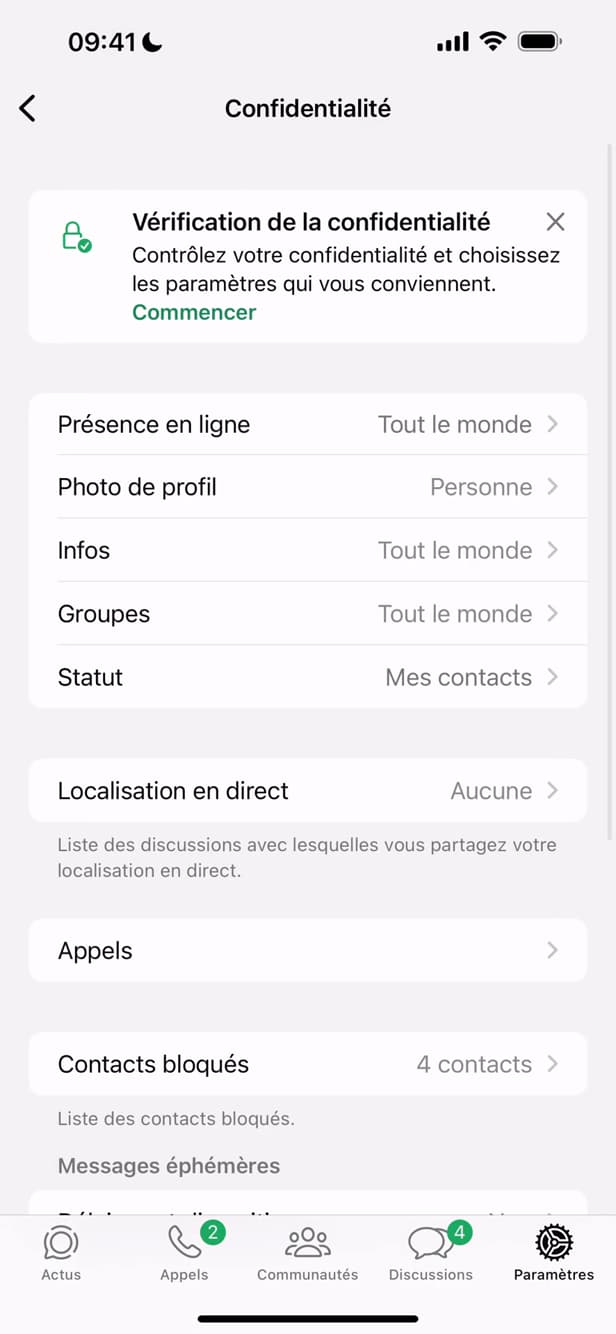
The "Privacy" section contains the app lock. In WhatsApp, go to "Settings" › "Privacy."
Open "App Lock"
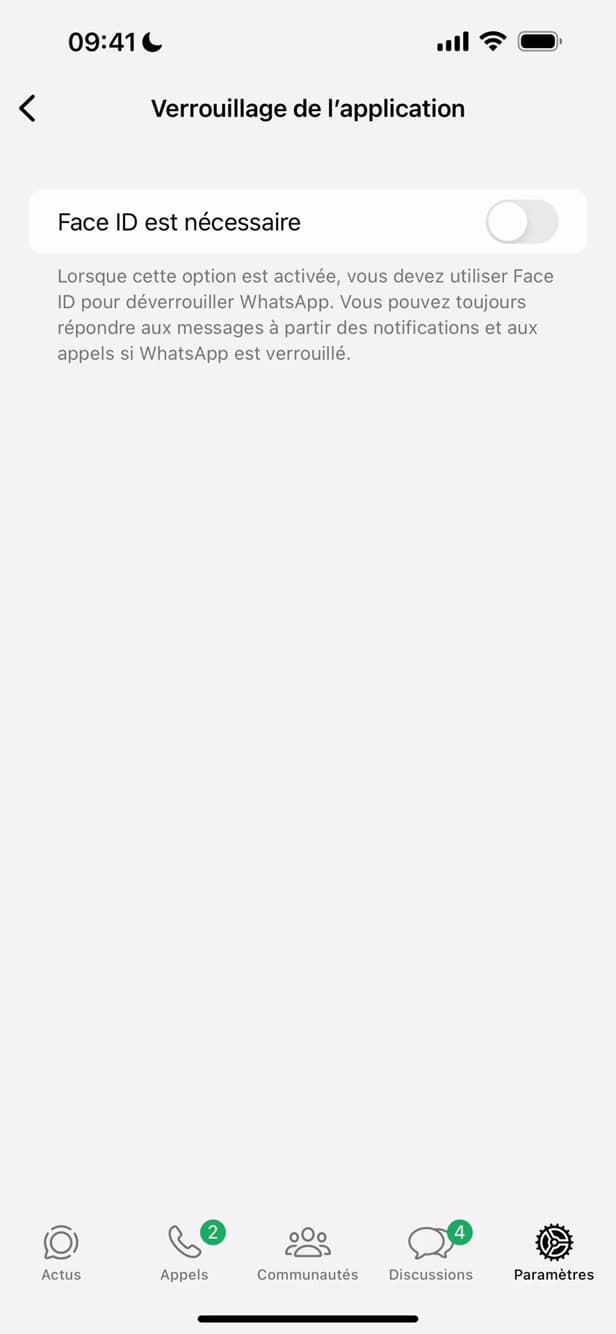
"App Lock" protects WhatsApp with Face ID. Scroll down to "App Lock" and open it.
Turn on "Require Face ID"
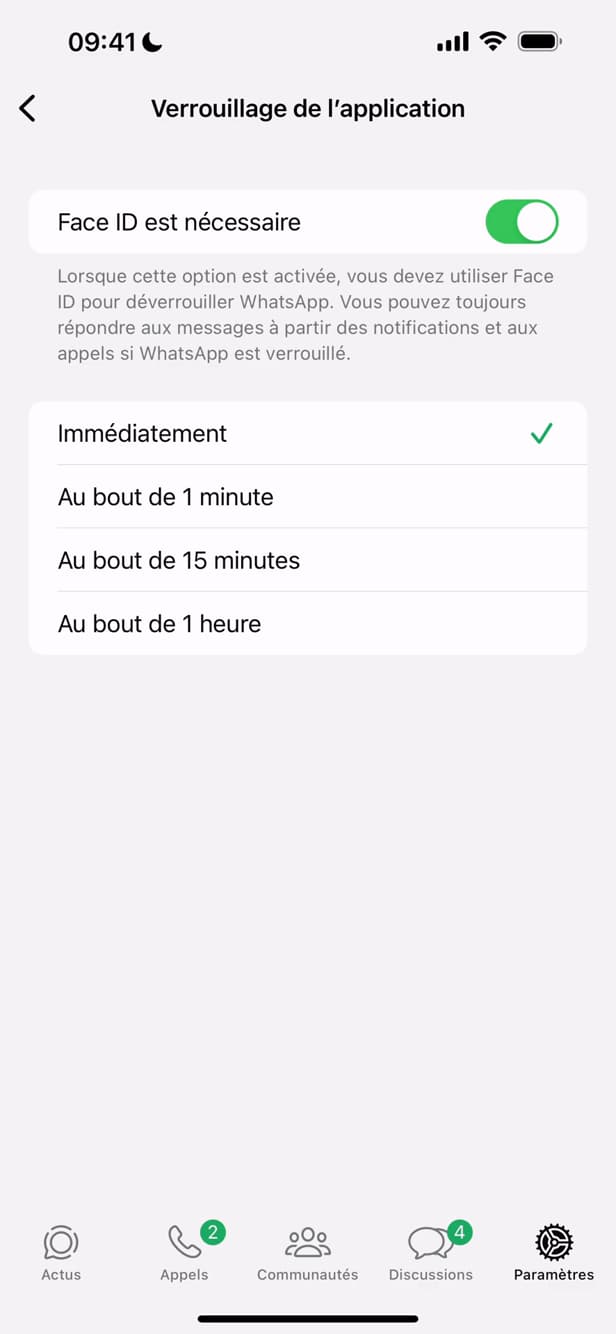
Choose how long before WhatsApp asks for Face ID again. Turn the option on and pick the timing: "Immediately," "After 1 minute," "After 15 minutes," or "After 1 hour."
Good to know
WhatsApp now asks for "Face ID" (or Touch ID / your device passcode) when it opens. Your chats stay "protected" even if someone gets into your unlocked phone.
Good to know
- WhatsApp uses your device's "Face ID / Touch ID": there's no separate WhatsApp passcode.
- You can still "reply" to notifications and take calls without unlocking.
- The "Immediately" timing is the safest: it locks as soon as you leave the app.
Frequently asked questions
- Does WhatsApp have its own passcode?
- No. The lock relies on your phone's Face ID, Touch ID, or passcode. WhatsApp doesn't create a separate code.
- Will I still see notifications?
- Yes. You can reply to messages from notifications and take calls without unlocking the app.
- What if Face ID doesn't work?
- The device automatically falls back to your phone's passcode as a backup way to unlock WhatsApp.
Related tutorials
 WhatsAppHow to Delete a Chat on WhatsAppWant to clear a WhatsApp conversation? Here's how to delete it, step by step.
 WhatsAppHow to Block Someone on WhatsAppWant to stop a contact from reaching you on WhatsApp? Here's how to block them, step by step.
 WhatsAppHow to Download Animated Stickers on WhatsAppWant to add animated stickers on WhatsApp? Here's how to download them, step by step.
 WhatsAppHow to Go Offline on WhatsAppWant to hide your online status on WhatsApp? Here's how to hide your "Last seen", step by step.