
How to Delete a Chat on WhatsApp
Want to tidy up your conversations? You can delete a chat on WhatsApp in just a few taps. Here's how to do it, step by step.
Prefer a video? Watch the full tutorial below.
Deleting a chat on WhatsApp, step by step
Swipe on the chat
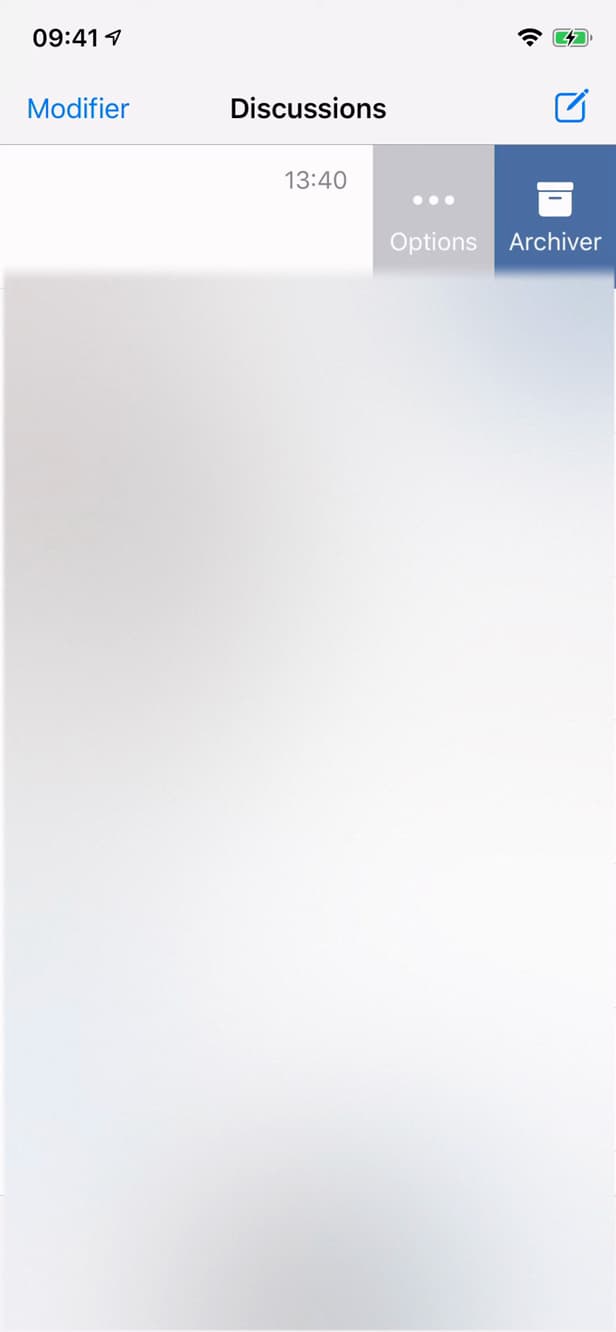
Swiping reveals "Options" and "Archive". In the "Chats" tab, swipe the conversation to the left, then tap "Options".
Choose "Delete chat"
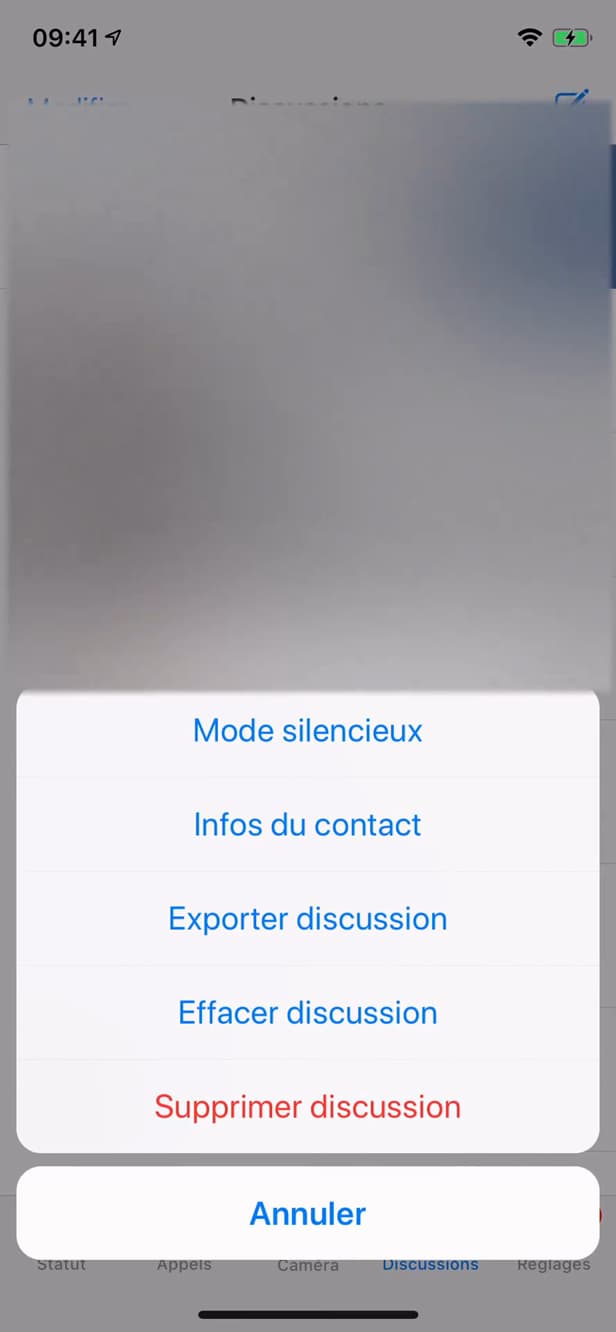
"Delete chat" removes the conversation from your device. In the menu, tap "Delete chat".
Confirm
The confirmation prevents any accidental deletion. Confirm with "Delete chat" to finish.
Good to know
The chat is "deleted" from your phone. Be careful: this does "not" erase the conversation on the other person's side, and the messages are lost for you.
Good to know
- Deleting only affects "your device": the other person keeps the conversation.
- Prefer "Archive" if you just want to "hide" the chat without erasing it.
- A backup (iCloud/Google Drive) may let you "restore" old messages.
Frequently asked questions
- Does deleting a chat erase it on the other person's side?
- No. Deleting only affects your device; the other person keeps the conversation on their side.
- What's the difference between archiving and deleting?
- Archiving hides the chat without erasing the messages. Deleting permanently removes the conversation from your phone.
- Can you recover a deleted chat?
- Only by restoring an earlier backup (iCloud or Google Drive) where the conversation still existed.
Related tutorials
 WhatsAppHow to delete a contact on WhatsAppWant to remove a contact from WhatsApp? Here's how to delete it cleanly from its info page, step by step.
 WhatsAppHow to Lock WhatsApp With Face IDWant to protect WhatsApp with a passcode or Face ID? Here's how to enable app lock, step by step.
 WhatsAppHow to Block Someone on WhatsAppWant to stop a contact from reaching you on WhatsApp? Here's how to block them, step by step.
 WhatsAppHow to Download Animated Stickers on WhatsAppWant to add animated stickers on WhatsApp? Here's how to download them, step by step.