
How to send a voice message on WhatsApp
Faster than typing, more personal than a text: you can send a voice message on WhatsApp by holding a single button. Here's how to do it, step by step.
Prefer a video? Watch the full tutorial below.
Sending a WhatsApp voice message, step by step
Find the microphone icon
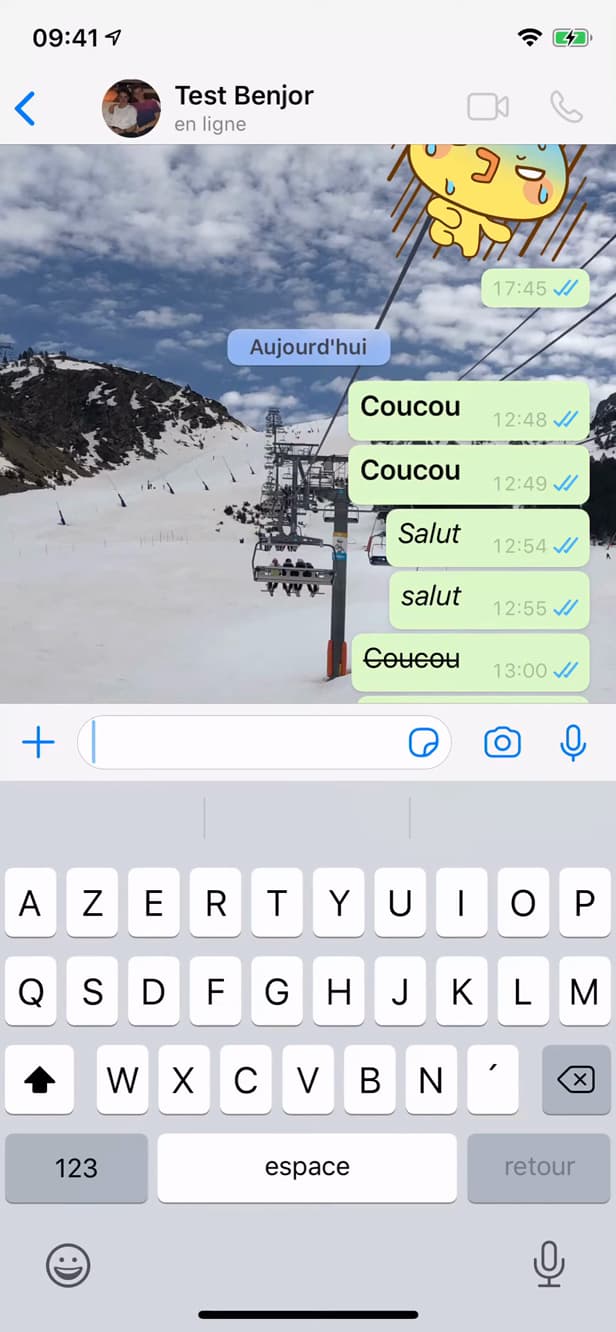
The microphone icon appears when the text box is empty. Open the chat. To the right of the text box (when it's empty), you'll find the microphone icon.
Hold and speak
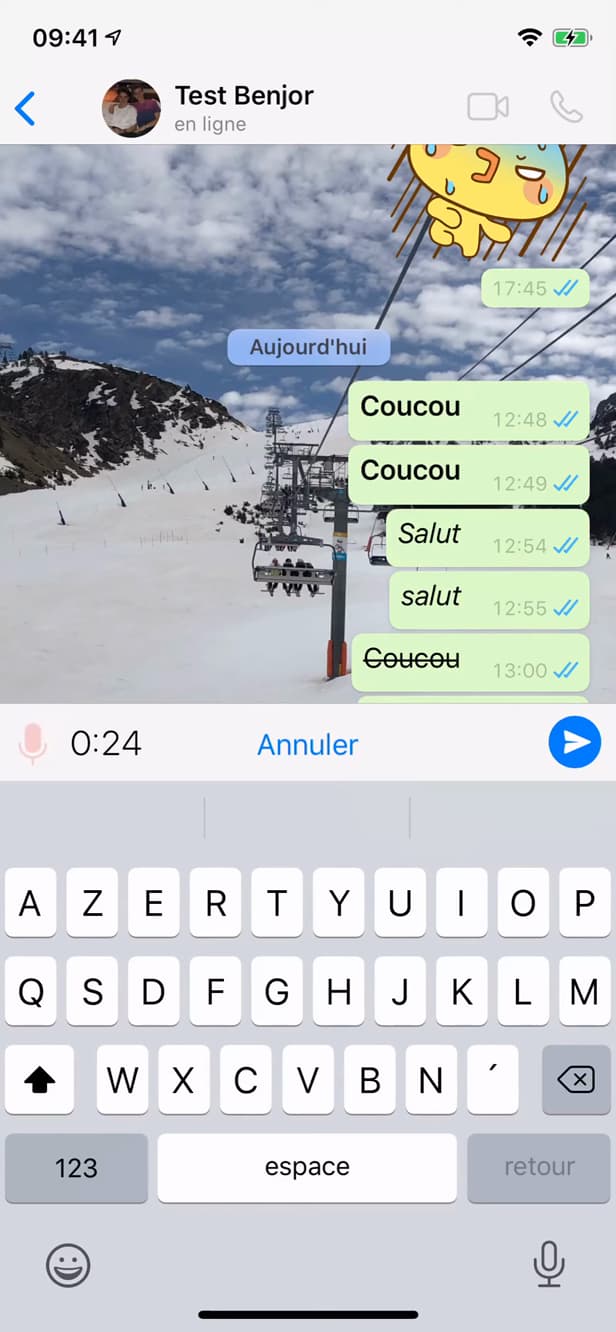
Hold the microphone to record; slide up to lock it. Press and hold the microphone and speak. Slide up to lock hands-free recording.
Release to send
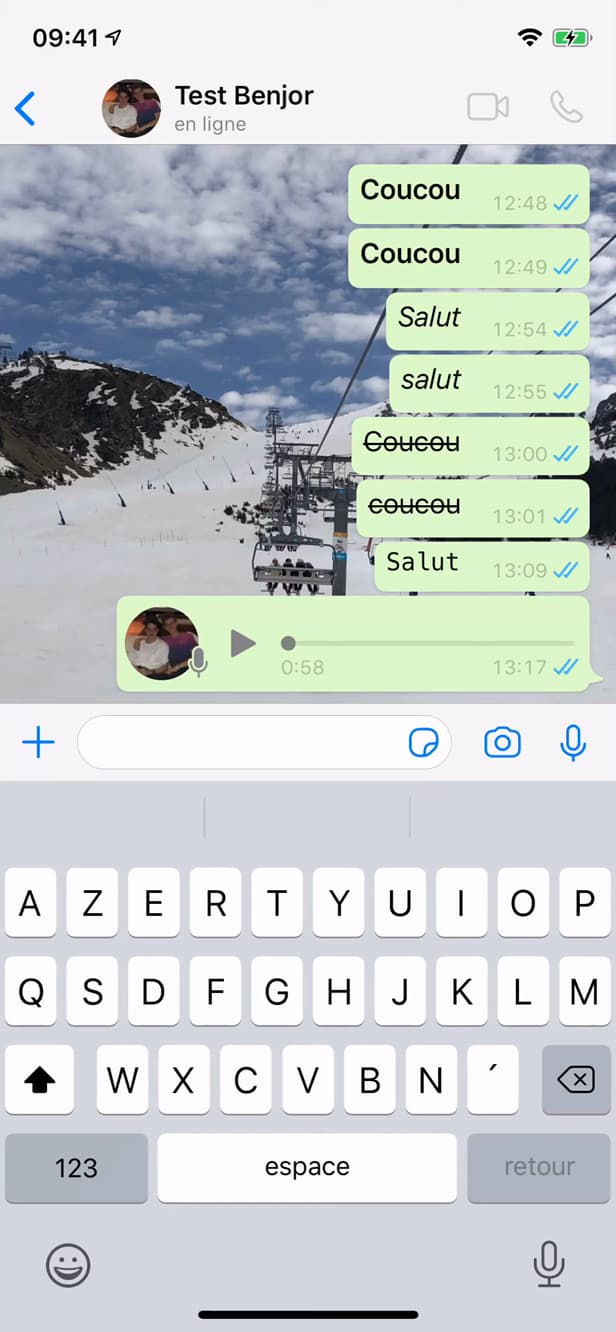
Release to send; slide left to cancel. Release the microphone (or tap "Send" if locked). The voice message goes out right away.
Good to know
Your voice message is sent. To cancel it while recording, slide left. The recipient can play it back at their preferred speed.
Good to know
- Slide up to lock and record without keeping your finger held down.
- Slide left while recording to cancel it.
- You can listen back to a voice note before sending when the recording is locked.
Frequently asked questions
- How do I record without holding my finger down?
- Hold the microphone, then slide up to lock it. You can then let go and speak hands-free.
- How do I cancel a voice note in progress?
- Slide left while holding the microphone: the recording is canceled and nothing is sent.
- Can you listen back before sending?
- Yes, when the recording is locked: tap play to hear yourself, then send or delete.
Related tutorials
 WhatsAppHow to Send Strikethrough Text on WhatsAppWant to strike through text in a WhatsApp message? Here are both methods, step by step.
 WhatsAppHow to Share Your Location on WhatsAppNeed to share where you are? Here's how to send your location on WhatsApp, on iPhone and Android, in seconds.
 WhatsAppHow to Delete a Chat on WhatsAppWant to clear a WhatsApp conversation? Here's how to delete it, step by step.
 WhatsAppHow to Lock WhatsApp With Face IDWant to protect WhatsApp with a passcode or Face ID? Here's how to enable app lock, step by step.