
How to Save WhatsApp Photos to Your Gallery
Can't find the photos you receive on WhatsApp in your gallery? You can save WhatsApp photos automatically to your camera roll with one setting. Here's how, step by step.
Prefer a video? Watch the full tutorial below.
Saving WhatsApp photos to your gallery, step by step
Open Settings
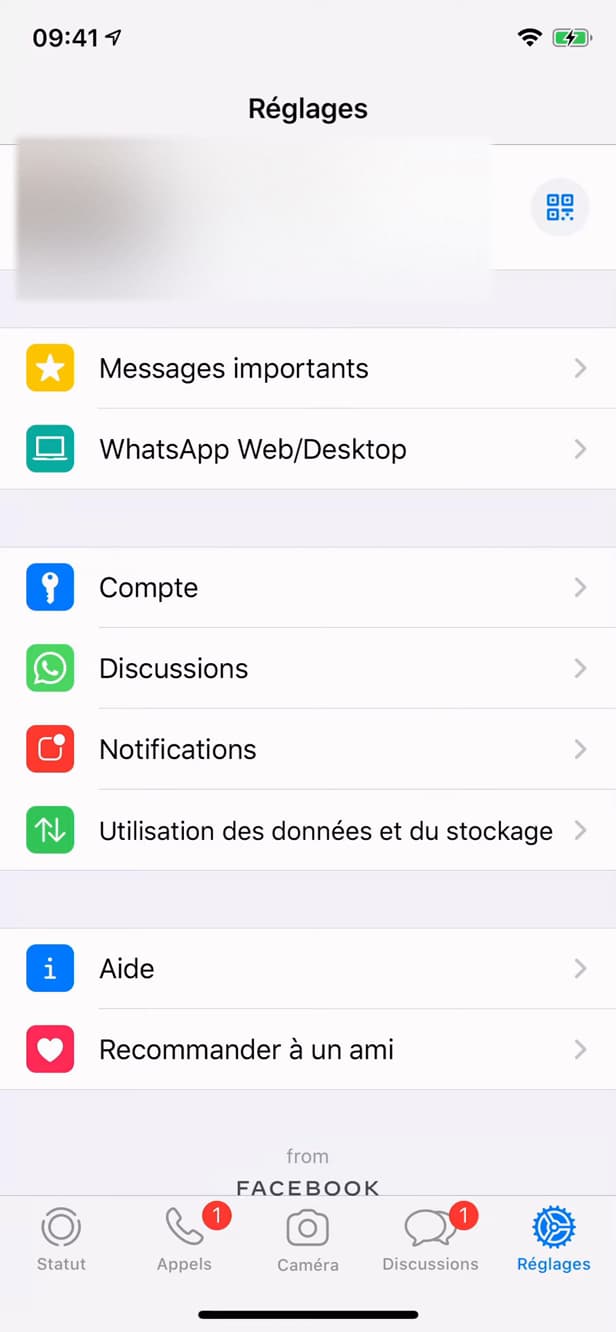
Open WhatsApp Settings. Open "Settings" (bottom right) in WhatsApp.
Open "Chats"
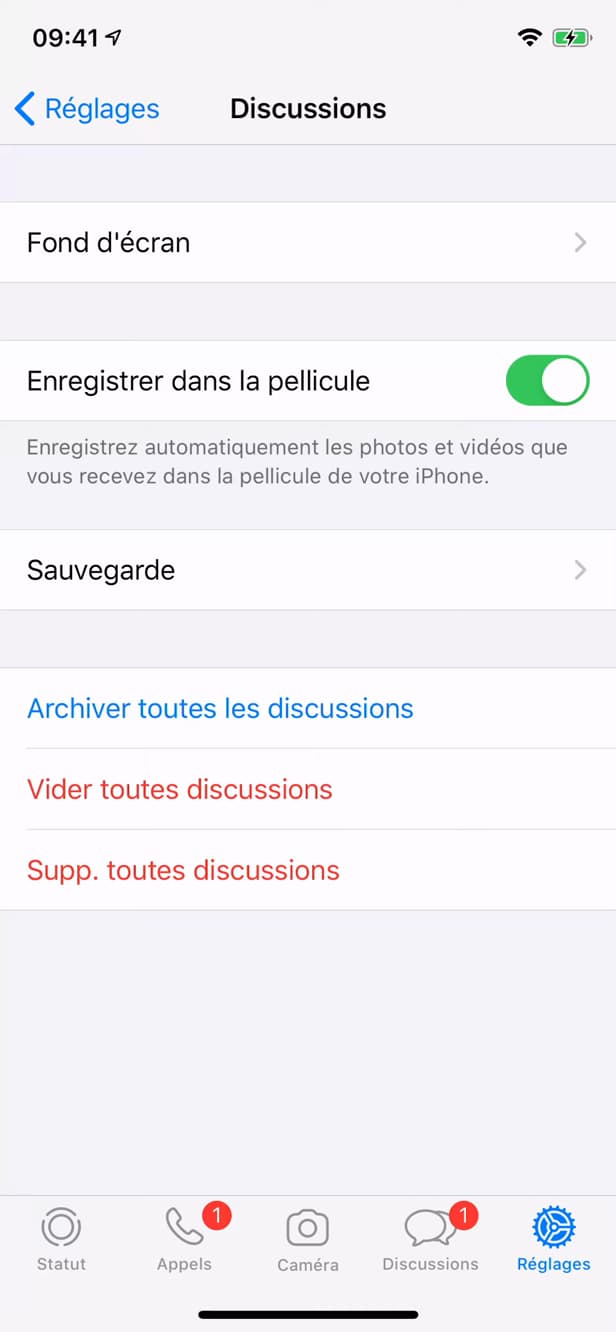
The media options are under "Chats". Tap "Chats". This is where you'll find the auto-save option.
Turn on "Save to Camera Roll"
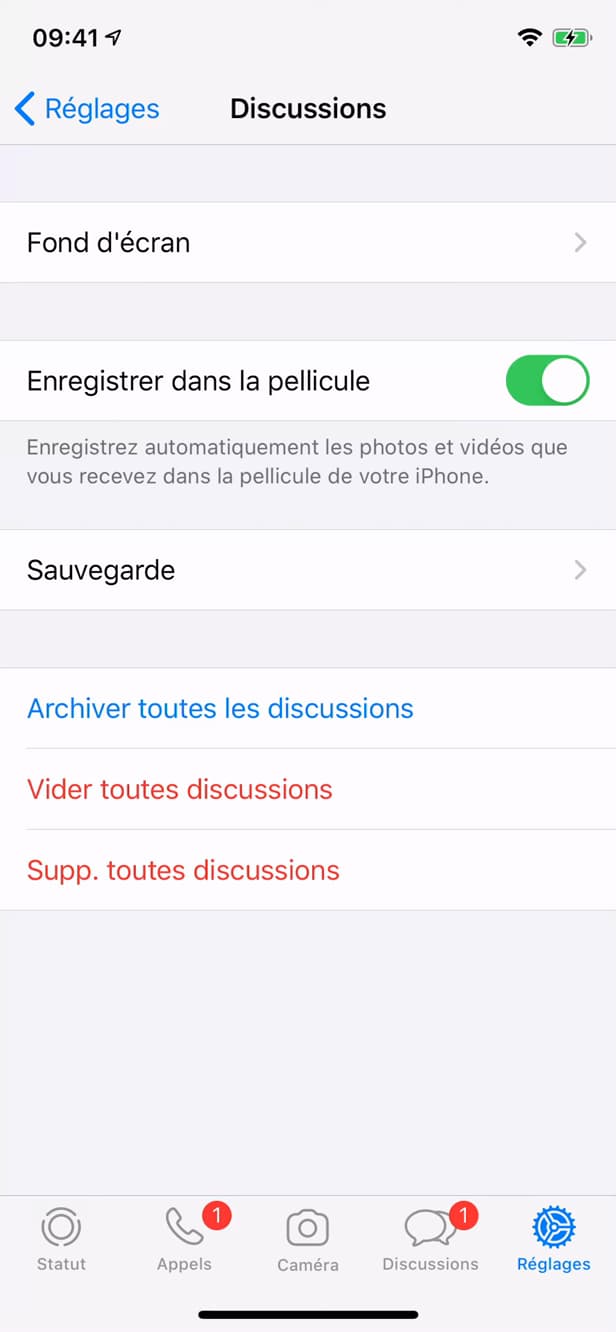
Once on, WhatsApp saves received media to your gallery. Turn on the "Save to Camera Roll" toggle. The photos and videos you receive will be saved automatically to your gallery.
Good to know
New photos and videos you receive are now "saved automatically" to your gallery. For a specific photo, you can also open it and tap "Save".
Good to know
- The setting only applies to media "received after" you turn it on.
- To save a photo you "already received", open it and tap "Share" › "Save".
- You can set this behavior "per chat" from the contact's info.
Frequently asked questions
- Will older photos be saved?
- No, only media received after you turn it on. For an older photo, open it and save it manually.
- Can I turn off saving for a single contact?
- Yes. Open "Contact Info" › "Save to Camera Roll" and choose "Never" for that chat.
- Where do the saved photos go?
- To your phone's camera roll/gallery, often in a "WhatsApp" album.
Related tutorials
 WhatsAppHow to re-view a "view once" photo on WhatsAppWant to keep a "view once" photo or video received on WhatsApp? Here's the screen-recording method, step by step.
 WhatsAppHow to Delete a Chat on WhatsAppWant to clear a WhatsApp conversation? Here's how to delete it, step by step.
 WhatsAppHow to Lock WhatsApp With Face IDWant to protect WhatsApp with a passcode or Face ID? Here's how to enable app lock, step by step.
 WhatsAppHow to Block Someone on WhatsAppWant to stop a contact from reaching you on WhatsApp? Here's how to block them, step by step.