
How to Block Someone on WhatsApp
Is a contact bothering you? You can block someone on WhatsApp in seconds: they'll no longer be able to call or message you. Here's how to do it, step by step.
Prefer a video? Watch the full tutorial below.
Blocking someone on WhatsApp, step by step
Open the contact's info
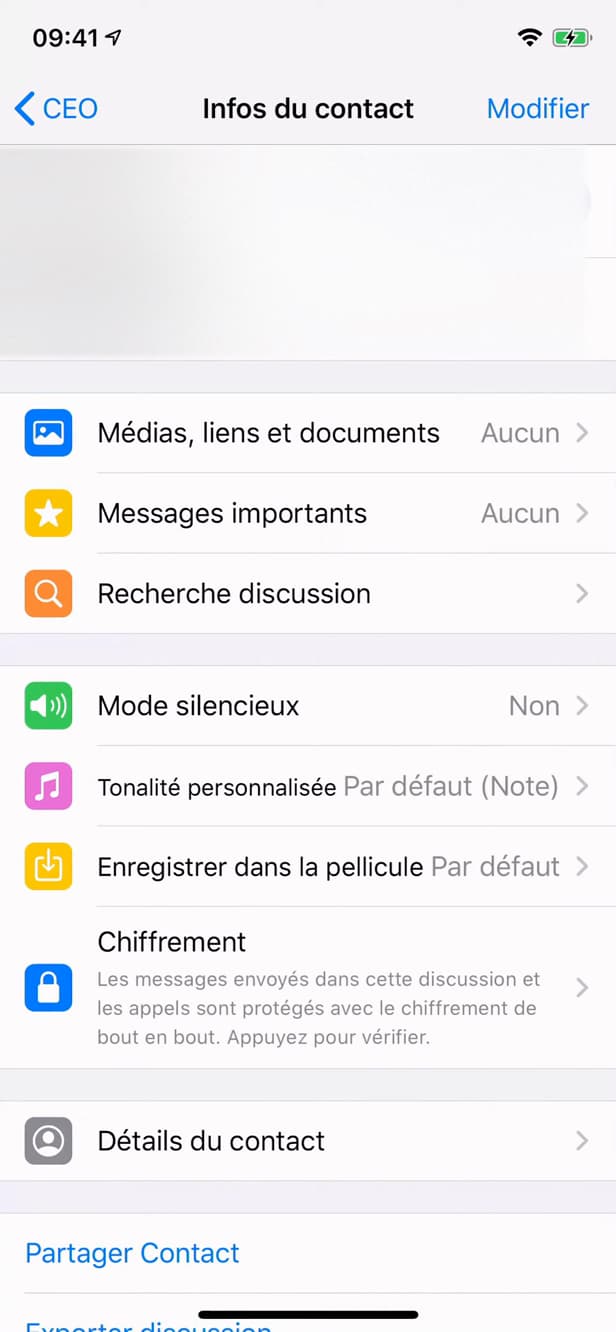
Tap the contact's name to open their information. Open the chat with the person and tap their "name" at the top to open "Contact info."
Tap "Block contact"
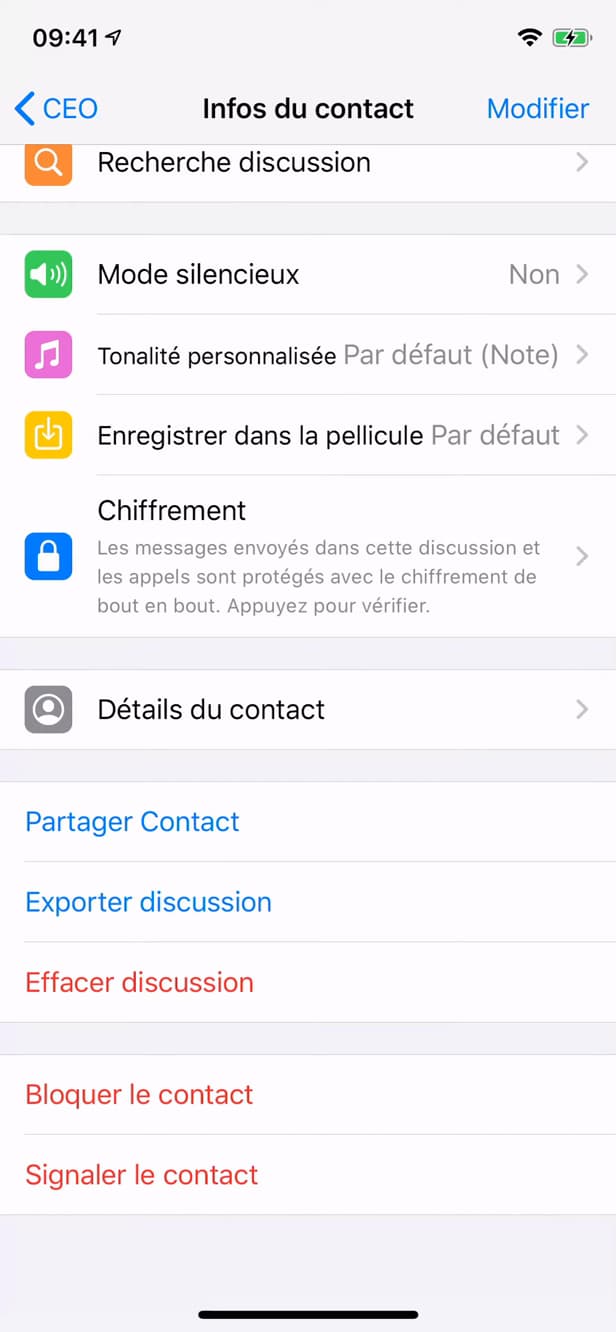
"Block contact" is at the bottom of the info page. Scroll all the way down and tap "Block contact" (shown in red).
Confirm the block
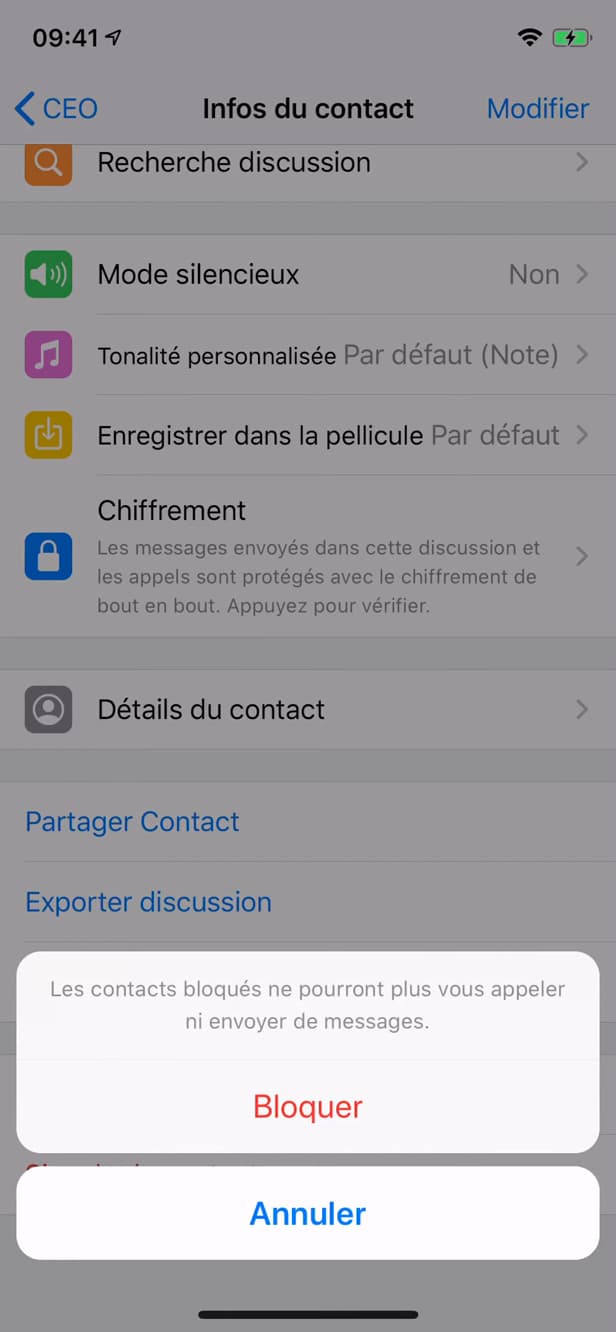
Confirm: the contact can no longer reach you. WhatsApp notes that the contact "will no longer be able to call you or send you messages." Tap "Block" to confirm.
Good to know
The contact is now "blocked": their calls and messages no longer reach you, and they can no longer see your "last seen" or your profile photo. They are "not notified" of the block.
Good to know
- The person is "not notified"; they may guess if their messages stay on a single check mark.
- You can "unblock" them any time from the same info page.
- You can also "report" the contact at the same time you block them.
Frequently asked questions
- Does the person know they've been blocked?
- No, WhatsApp sends no notification. They may suspect it because their messages only show a single check mark and they can no longer see your status.
- Does blocking delete the conversation?
- No. The history stays, but you no longer receive new messages. You can clear the chat separately.
- How do I unblock a contact?
- Reopen their "Contact info" and tap "Unblock contact." They'll be able to reach you again.
Related tutorials
 WhatsAppHow to delete a contact on WhatsAppWant to remove a contact from WhatsApp? Here's how to delete it cleanly from its info page, step by step.
 WhatsAppHow to Change a Contact's Name on WhatsAppWant to rename a contact in WhatsApp? Here's how to change their name, step by step.
 WhatsAppHow to Unblock a Banned WhatsApp AccountIs your WhatsApp account banned for spam? Here's the official way to contact WhatsApp and request your number be unblocked, step by step.
 WhatsAppHow to Delete a Chat on WhatsAppWant to clear a WhatsApp conversation? Here's how to delete it, step by step.