
How to Change a Contact's Name on WhatsApp
A badly named contact, or an unknown number you want to identify? You can change a contact's name on WhatsApp in just a few taps. Here's how, step by step.
Prefer a video? Watch the full tutorial below.
Changing a WhatsApp contact's name, step by step
Open the contact's info
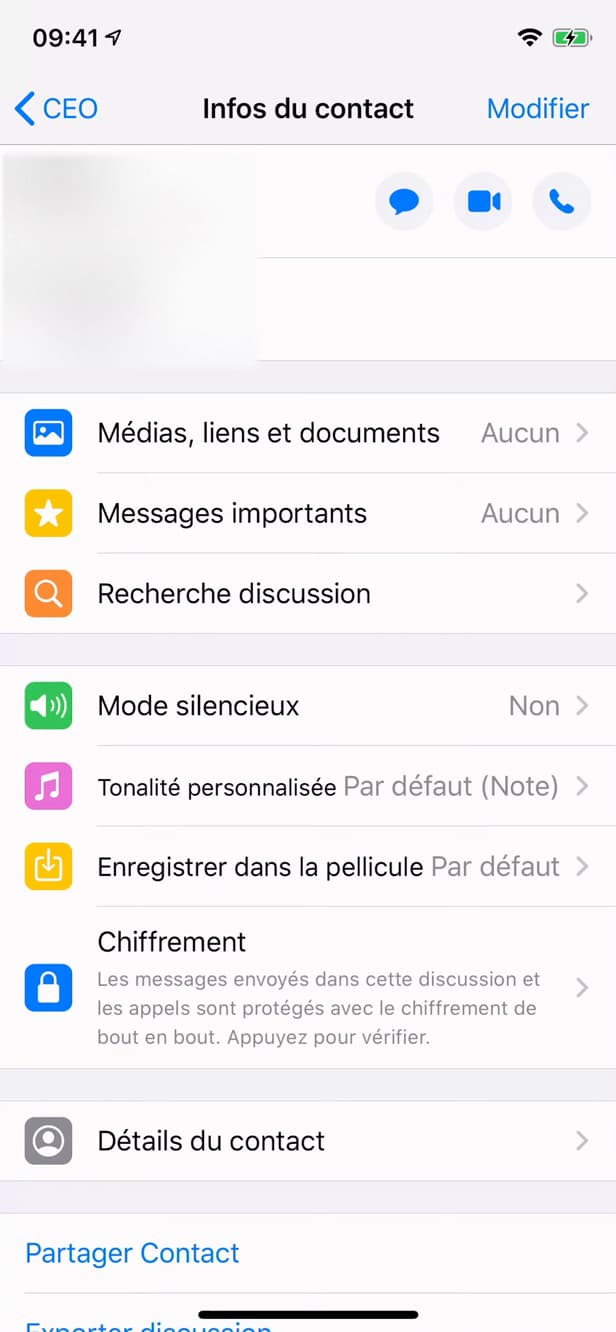
Tap "Edit" in the contact info. Open the chat, tap the "name" at the top to open "Contact info", then tap "Edit".
Edit the "Name" field
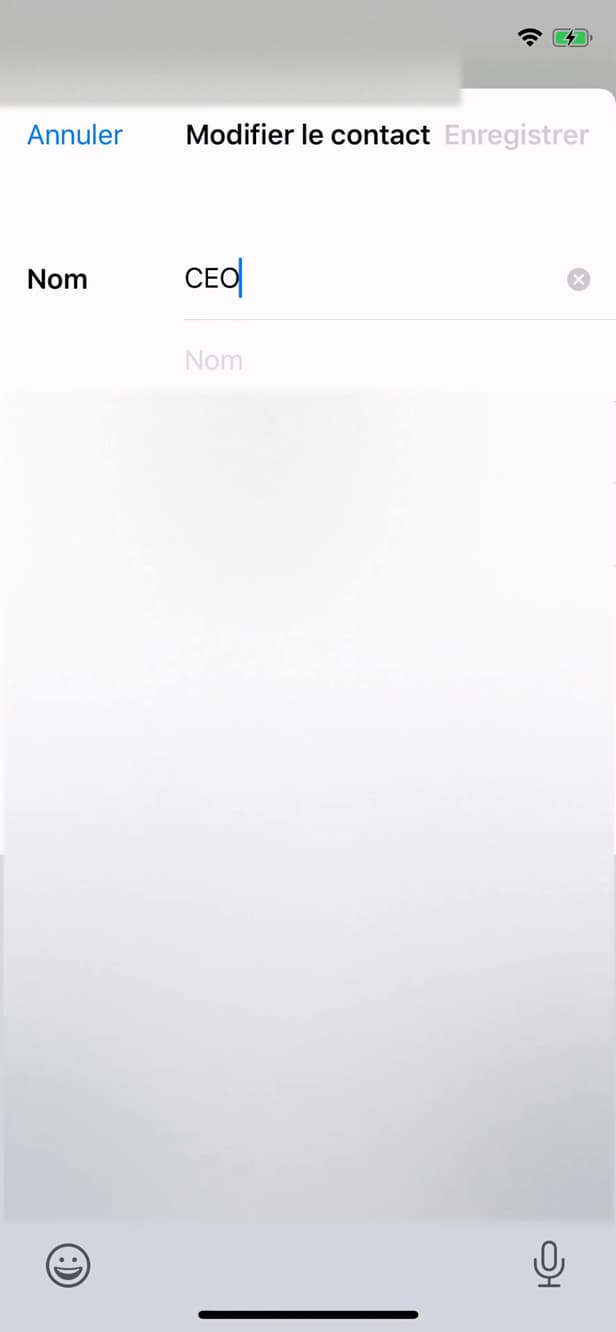
Enter the new name in the "Name" field. Tap the "Name" field, clear the old name and type the "new name".
Save

"Save" applies the contact's new name. Tap "Save". The contact now appears under their "new name" in WhatsApp.
Good to know
The contact is renamed everywhere in WhatsApp. Since WhatsApp uses your "phone book", the change also carries over to your phone's "contacts".
Good to know
- WhatsApp relies on your "address book": the name changes on your phone too.
- For an unsaved number, tap "Add to contacts" first.
- The contact "is not notified" that you've renamed them.
Frequently asked questions
- Will the person know I renamed them?
- No. The name is a private label, visible only to you. The contact is not informed.
- Why can't I edit the name?
- The number may not be saved yet. Tap "Add to contacts" first, then rename it.
- Does the change apply to my phone?
- Yes. WhatsApp uses your phone book: renaming the contact updates their entry in your contacts.
Related tutorials
 WhatsAppHow to Block Someone on WhatsAppWant to stop a contact from reaching you on WhatsApp? Here's how to block them, step by step.
 WhatsAppHow to delete a contact on WhatsAppWant to remove a contact from WhatsApp? Here's how to delete it cleanly from its info page, step by step.
 WhatsAppHow to Delete a Chat on WhatsAppWant to clear a WhatsApp conversation? Here's how to delete it, step by step.
 WhatsAppHow to Lock WhatsApp With Face IDWant to protect WhatsApp with a passcode or Face ID? Here's how to enable app lock, step by step.