
How to Post a Story on WhatsApp
Want to share a photo or video that your contacts can see for 24 hours? You can post a story on WhatsApp through the Updates (Status) tab. Here's how to do it, step by step.
Prefer a video? Watch the full tutorial below.
Posting a story on WhatsApp, step by step
Open the status camera
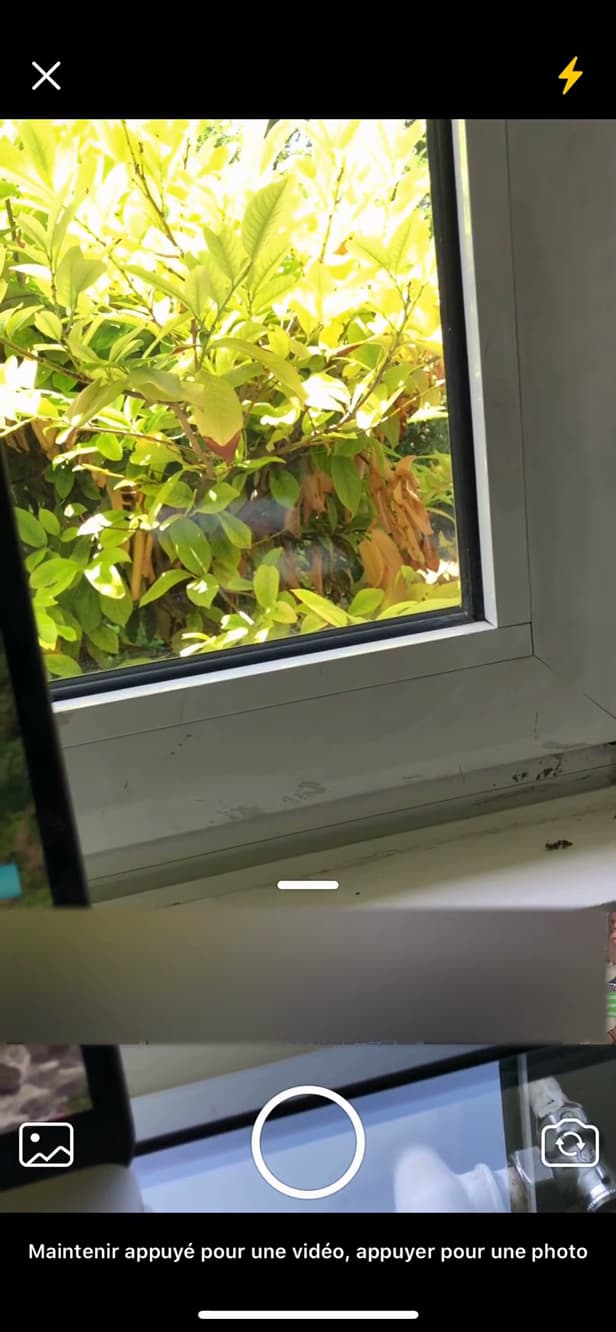
The status camera lets you capture or pick a photo or video. In the "Updates" (or "Status") tab, tap "+" or the camera icon next to "My status".
Add a caption
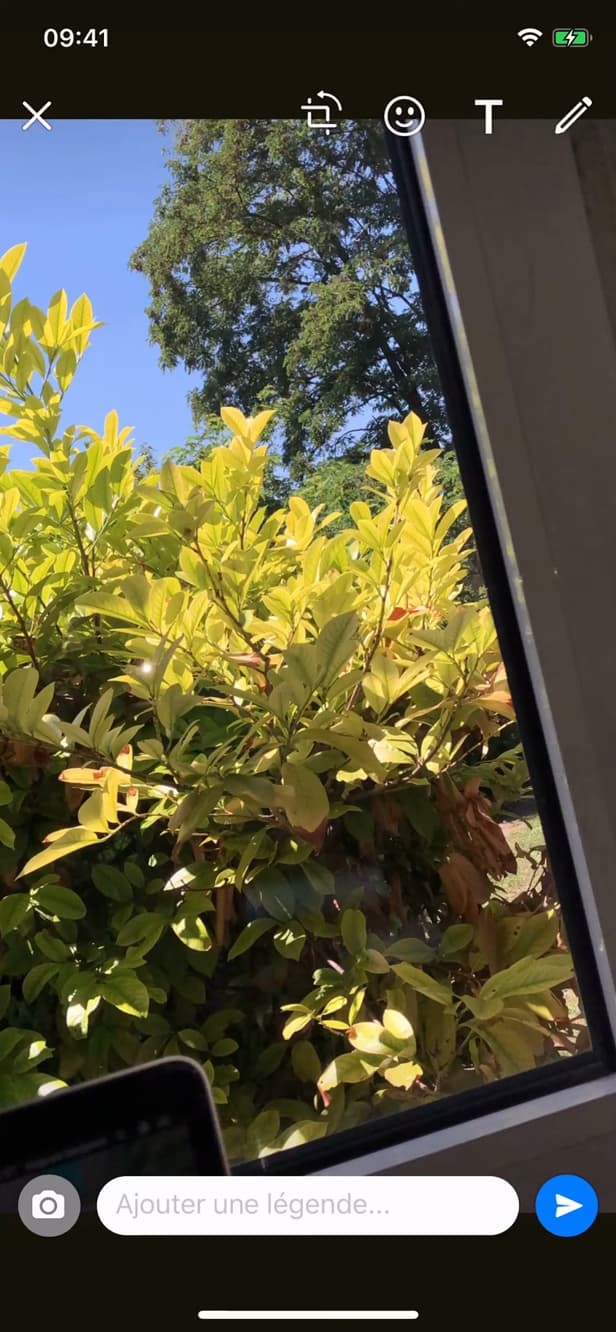
Personalize your status with text, stickers or a drawing. Take a photo/video or choose one, then add "text", "stickers" or a "drawing".
Post your status
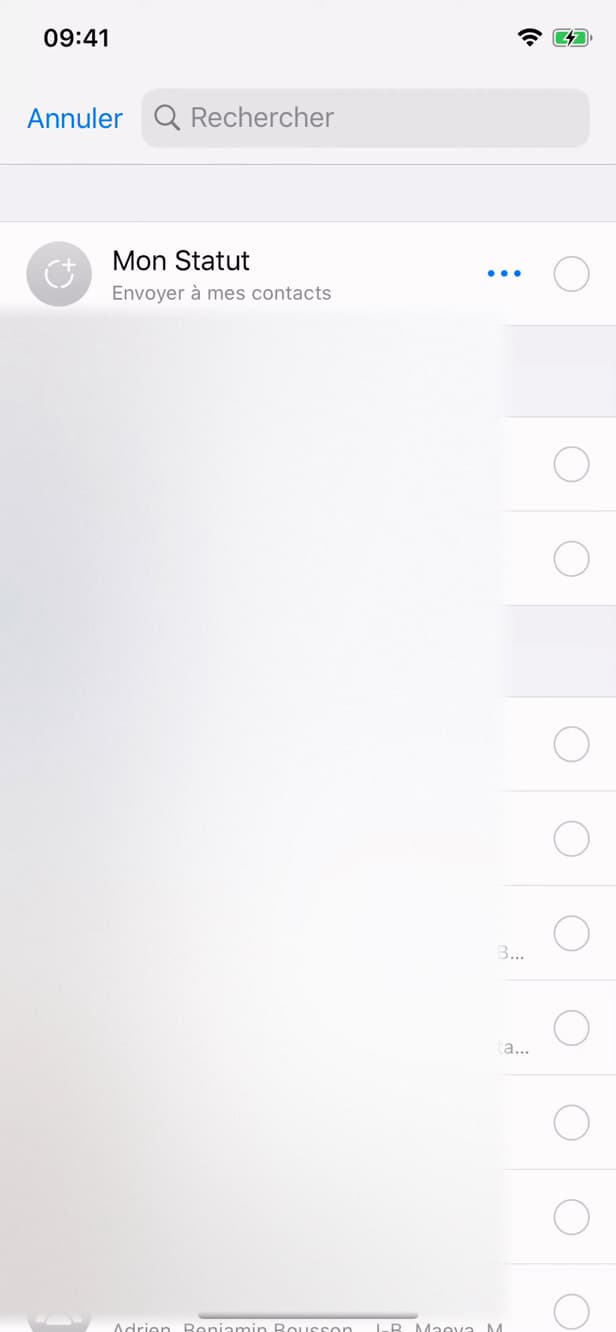
Your story shows up under "My status" and disappears after 24 hours. Tap "Send": your story appears under "My status" for 24 hours.
Good to know
Your story is "visible for 24 hours" to your contacts (depending on your privacy settings). You can see "who viewed it" and "delete" it at any time.
Good to know
- Set "who can see" your status under Status privacy.
- The eye icon under "My status" shows "who has viewed" your story.
- A status can be "deleted" at any time via "⋮" › "Delete".
Frequently asked questions
- Who can see my WhatsApp story?
- By default, all your contacts. You can limit the audience under "Status privacy" (exclude contacts or pick a list).
- How long does my story last?
- 24 hours. After that, it disappears automatically from "My status".
- Can I see who viewed my story?
- Yes. Open "My status" and tap the eye icon to see the list of people who viewed it.
Related tutorials
 WhatsAppHow to Go Offline on WhatsAppWant to hide your online status on WhatsApp? Here's how to hide your "Last seen", step by step.
 WhatsAppHow to Delete a Chat on WhatsAppWant to clear a WhatsApp conversation? Here's how to delete it, step by step.
 WhatsAppHow to Lock WhatsApp With Face IDWant to protect WhatsApp with a passcode or Face ID? Here's how to enable app lock, step by step.
 WhatsAppHow to Block Someone on WhatsAppWant to stop a contact from reaching you on WhatsApp? Here's how to block them, step by step.