
How to Back Up and Restore Your WhatsApp Messages
Switching phones or wanting to safeguard your conversations? By turning on the backup of your WhatsApp chats to your Google account, you'll be able to restore everything in seconds when you reinstall. Here's how to do it on Android, step by step.
Prefer a video? Watch the full tutorial below.
Backing up and restoring your WhatsApp messages, step by step
Open WhatsApp Settings
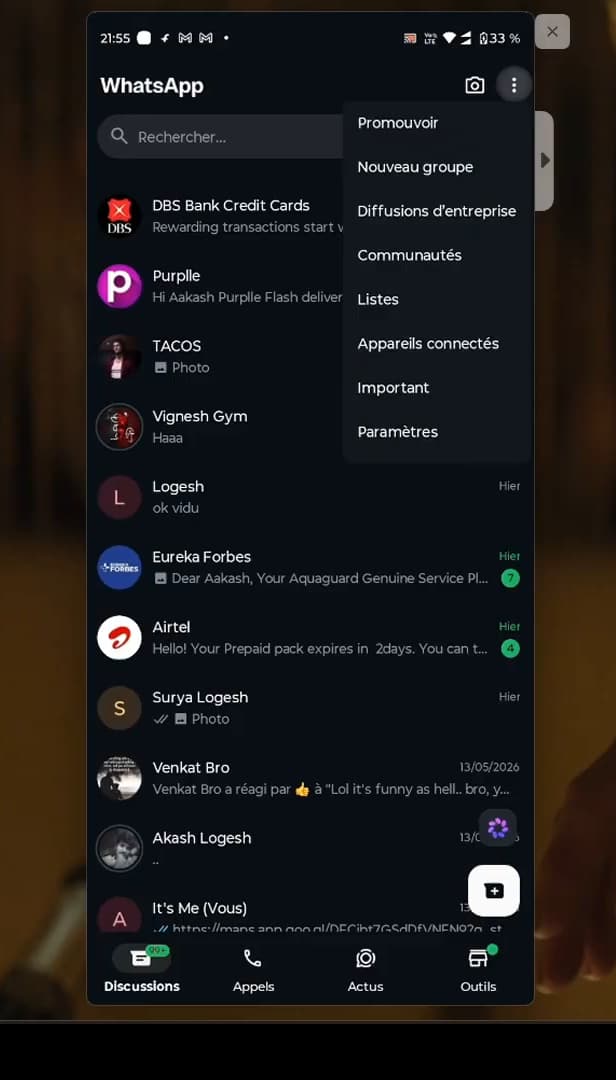
Open the menu (three dots) then "Settings." Open "WhatsApp" (connected to the internet), tap the "three dots" in the top right, then tap "Settings."
Open "Chats"
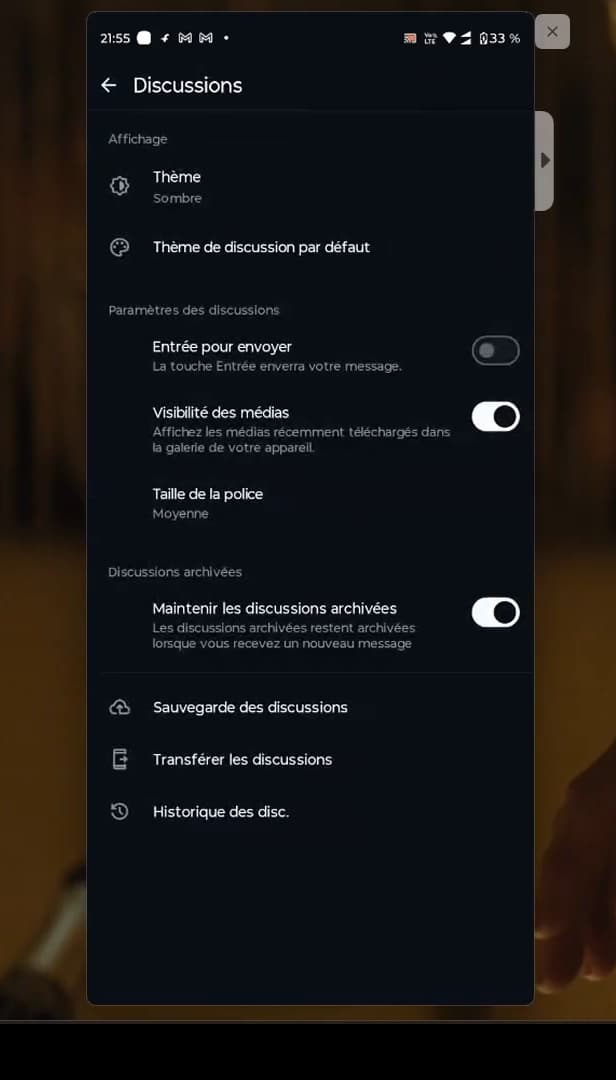
The backup is set up in "Chats." In settings, open "Chats," then "Chat backup."
Start the backup to Google
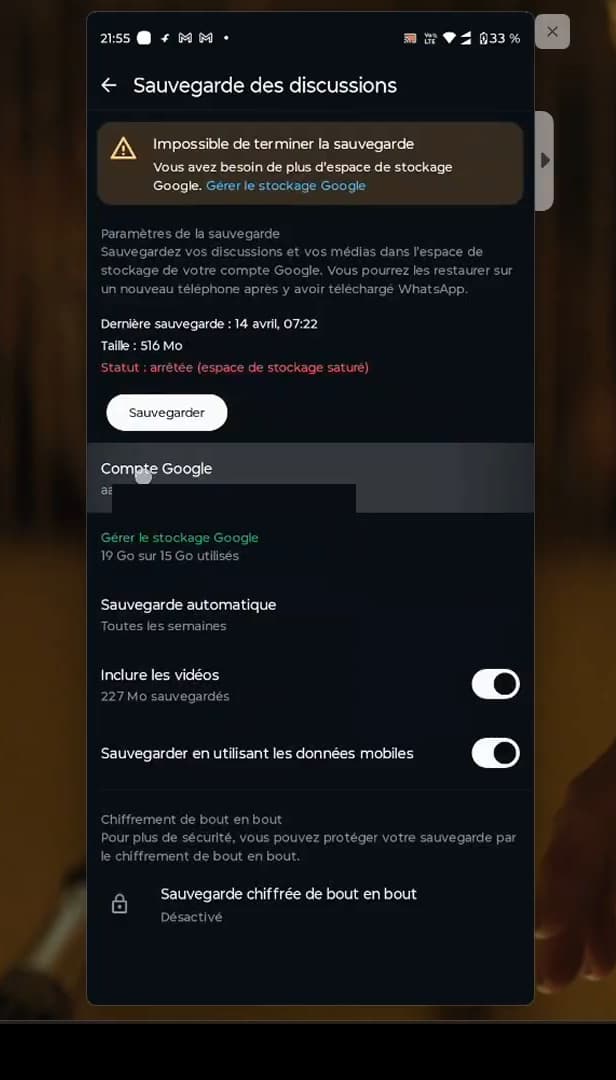
"Back up" saves your chats to your Google account. Link your "Google account," choose whether to "Include videos" if needed, then tap "Back up." Your chats are saved to Google Drive.
Turn on automatic backup
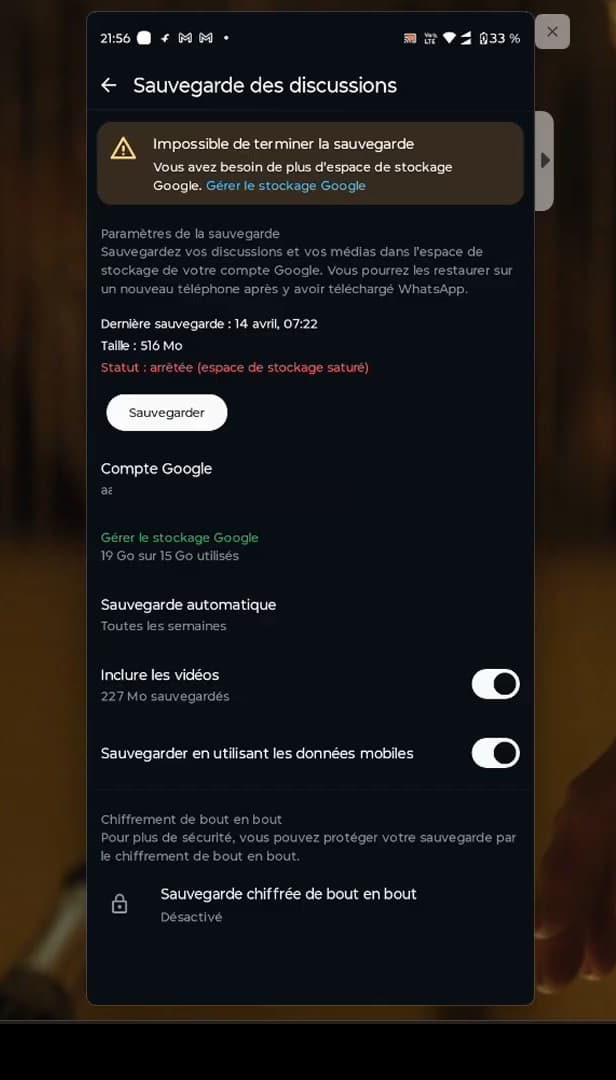
Automatic backup keeps your chats always up to date. Set up "Automatic backup" (daily, weekly, or monthly) so you never lose your messages again. Your data will always stay up to date on Google Drive.
Good to know
To restore your messages, simply "reinstall WhatsApp" with the same number: during setup, WhatsApp detects the Google Drive backup and offers to "Restore." Your conversations come right back.
Good to know
- The backup uses the "same Google account" and the "same number": both must match in order to restore.
- On "iPhone," the backup goes through iCloud (same principle).
- A backup "with videos" is heavier: use Wi-Fi to save it.
Frequently asked questions
- How do I restore my WhatsApp messages?
- Reinstall WhatsApp with the same number and the same Google account. During setup, the app detects the backup on Google Drive and offers to "Restore."
- Where are WhatsApp backups stored?
- On Android, they're saved to Google Drive, tied to your Google account. On iPhone, they're stored on iCloud.
- Can I restore a backup to a different number?
- No. Restoring requires the same phone number and the same Google account (or iCloud) used when the backup was made.
Related tutorials
 WhatsAppHow to Delete a Chat on WhatsAppWant to clear a WhatsApp conversation? Here's how to delete it, step by step.
 WhatsAppHow to Lock WhatsApp With Face IDWant to protect WhatsApp with a passcode or Face ID? Here's how to enable app lock, step by step.
 WhatsAppHow to Block Someone on WhatsAppWant to stop a contact from reaching you on WhatsApp? Here's how to block them, step by step.
 WhatsAppHow to Download Animated Stickers on WhatsAppWant to add animated stickers on WhatsApp? Here's how to download them, step by step.