
How to Set a Timer on TikTok
Want to film yourself full-length without holding your phone? You can set a timer on TikTok to start recording automatically. Here's how, step by step.
Prefer a video? Watch the full tutorial below.
Setting a timer on TikTok, step by step
Open the "Timer" tool
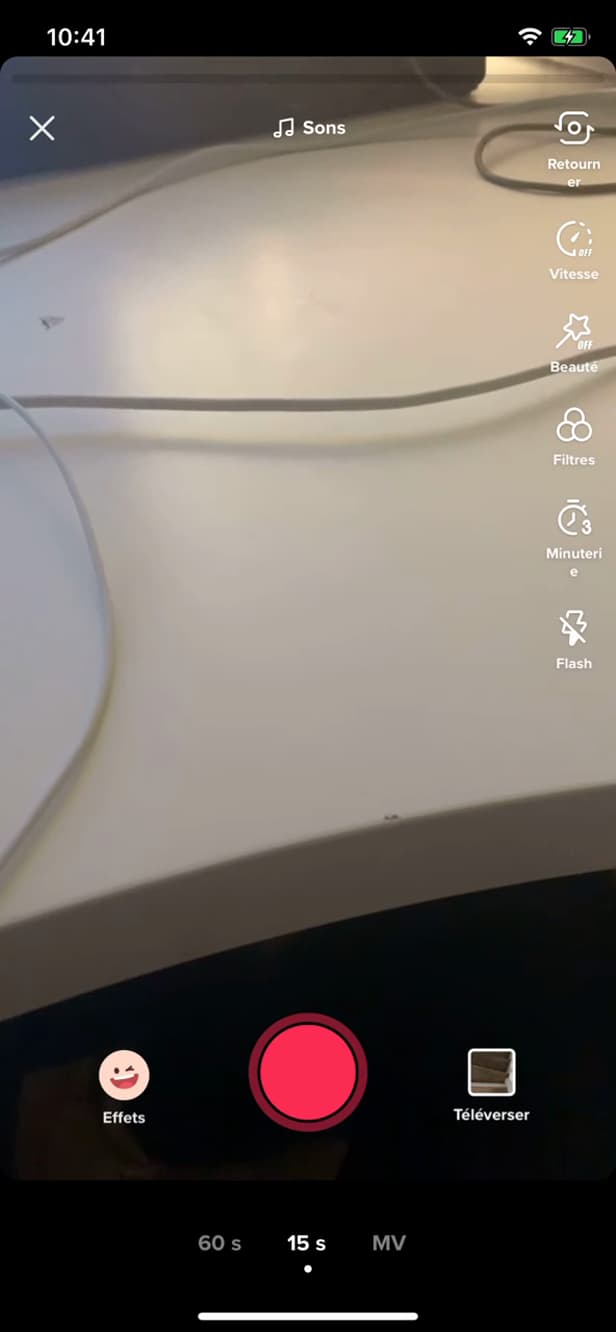
"Timer" lets you trigger recording automatically. On the create screen ("+"), in the toolbar on the right, tap "Timer".
Set the recording length
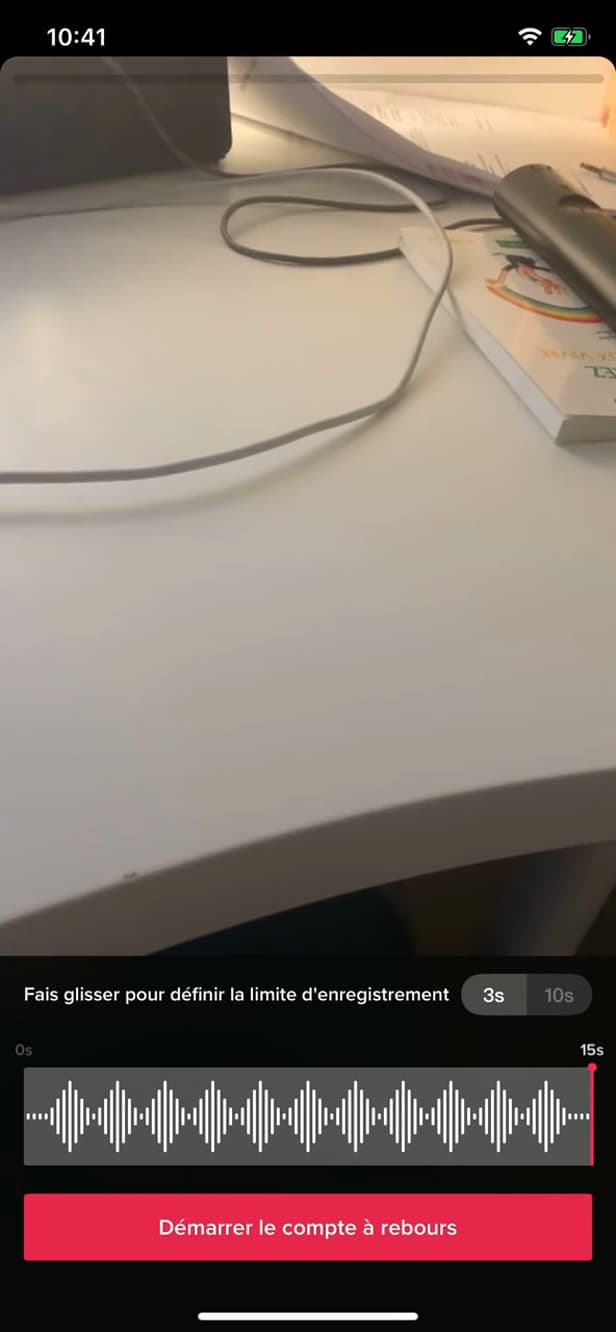
The slider sets the length; the countdown delays the start. Drag the slider to set how far to film, then choose the "countdown" (3s or 10s).
Start the countdown
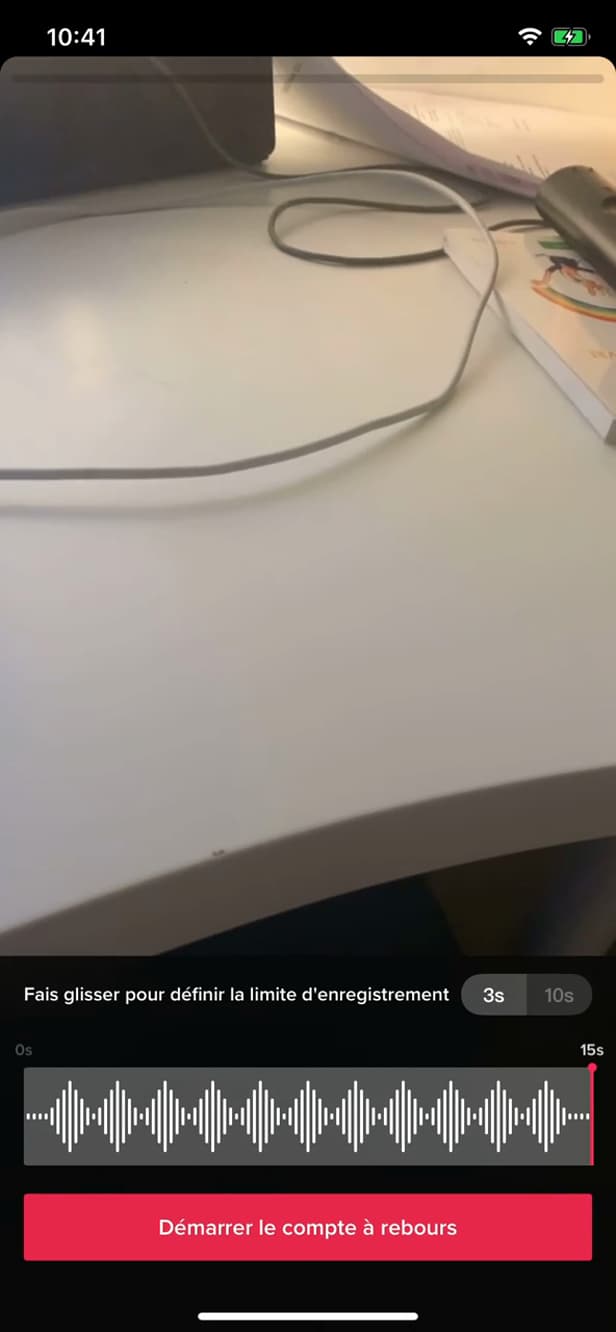
"Countdown" starts recording after the count. Tap "Countdown": set your phone down, and recording starts on its own.
Good to know
TikTok films "by itself" after the countdown, and stops at the length you set. Perfect for "dance" videos or "full-length" shots without help.
Good to know
- Prop your phone on a "stand" for a stable frame.
- The slider sets an automatic "stop point" for recording.
- Combine the timer with "speed" and "filters" before you film.
Frequently asked questions
- What is the timer for on TikTok?
- To start recording after a countdown, so you can film yourself without holding the phone, and to set an automatic stop point.
- Can I choose the countdown length?
- Yes, usually 3 or 10 seconds, giving you time to get into place before TikTok starts filming.
- Does recording stop on its own?
- Yes. The slider sets a stop point: TikTok automatically stops recording at the length you chose.
Related tutorials
 TikTokHow to Change the Font in Your TikTok BioWant a TikTok bio with stylish lettering? Here's how to change the font, step by step.
 TikTokHow to Delete a Conversation on TikTokWant to clear a private message on TikTok? Here's how to delete a conversation, step by step.
 TikTokHow to Save a TikTok Video as a DraftWant to save a TikTok video without posting it? Here's how to save it as a draft, step by step.
 TikTokHow to Add Music to Your TikTok VideoWant to put a sound on your TikTok video? Here's how to add music, step by step.