
How to Add Music to Your TikTok Video
A video without music goes unnoticed on TikTok. You can add music to your TikTok video from thousands of sounds. Here's how to do it, step by step.
Prefer a video? Watch the full tutorial below.
Adding music to a TikTok video, step by step
Open "Sounds"
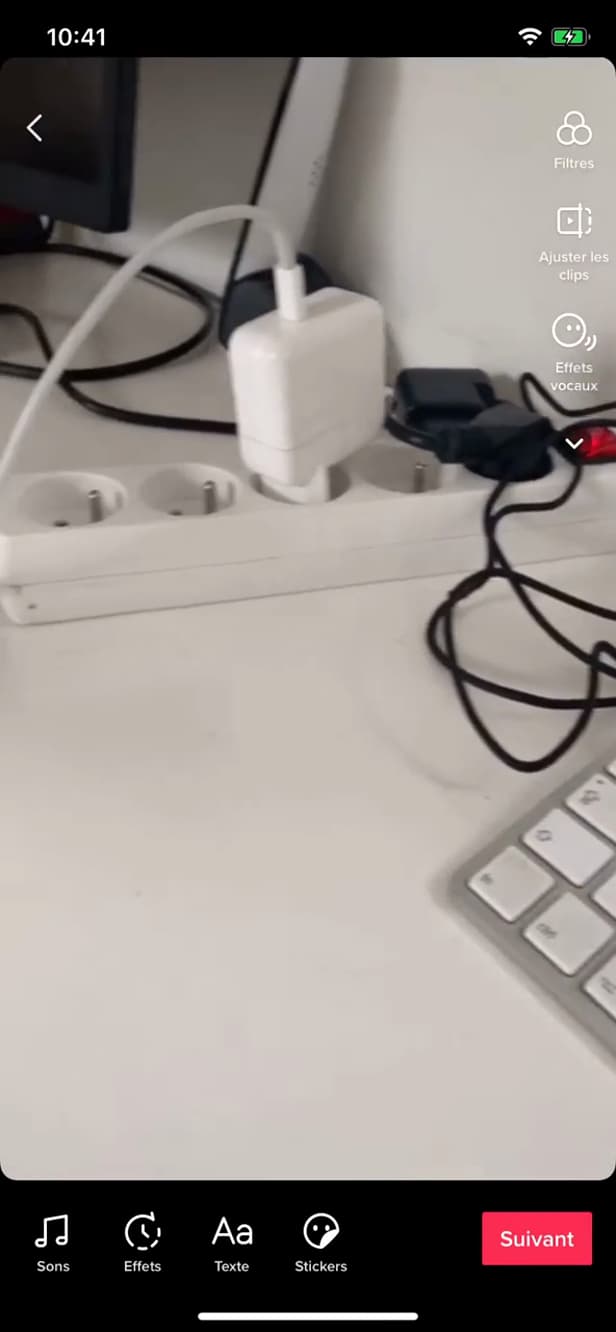
"Sounds" opens TikTok's music library. After recording or importing your video, tap "Sounds" (at the top of the creation screen).
Choose a song
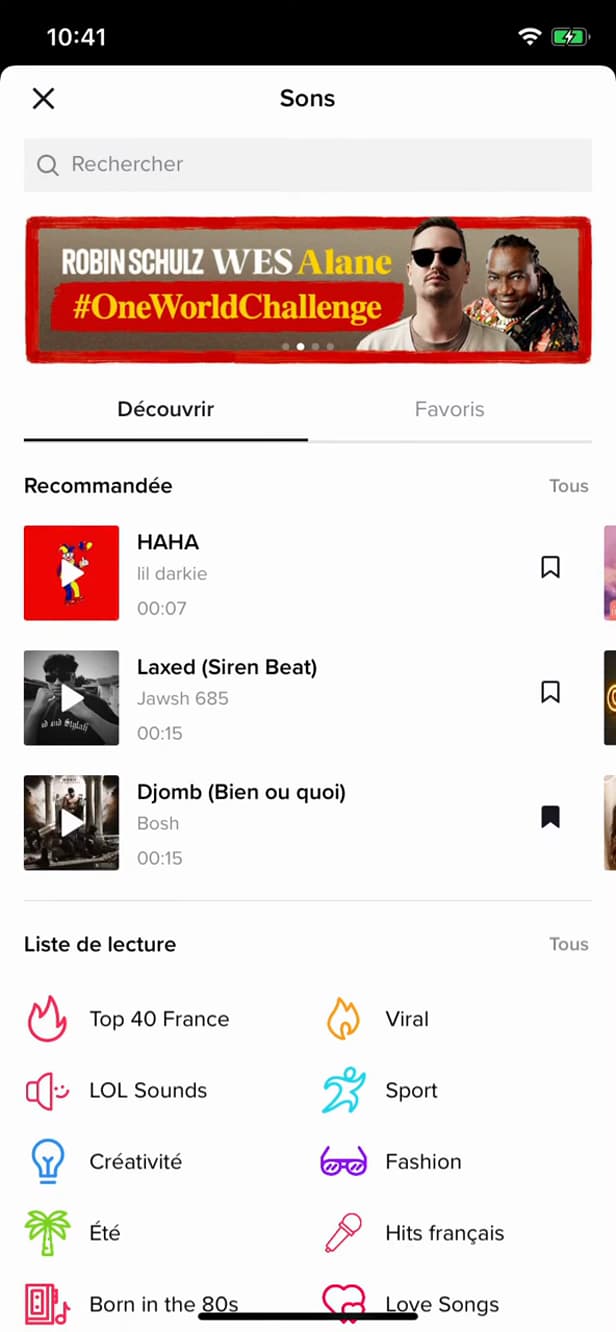
Search or browse, then select a sound. Browse "Recommended," "Discover" and the playlists, or "search" for a track, then select it.
Adjust and post
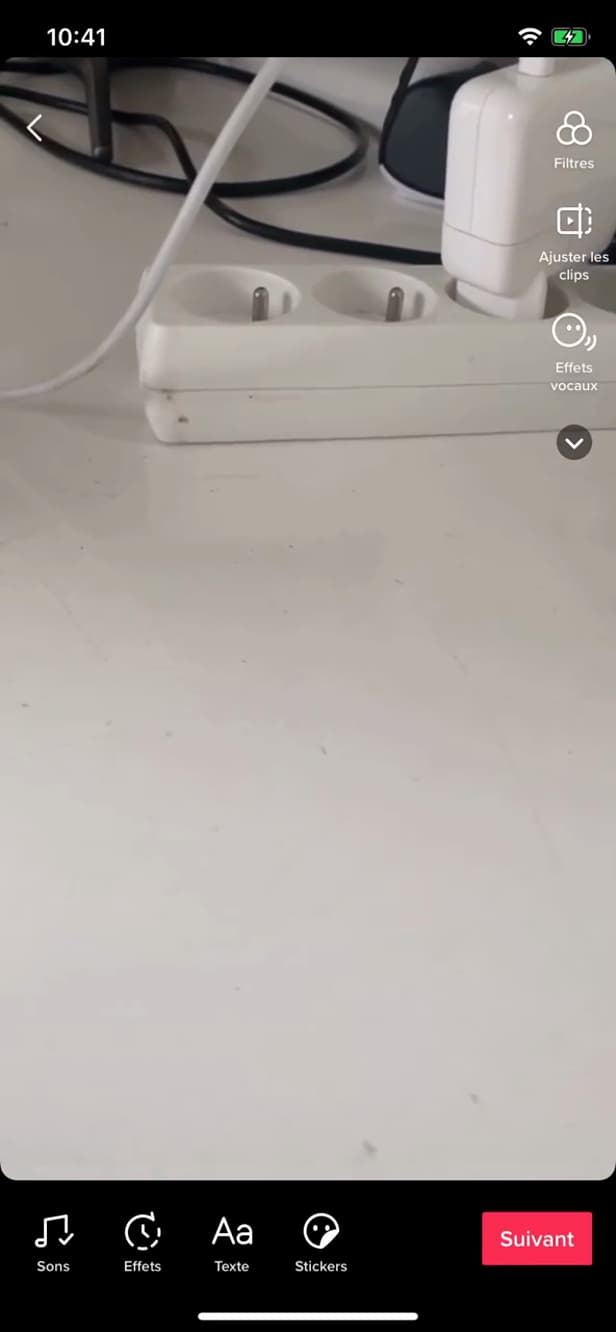
Fine-tune the sound, then move on to posting. Set the "point" where the music starts, tap "Next," then "Post."
Good to know
Your video is now set to the music you picked. You can "trim" the sound to the right moment and adjust the "volume" balance between the music and the original audio.
Good to know
- Adjust the "volume" to balance the music with the video's original sound.
- Pick a "trending" sound to boost your reach.
- A "pro account" sometimes has a more limited music library (commercial rights).
Frequently asked questions
- Can I add my own music on TikTok?
- You can use an original sound (added from your edit) or pick from the TikTok library. External music must comply with copyright rules.
- How do I choose where the music starts?
- After selecting the sound, use the trim option to set the section that will play over your video.
- Why are some songs unavailable?
- On a business account, only royalty-free commercial music is offered, which makes for a smaller library.
Related tutorials
 TikTokHow to Save a TikTok Video as a DraftWant to save a TikTok video without posting it? Here's how to save it as a draft, step by step.
 TikTokHow to add text to your TikTok videoWant to write on your TikTok video? Here's how to add text, choose the font and position it, step by step.
 TikTokHow to Download a TikTok VideoWant to save a TikTok video to your gallery? Here's the official method, step by step.
 TikTokHow to Change the Font in Your TikTok BioWant a TikTok bio with stylish lettering? Here's how to change the font, step by step.