
How to Download a TikTok Video
Want to keep a video you like? You can download a TikTok video straight to your gallery, without any third-party app, when the creator allows it. Here's how to do it, step by step.
Prefer a video? Watch the full tutorial below.
Downloading a TikTok video, step by step
Open the video and share
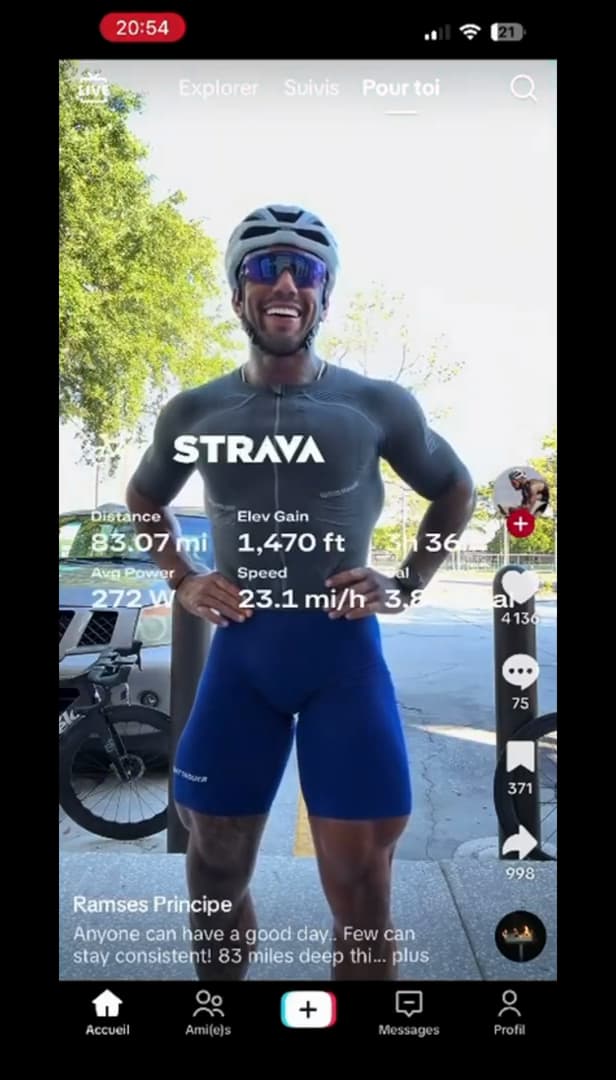
Tap the "Share" arrow on the video. Open the "TikTok video" you want to save and tap the "Share" icon (the arrow) on the right side of the screen.
Tap "Save video"
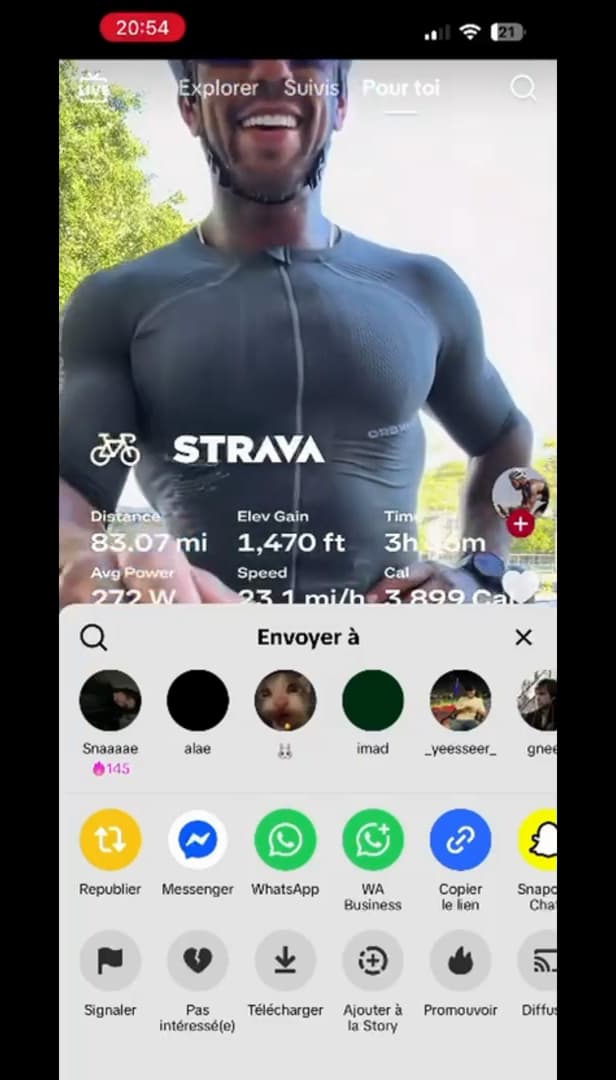
Choose "Save video" in the share menu. In the "Send to" menu, tap "Save video" (or "Download").
Wait for the download to finish
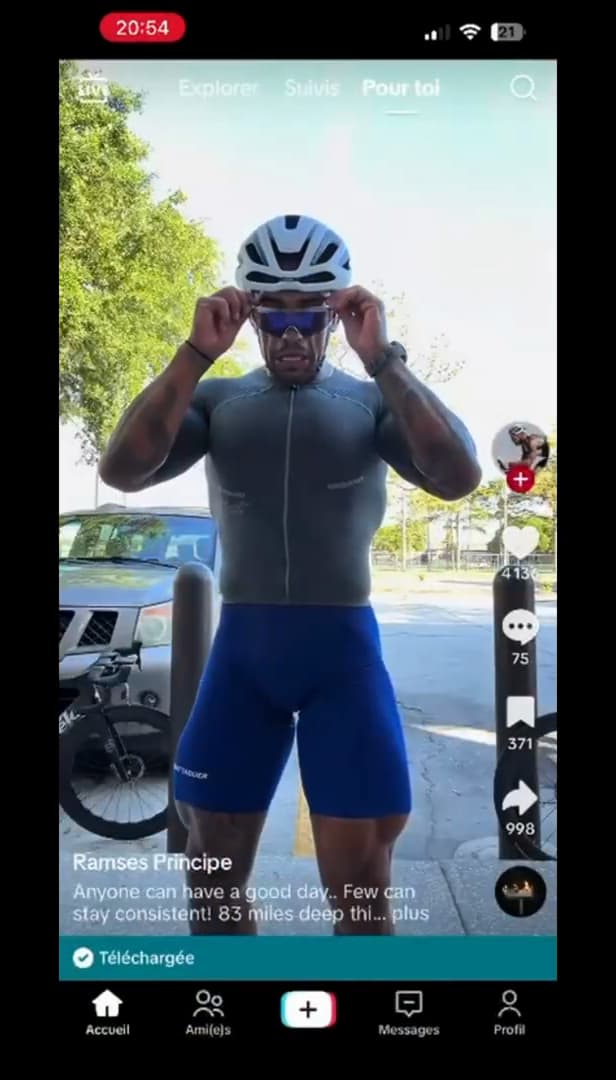
"Downloaded": the video is saved to your gallery. A progress bar appears, then "Downloaded". The video is now in your "gallery".
Good to know
The video is saved to your gallery, with the "TikTok watermark" and the creator's username. You can watch it offline or re-share it.
Good to know
- Downloading is only possible if the "creator has allowed it" in their settings.
- The video keeps a "watermark" with the username: that's normal.
- Respect "copyright": don't repost someone else's video without their permission.
Frequently asked questions
- Why doesn't the Save option appear?
- Because the creator has disabled downloading for that video. In that case, you can't save it natively.
- Will the video have a watermark?
- Yes, TikTok automatically adds an animated watermark with the creator's username and the TikTok logo.
- Can I repost a downloaded video?
- Technically yes, but reposting someone else's content without their permission can infringe copyright.
Related tutorials
 TikTokHow to Save a TikTok Video as a DraftWant to save a TikTok video without posting it? Here's how to save it as a draft, step by step.
 TikTokHow to Add Music to Your TikTok VideoWant to put a sound on your TikTok video? Here's how to add music, step by step.
 TikTokHow to add text to your TikTok videoWant to write on your TikTok video? Here's how to add text, choose the font and position it, step by step.
 TikTokHow to Recover a TikTok Account Without Email or Phone NumberNo longer have access to the email or phone number on your TikTok account? Here's how to recover it through the help form, step by step.