
How to add text to your TikTok video
A title, a caption, a joke? You can add text to a TikTok video before posting it, in the font and color of your choice. Here's how to do it, step by step.
Prefer a video? Watch the full tutorial below.
Adding text to a TikTok video, step by step
Open the "Text" tool
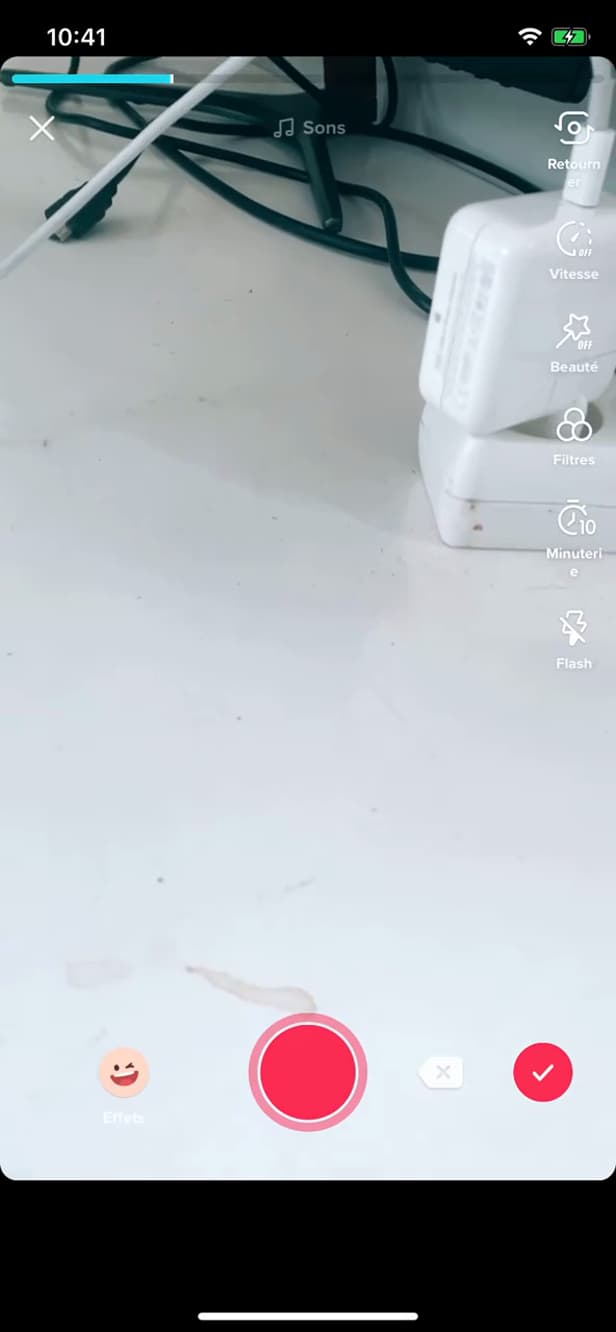
The "Text" tool is on the video editing screen. After recording or importing your video, on the editing screen, tap "Text" (at the bottom or top).
Type and customize
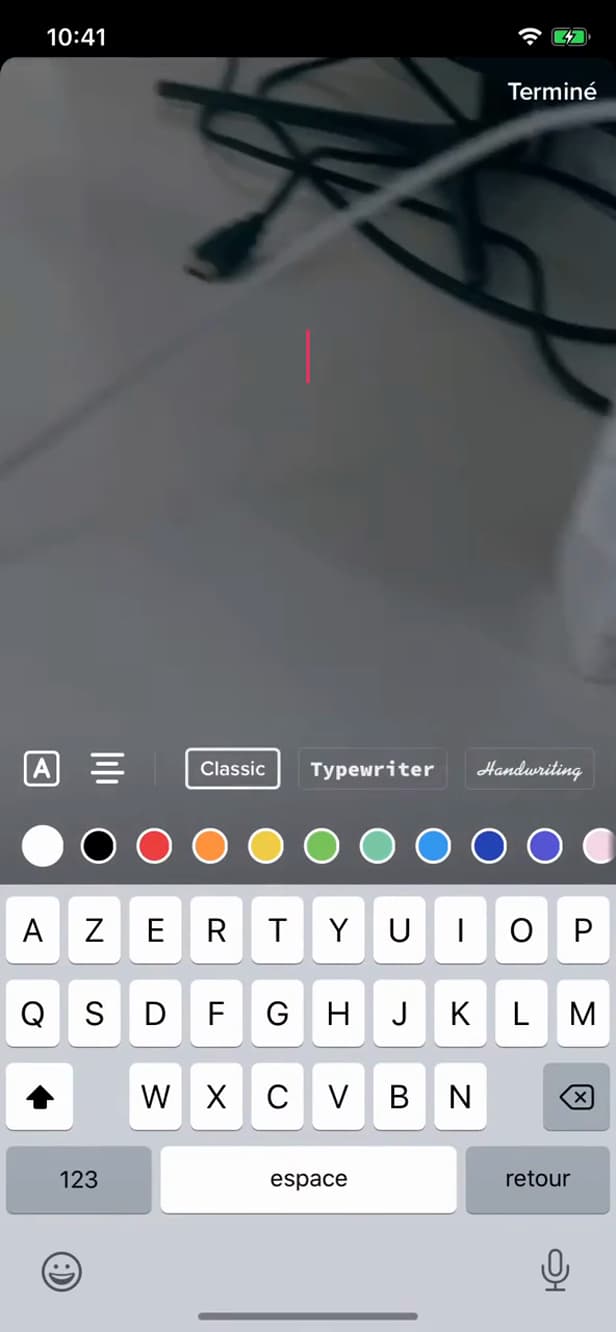
Pick a font and color for your text. Type your text, then choose from the available font, color and alignment options.
Position the text, then post
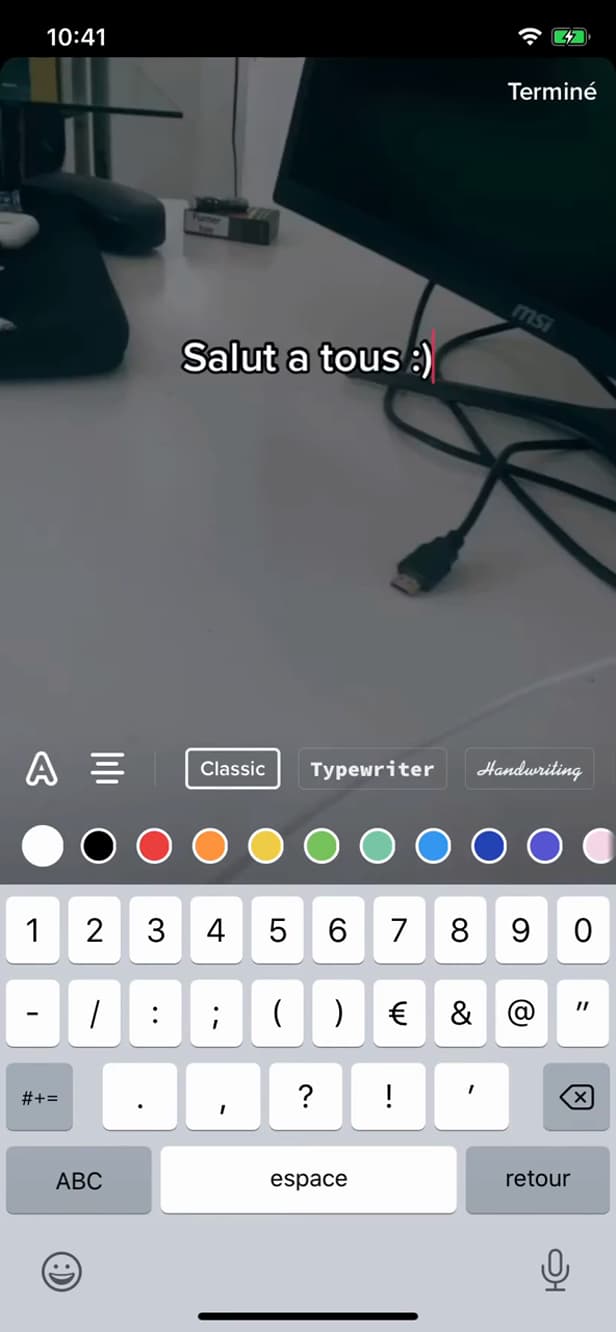
Place the text wherever you like, then confirm and post. Drag the text where you want it with your finger, tap "Done", then "Next" to post.
Good to know
Your text is in place. You can add several, and even set when each piece of text appears using the timing feature.
Good to know
- Tap a text you've already placed to edit or delete it.
- The "Duration" (or timer) feature sets when the text appears and disappears.
- Readable text (good contrast, not too small) makes the video more accessible.
Frequently asked questions
- Can I make the text appear at a specific moment?
- Yes. Tap the text, then "Duration" (timer) to set when it appears and disappears in the video.
- How do I edit text I've already added?
- Just tap it: you can rewrite it, change its font/color or delete it.
- Does the text stay if I download the video?
- Yes, text added in TikTok is part of the final video, including if you save it.
Related tutorials
 TikTokHow to Change the Font in Your TikTok BioWant a TikTok bio with stylish lettering? Here's how to change the font, step by step.
 TikTokHow to Save a TikTok Video as a DraftWant to save a TikTok video without posting it? Here's how to save it as a draft, step by step.
 TikTokHow to Add Music to Your TikTok VideoWant to put a sound on your TikTok video? Here's how to add music, step by step.
 TikTokHow to Download a TikTok VideoWant to save a TikTok video to your gallery? Here's the official method, step by step.