
How to turn off Restricted Mode on TikTok
Some videos no longer show up on TikTok? That's Restricted Mode. You can turn off Restricted Mode on TikTok using the code you set when you enabled it. Here's how to do it, step by step.
Prefer a video? Watch the full tutorial below.
Turning off Restricted Mode on TikTok, step by step
Open Settings and privacy
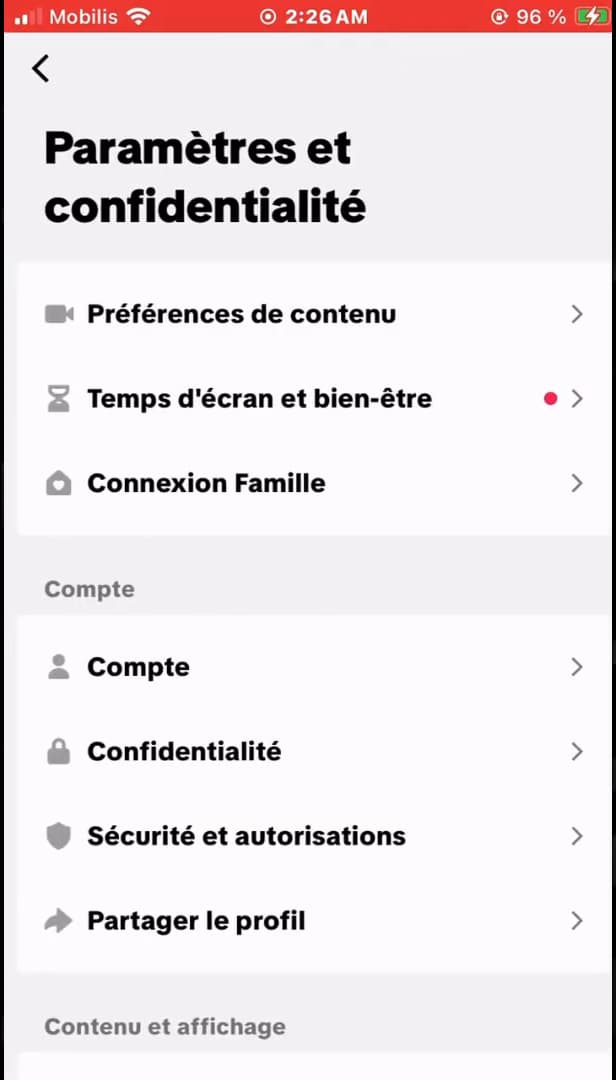
Open settings from the menu on your profile. On your "profile", tap "☰", then "Settings and privacy".
Open "Content preferences"
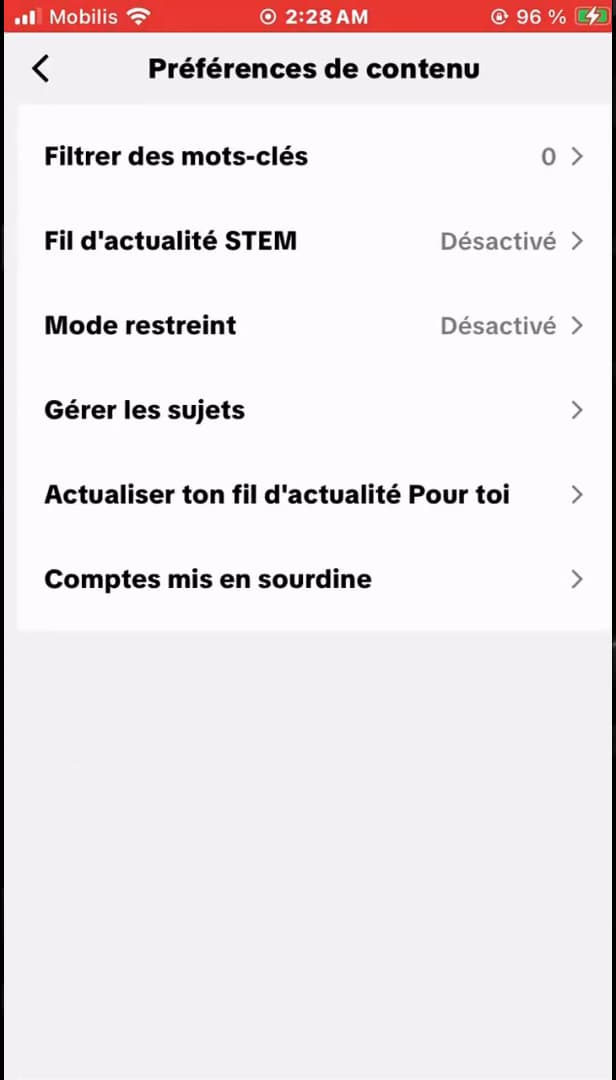
"Restricted Mode" is under "Content preferences". Open "Content preferences". This is where you'll find "Restricted Mode".
Turn off "Restricted Mode"
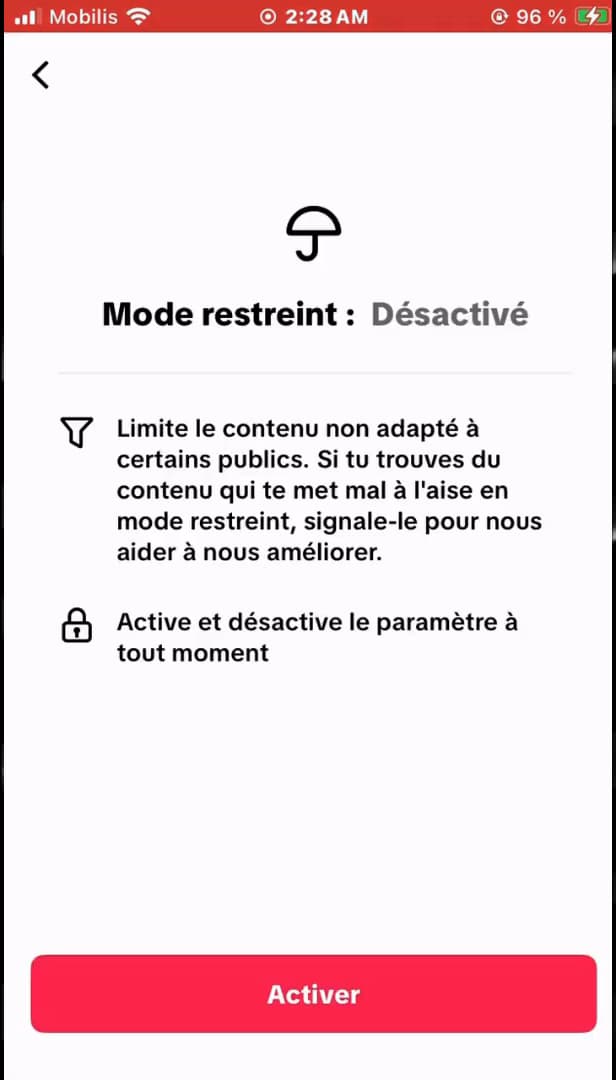
Turning it off requires the 4-digit code you chose when enabling it. Open "Restricted Mode", tap "Turn off" and enter the "4-digit code" you set when you enabled it.
Good to know
Restricted Mode is now "turned off": TikTok shows all videos again. If you forgot the code, you'll need to reset it via your "email".
Good to know
- Turning it off requires the "4-digit code" you chose when enabling it.
- Forgot the code? Use "Forgot password" to reset it by email.
- On a "Family Pairing" account, only the parent can turn it off.
Frequently asked questions
- I forgot the Restricted Mode code, what should I do?
- On the code screen, choose the reset option: TikTok sends you a link by email to set a new code.
- Why is Restricted Mode on?
- It was enabled manually, or by a parent through "Family Pairing". In that case, only the parent can turn it off.
- Does the setting apply to all my devices?
- Restricted Mode is tied to the account: once turned off, it's off everywhere you're logged in.
Related tutorials
 TikTokHow to Change the Font in Your TikTok BioWant a TikTok bio with stylish lettering? Here's how to change the font, step by step.
 TikTokHow to Delete a Conversation on TikTokWant to clear a private message on TikTok? Here's how to delete a conversation, step by step.
 TikTokHow to Save a TikTok Video as a DraftWant to save a TikTok video without posting it? Here's how to save it as a draft, step by step.
 TikTokHow to Add Music to Your TikTok VideoWant to put a sound on your TikTok video? Here's how to add music, step by step.