
How to View and Manage Your Contacts on Snapchat
Want to find the friends who already have an account? You can manage your contacts on Snapchat by syncing your address book. Here's how to do it, step by step.
Prefer a video? Watch the full tutorial below.
Viewing and managing your Snapchat contacts, step by step
Open "Add Friends"
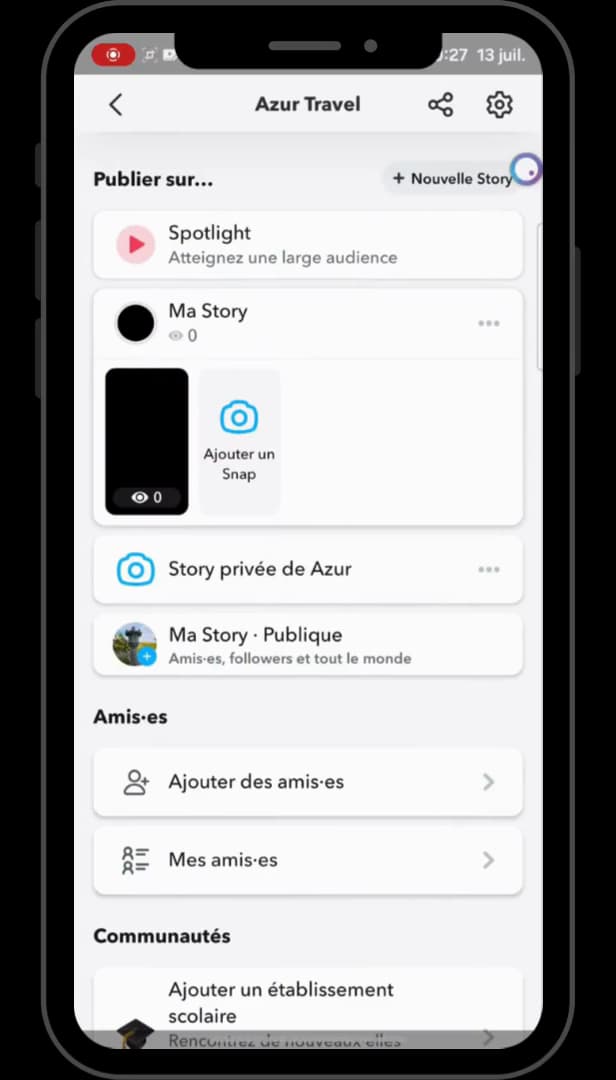
"Add Friends" lets you sync your address book. On the "Chat" screen, tap the "Add Friends" icon (the "+" silhouette).
Allow access to your contacts
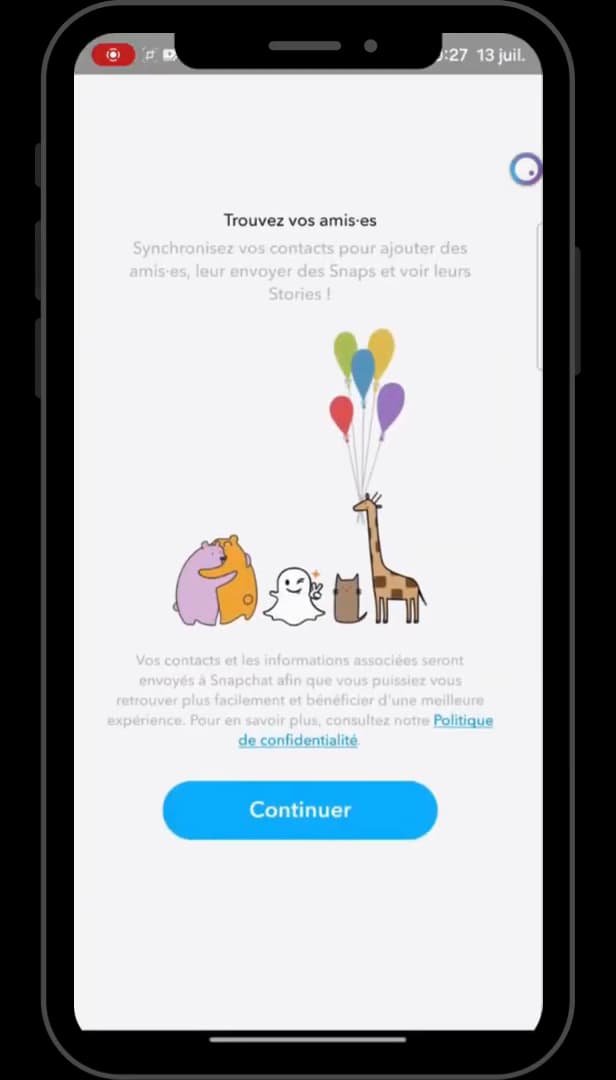
Syncing finds the friends already on Snapchat. Tap "Continue" and allow Snapchat to access your contacts.
Manage the list
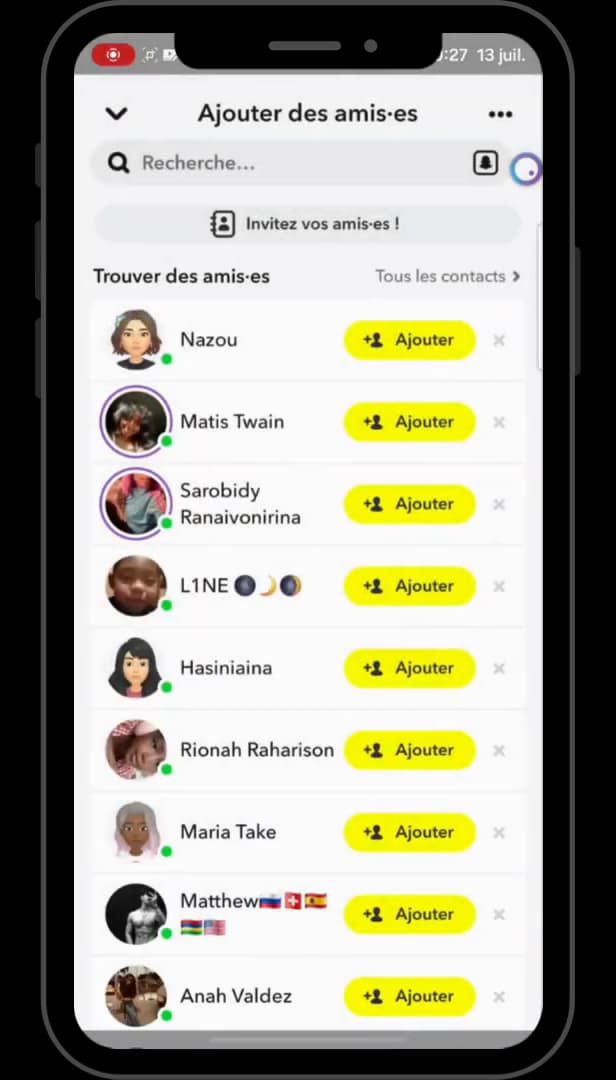
Add your contacts with a single tap from the list. Snapchat shows your contacts: tap "Add" next to the ones you want to add.
Good to know
You can see "who uses Snapchat" among your contacts and add them with a single tap. You can "turn off" syncing any time in the settings.
Good to know
- Syncing "posts nothing": it just helps you find your friends.
- You can "delete your imported contacts" in Settings › "Phone contacts."
- A contact must have "linked their number" to Snapchat to show up.
Frequently asked questions
- Are my contacts made public?
- No. Syncing only suggests friends who are already on Snapchat; nothing is posted.
- How do I stop syncing?
- In Settings › "Phone contacts," turn off syncing and delete the imported contacts if you want.
- Why doesn't a contact appear?
- They only appear if they've linked their phone number to their Snapchat account and allowed being found that way.
Related tutorials
 SnapchatHow to change your email address on SnapchatWant to change the email linked to your Snapchat account? Here's how to do it, step by step.
 SnapchatHow to Change the Language on SnapchatIs Snapchat in the wrong language? Here's how to change the app's language, step by step.
 SnapchatHow to Create a Group Chat on SnapchatWant to chat with several people on Snapchat? Here's how to create a group, step by step.
 SnapchatHow to Identify a Song on SnapchatIs music playing around you? Here's how to identify it with Snapchat (Shazam), step by step.