
How to Turn Off Flashbacks on Snapchat
Tired of your old Snaps resurfacing at the top of Memories? You can turn off Flashbacks on Snapchat with a single setting. Here's how to do it, step by step.
Prefer a video? Watch the full tutorial below.
Turning off Flashbacks on Snapchat, step by step
Open "Memories" in Settings
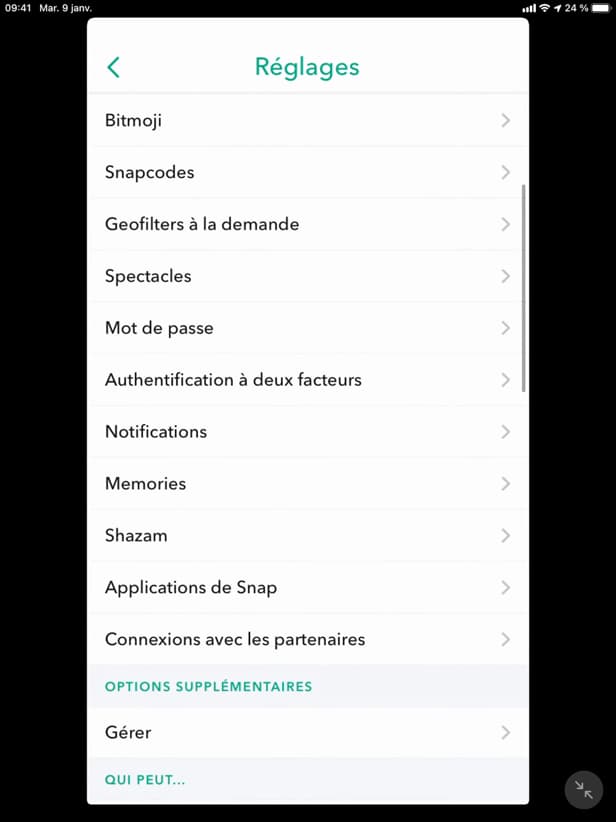
"Memories" groups the backup and Flashback options. On your profile, open "Settings" (⚙️) then "Memories."
Scroll down to "Options"
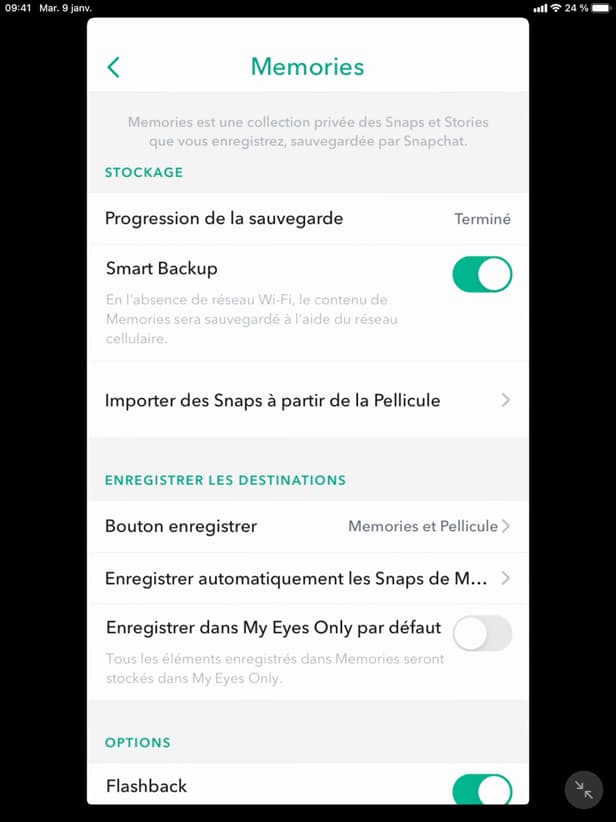
"Flashback" resurfaces your old Snaps from the same day. In "Memories," scroll down to the "Options" section, where "Flashback" is listed.
Turn off "Flashback"
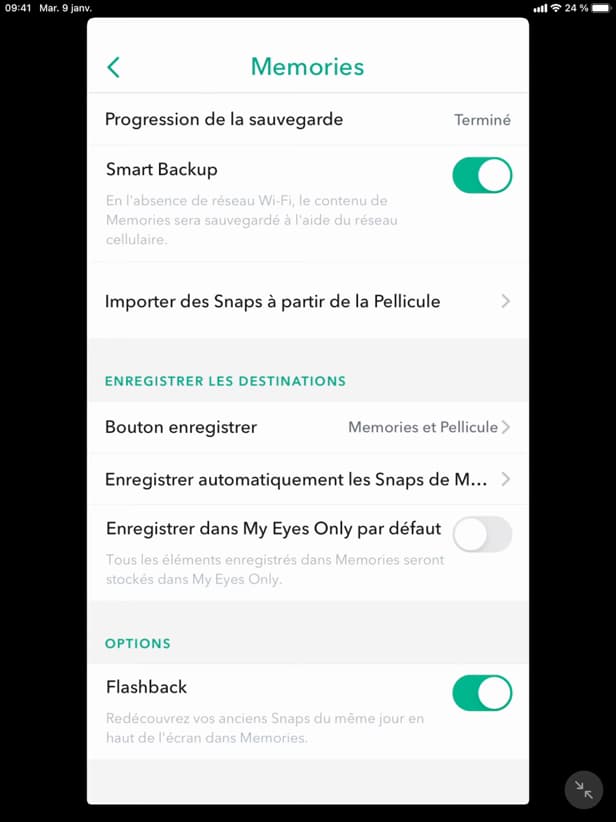
Once off, no more Flashbacks at the top of Memories. Turn off the "Flashback" switch: your old Snaps will no longer reappear.
Good to know
Flashbacks "will no longer appear" at the top of your Memories. Your old Snaps stay "safely saved": only their automatic resurfacing is turned off.
Good to know
- Turning off Flashback "does not delete" your memories, it just hides the reminders.
- You can "turn it back on" any time in the same place.
- Flashbacks are based on the "date" of the Snaps saved in Memories.
Frequently asked questions
- Does turning off Flashback delete my memories?
- No. Your Snaps saved in Memories stay intact; only their automatic resurfacing is turned off.
- Can I turn Flashbacks back on later?
- Yes. Go back to Settings › Memories › Options and turn "Flashback" back on whenever you want.
- Where do Flashbacks appear?
- At the top of the "Memories" tab, as reminders of the Snaps you took on the same day in previous years.
Related tutorials
 SnapchatHow to Turn On Dark Mode on SnapchatWant to switch Snapchat to a dark theme? Here's how to turn on dark mode, step by step.
 SnapchatHow to Enable Filters on SnapchatYour Snapchat filters have disappeared? Here's how to turn filters back on in the settings, step by step.
 SnapchatHow to Remove Your Bitmoji on SnapchatWant to remove your Snapchat Bitmoji and go back to a plain icon? Here's how to unlink it, step by step.
 SnapchatHow to change your email address on SnapchatWant to change the email linked to your Snapchat account? Here's how to do it, step by step.