
How to Turn On Dark Mode on Snapchat
Want to give your eyes a rest, especially at night? You can turn on dark mode on Snapchat right in the app, without changing your whole phone's theme. Here's how to do it, step by step.
Prefer a video? Watch the full tutorial below.
Turning on dark mode on Snapchat, step by step
Open your profile and Settings
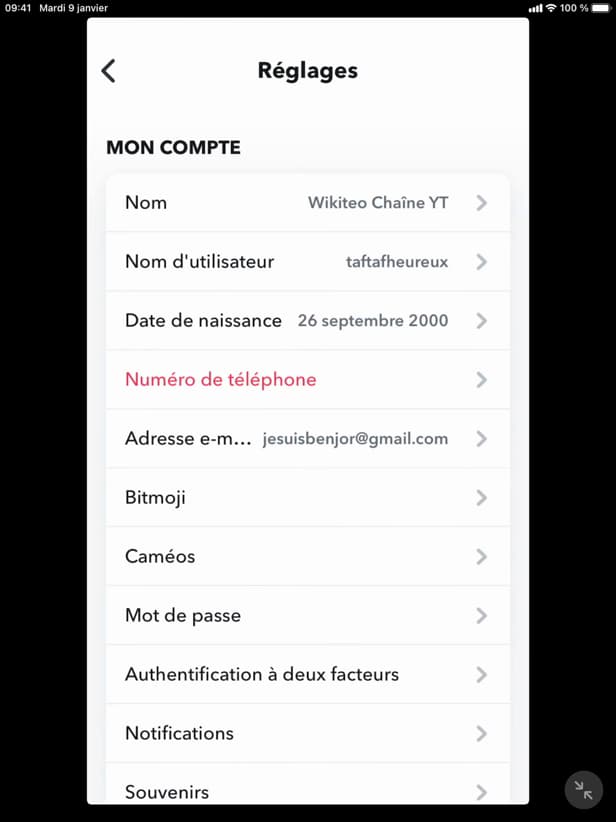
Open Settings "⚙️" from your Snapchat profile. On the camera screen, tap your "profile" in the top left, then the "⚙️" icon to open Settings.
Open "App Appearance"
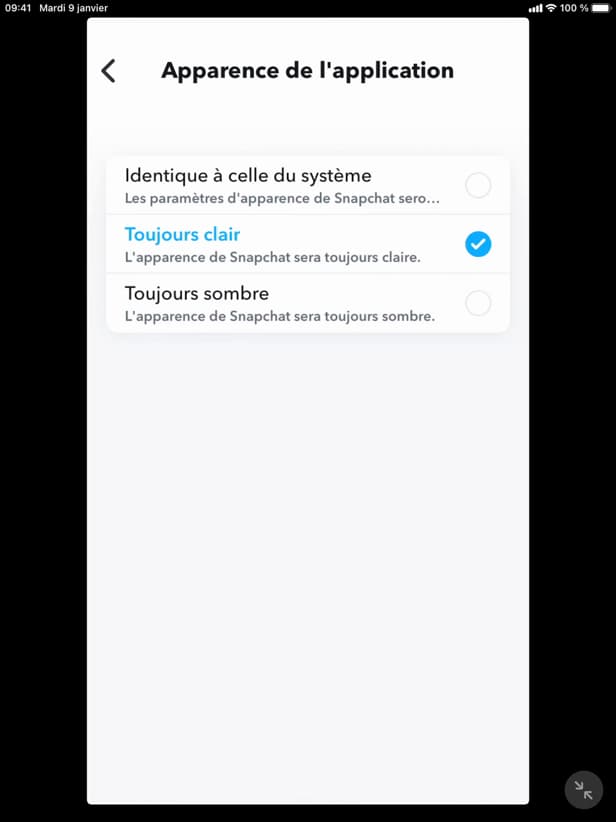
The "App Appearance" option controls the light or dark theme. Scroll through the settings and tap "App Appearance."
Choose "Always Dark"
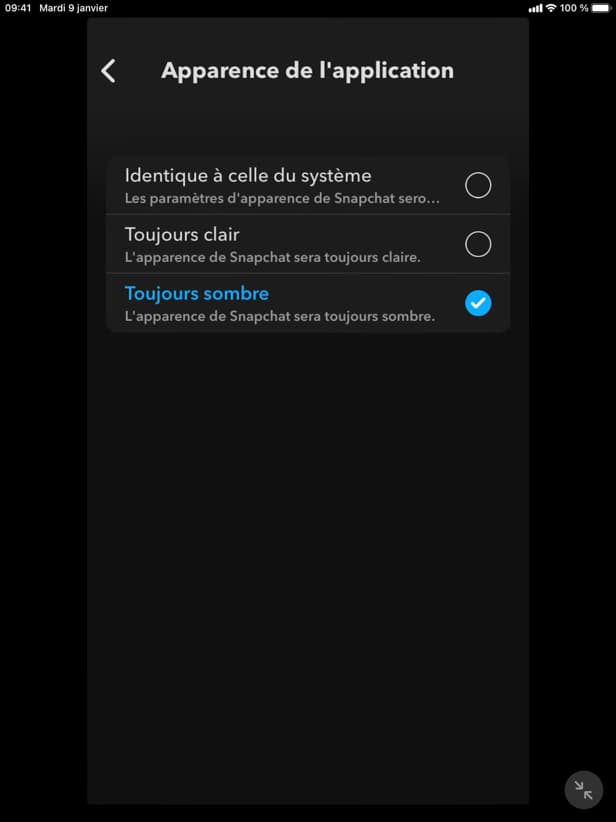
"Always Dark" forces the dark theme in Snapchat. Select "Always Dark." Snapchat immediately switches to the dark theme, regardless of your phone's setting.
Good to know
Snapchat now shows a "dark theme" at all times. You can switch back to the light theme or "Match System" at any point, in the same place.
Good to know
- "Match System" automatically follows your phone's light/dark mode.
- Dark mode applies to menus and chats, not to the "Snaps" you receive.
- On older versions, remember to "update Snapchat" if the option doesn't appear.
Frequently asked questions
- Is dark mode available on iPhone and Android?
- Yes, the "App Appearance" option is available on both, in a recent version of Snapchat.
- Why don't I see the option?
- Your app may not be up to date. Update Snapchat from the App Store or Play Store, then try again.
- Does dark mode change how Snaps look?
- No. It affects the interface (menus, chat). Snaps and photos keep their original colors.
Related tutorials
 SnapchatHow to Enable Filters on SnapchatYour Snapchat filters have disappeared? Here's how to turn filters back on in the settings, step by step.
 SnapchatHow to Turn Off Flashbacks on SnapchatAre Snapchat Flashbacks bothering you? Here's how to turn them off, step by step.
 SnapchatHow to change your email address on SnapchatWant to change the email linked to your Snapchat account? Here's how to do it, step by step.
 SnapchatHow to Change the Language on SnapchatIs Snapchat in the wrong language? Here's how to change the app's language, step by step.