
How to Remove Your Bitmoji on Snapchat
Done with your avatar and want to go back to a plain icon? Removing your Bitmoji on Snapchat takes only a few seconds: you just unlink it from your Bitmoji settings. Here's how, step by step.
Prefer a video? Watch the full tutorial below.
Removing your Bitmoji on Snapchat, step by step
Open your Snapchat profile
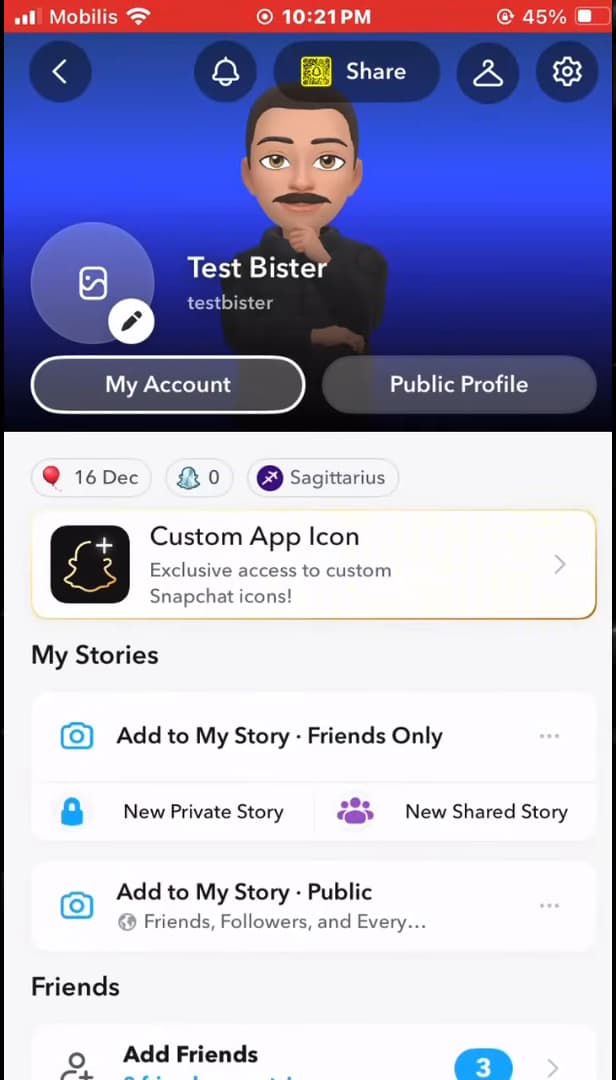
Tap your Bitmoji in the top-left corner to open your profile. Open "Snapchat" and tap your "Bitmoji" in the top-left corner of the screen to open your profile.
Open your Bitmoji settings
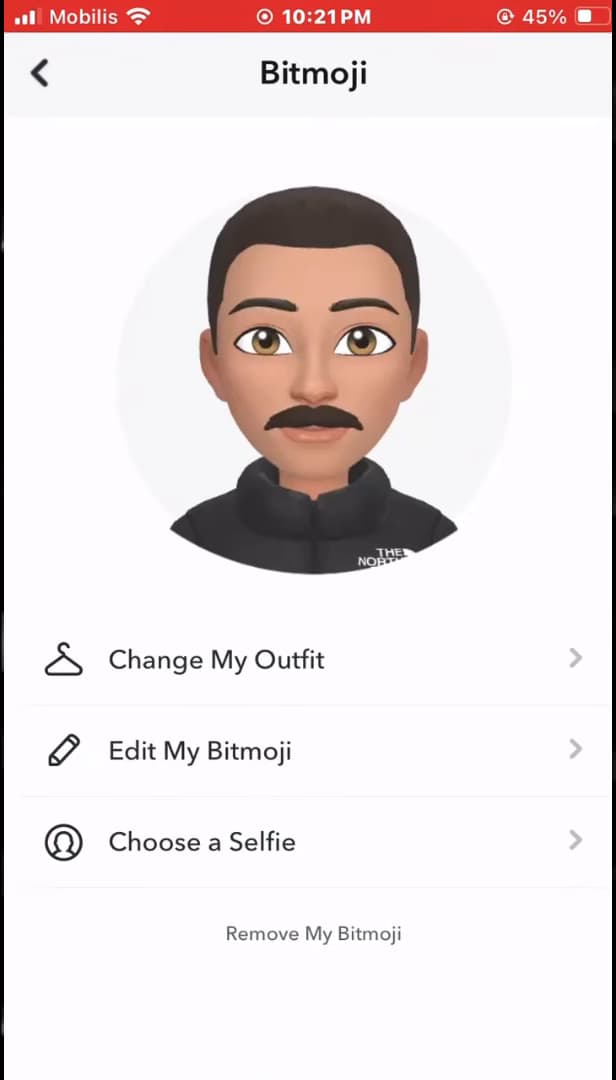
The Bitmoji menu brings together all your avatar options. Scroll down and open the "Bitmoji" menu. This is where you can edit or remove your avatar.
Tap "Unlink My Bitmoji"
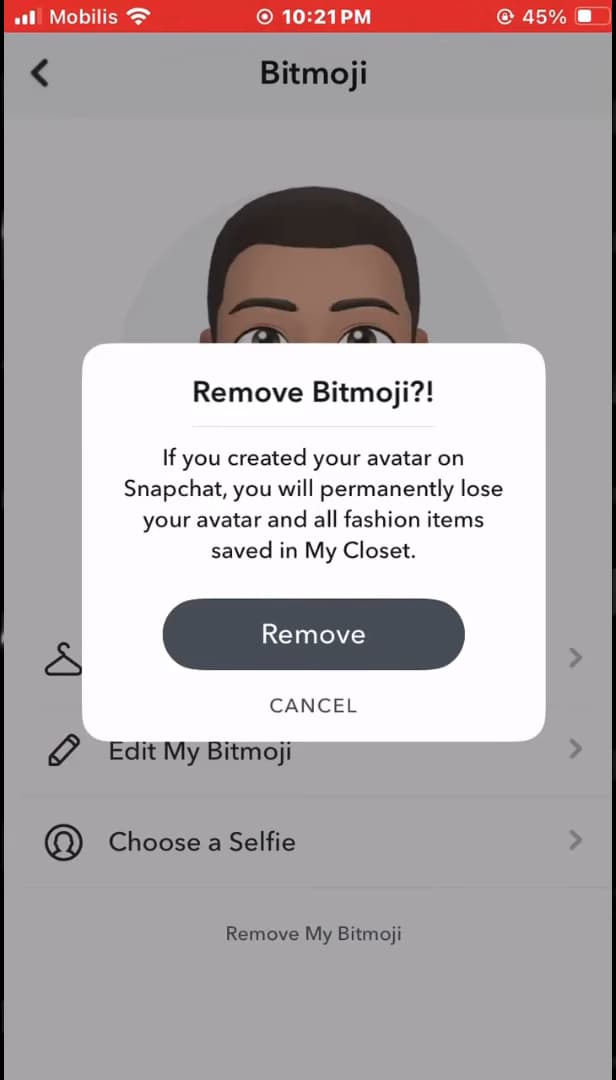
Confirm to permanently unlink your Bitmoji. Tap "Unlink My Bitmoji". Snapchat shows a message to confirm: tap "Confirm" (or "Unlink").
Your Bitmoji is removed
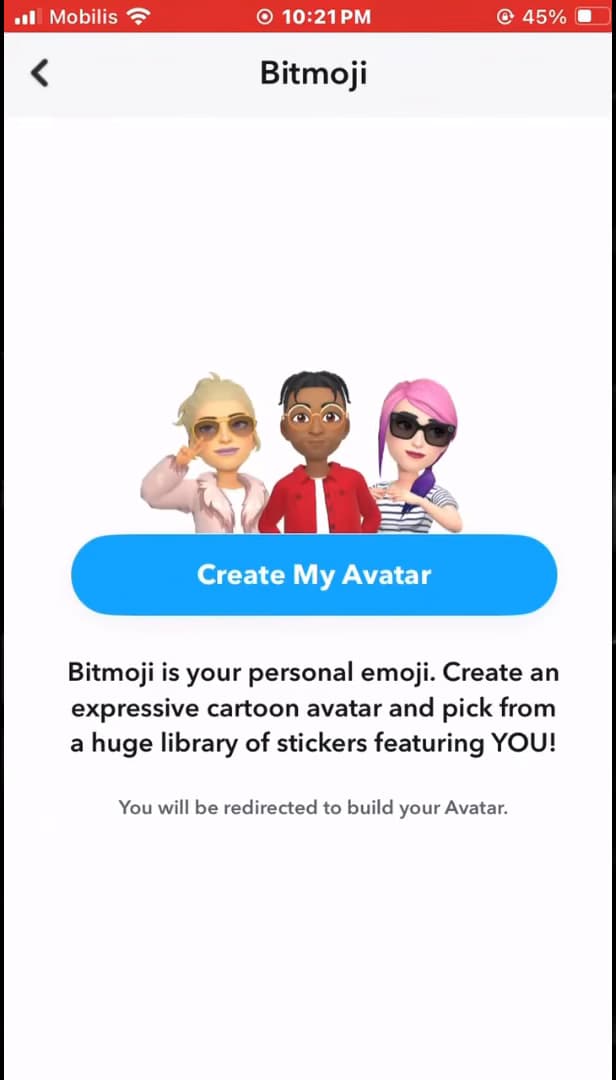
The Bitmoji is removed: your profile is back to a plain icon. Your avatar is removed immediately: your profile shows a "plain icon" again, as if you'd never created a Bitmoji.
Good to know
Unlinking your Bitmoji does not delete your Snapchat account: only the avatar is removed. You can always "create a new one" later if you change your mind.
Good to know
- Unlinking the Bitmoji means you lose the "outfits and items" saved in your wardrobe.
- Your friends will no longer see your avatar, but a neutral icon instead.
- To create a new Bitmoji, go back to the Bitmoji menu and tap "Create My Avatar".
Frequently asked questions
- Does unlinking your Bitmoji delete your Snapchat account?
- No. Only the avatar is removed. Your account, your friends and your snaps stay intact: your profile simply shows a plain icon.
- Can I add my Bitmoji back after removing it?
- Yes. Go back to the Bitmoji menu in your profile and tap "Create My Avatar" to make a new one at any time.
- What happens to my Bitmoji wardrobe?
- By unlinking your Bitmoji, you lose the outfits and items you bought or saved in your wardrobe. They aren't automatically recoverable.
Related tutorials
 SnapchatHow to Turn Off Flashbacks on SnapchatAre Snapchat Flashbacks bothering you? Here's how to turn them off, step by step.
 SnapchatHow to tell if someone is active on SnapchatWant to know if a friend is active on Snapchat right now? Here are the signs to look for and how to get notified, step by step.
 SnapchatHow to change your email address on SnapchatWant to change the email linked to your Snapchat account? Here's how to do it, step by step.
 SnapchatHow to Change the Language on SnapchatIs Snapchat in the wrong language? Here's how to change the app's language, step by step.