
How to Set the Snap Timer on Snapchat
Want a Snap to stay on screen for more or less time? You can set the Snap timer on Snapchat, from 1 to 10 seconds or with no limit. Here's how to do it, step by step.
Prefer a video? Watch the full tutorial below.
Setting the Snap timer on Snapchat, step by step
Take a Snap
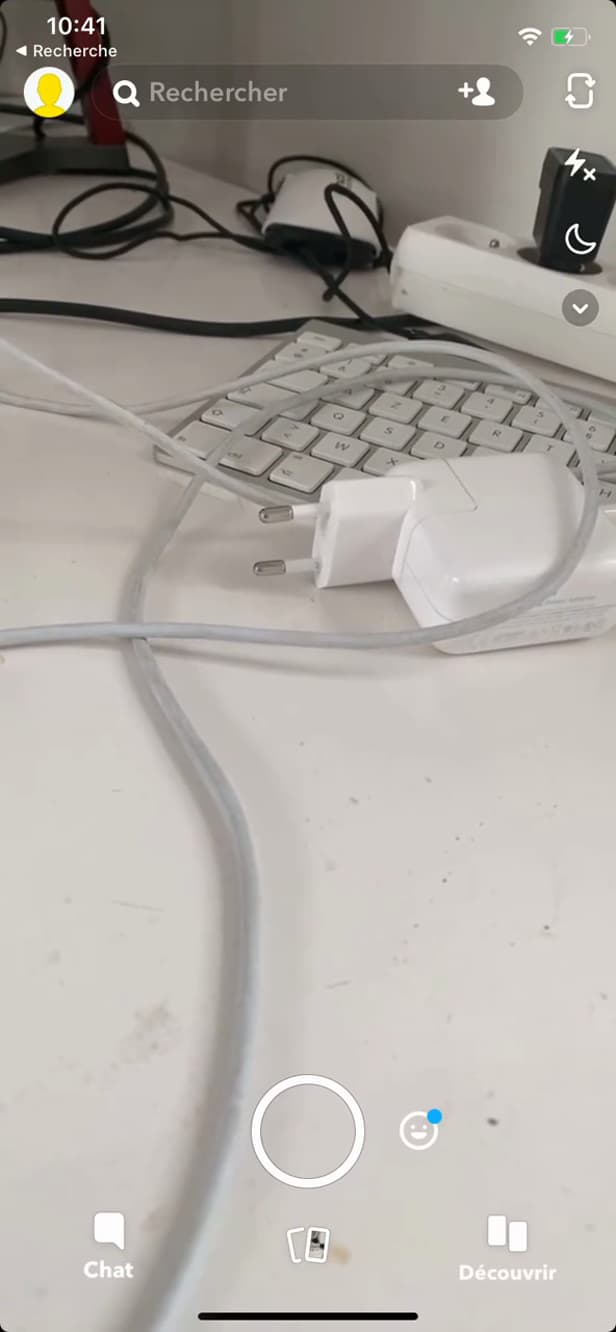
After capturing, the editing tools appear. Open the camera and take a photo (Snap).
Open the timer
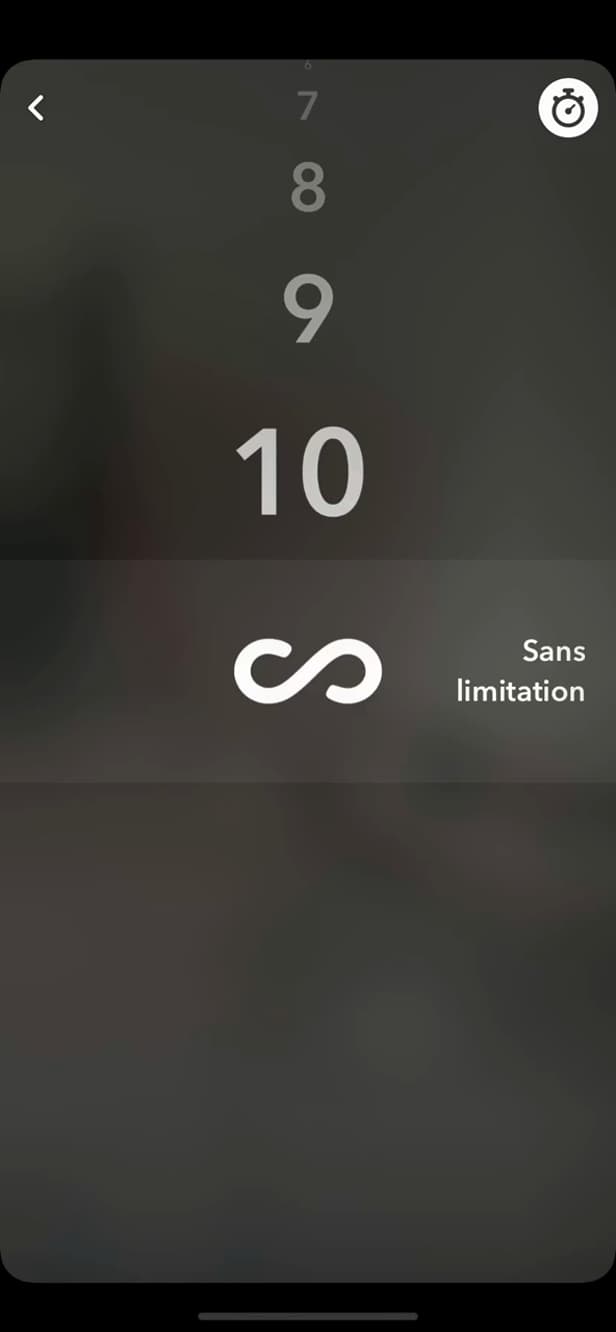
The timer offers 1 to 10 seconds, or "No limit". On the editing screen, tap the "timer" icon (⏱) on the right.
Choose the duration
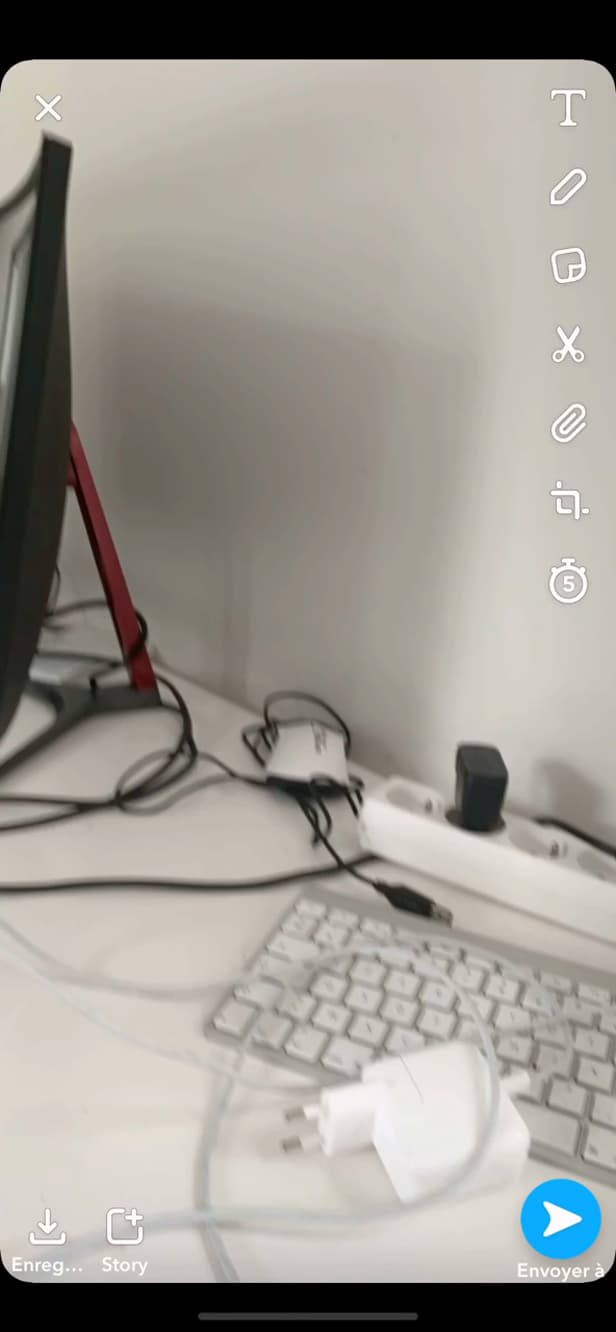
The chosen duration applies when the recipient opens the Snap. Scroll and choose the duration (1 to 10s), or "∞" for unlimited display, then send.
Good to know
Your Snap will display for the "chosen duration" when opened. The "No limit" (∞) option lets the recipient watch it "with no timer".
Good to know
- The duration applies to "photos"; videos keep their recorded length.
- "No limit" (∞) keeps the Snap open as long as the finger stays pressed.
- The recipient can always take a "screenshot" (you'll be notified).
Frequently asked questions
- What's the maximum duration for a Snap?
- Up to 10 seconds as a fixed duration, or "No limit" (∞) for display with no timer.
- Does the duration apply to videos?
- No. This setting is for photos. A video plays for its recorded length.
- Can the recipient watch the Snap again?
- They can replay it once depending on your settings. A screenshot is still possible, but you're notified about it.
Related tutorials
 SnapchatHow to create a second Snapchat accountWant a second Snapchat account? Here's how to create one and switch between your accounts, step by step.
 SnapchatHow to Share a Link on SnapchatWant to send a link in a Snap? Here's how to attach a URL to your Snap, step by step.
 SnapchatHow to Save Your Snapchat Memories to Your GalleryWant your Snapchat Memories to show up in your phone's gallery? Here's how to turn on automatic saving, step by step.
 SnapchatHow to change your email address on SnapchatWant to change the email linked to your Snapchat account? Here's how to do it, step by step.