
How to Fix the SS06 Error on Snapchat
Can't log in to Snapchat because of the SS06 error code? Don't worry: it's not a permanent ban. The SS06 error means Snapchat has temporarily blocked your device or account after detecting activity it considered suspicious (too many login attempts, a password entered several times, or an unusual login). The good news: in the vast majority of cases, the problem sorts itself out with a bit of patience and a few checks. Here's how to fix the SS06 error and get back in.
Prefer a video? Watch the full tutorial below.
Fixing Snapchat's SS06 error, step by step
Wait before trying again
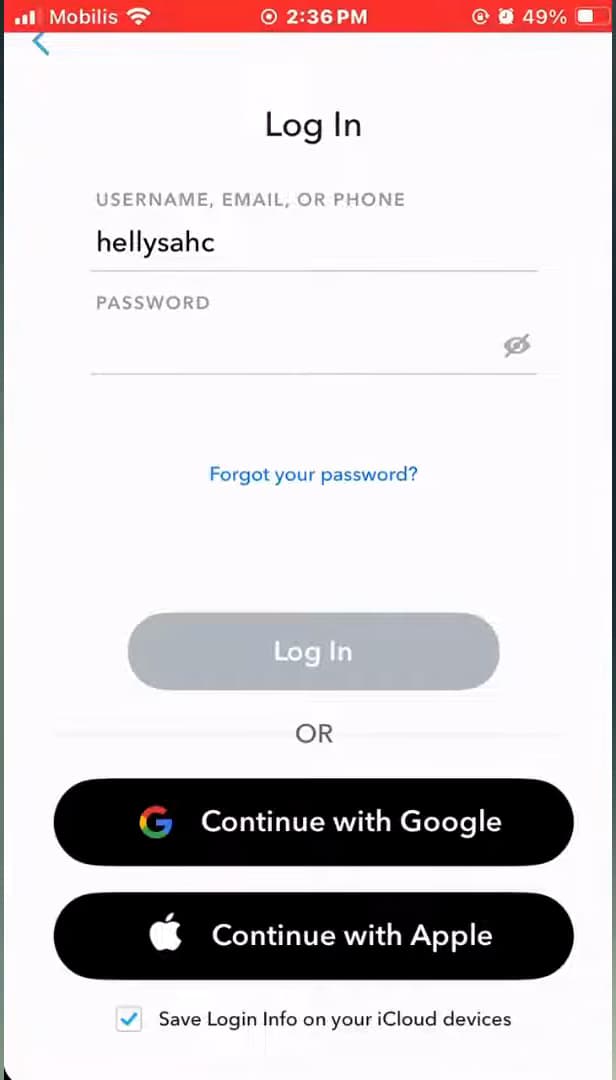
The SS06 error appears at login: most of the time, you just need to wait. The most effective solution is "patience": close Snapchat completely and wait "15 to 20 minutes" before trying to log in again. If the block persists, wait "a few hours, or even a day": Snapchat lifts the block automatically.
Switch networks and open Settings
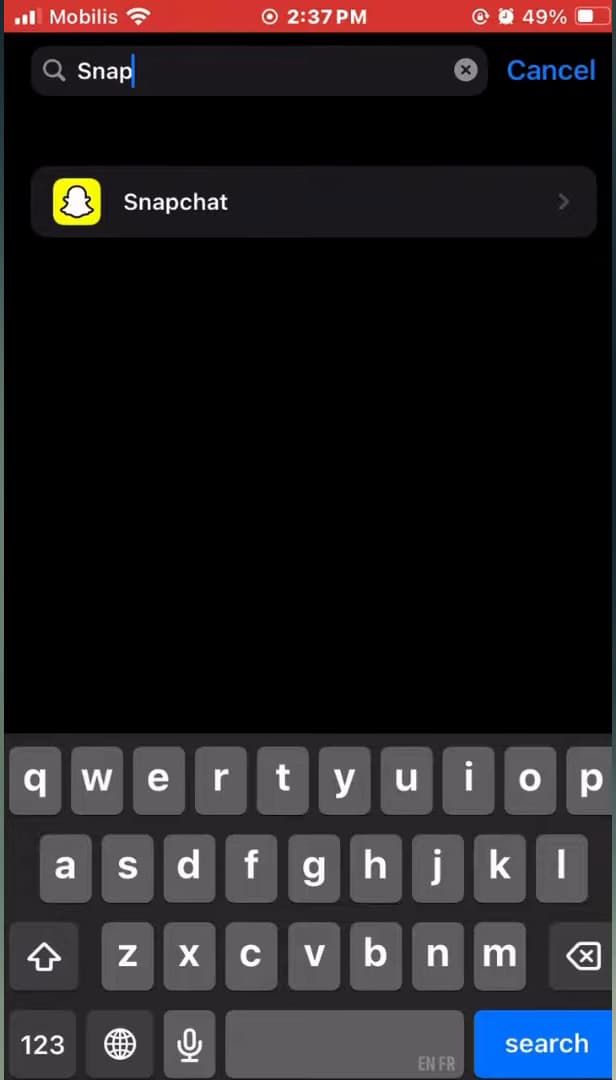
Find Snapchat in your settings to check its permissions. Switch from "Wi-Fi to mobile data" (or the other way around) to change your connection address. Then open your phone's "Settings" and look for "Snapchat" in the list of apps.
Allow location for Snapchat
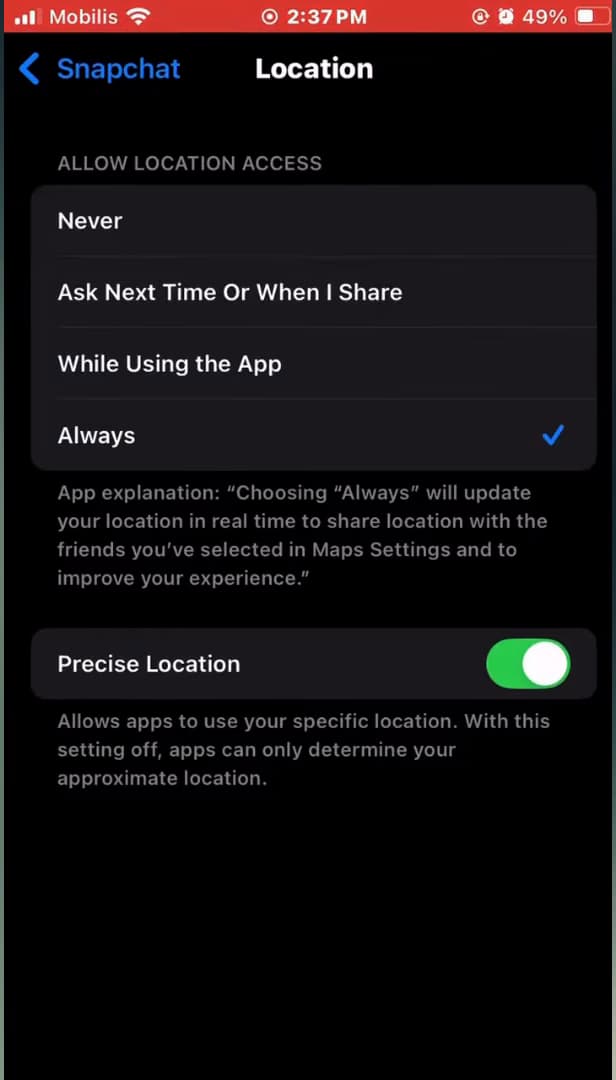
Allowing location "Always" reassures Snapchat about your identity. In Snapchat's settings, open "Location" and choose "Always". An active location helps Snapchat confirm your login is legitimate, which can clear the SS06 error.
Reinstall Snapchat as a last resort
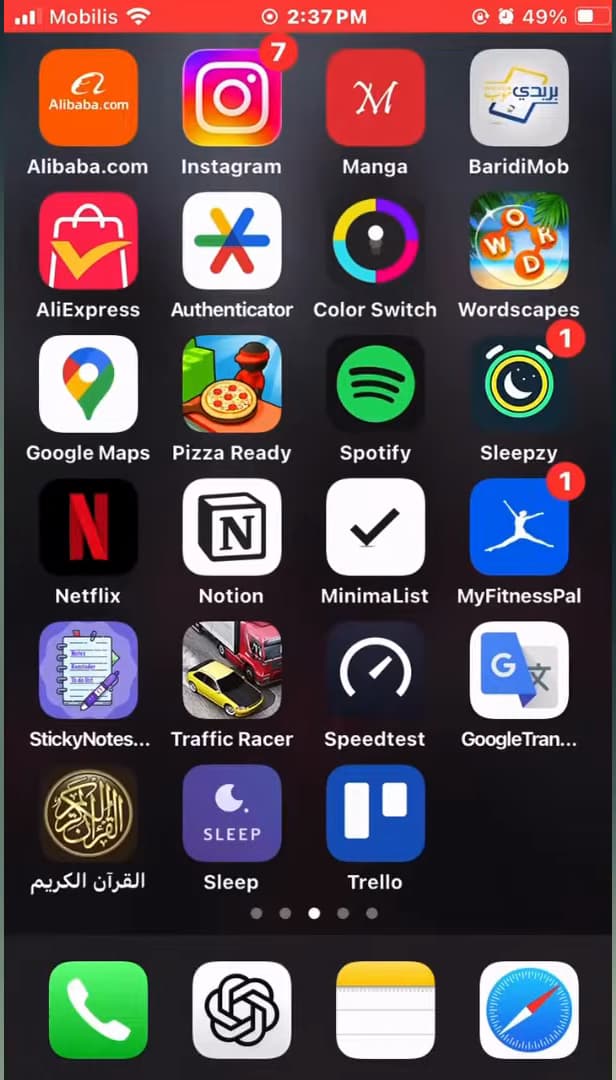
Uninstalling then reinstalling Snapchat starts from a clean base. If the error persists, "uninstall" the Snapchat app, then "reinstall it" from the App Store or the Play Store. You can then log back in to your account normally.
Good to know
In most cases, the "SS06 error clears on its own" after a few minutes to a few hours. If none of these solutions work after 24 hours, contact Snapchat support at "help.snapchat.com".
To keep the SS06 error from coming back
- Don't pile up rapid login attempts.
- Use only the official Snapchat app (third-party versions trigger blocks).
- Make sure your phone's date and time are set automatically.
Frequently asked questions
- What does the SS06 error mean on Snapchat?
- It's a temporary security block: Snapchat detected suspicious activity (too many logins, a repeated password, an unusual login) and pauses your account or device for a short while.
- How long does the SS06 block last?
- From a few minutes to about 24 hours. Most often, waiting 15 to 20 minutes is enough to log back in.
- Is the SS06 error a permanent ban?
- No. Unlike a ban, SS06 is temporary and lifts automatically. If your account stays locked for a long time, contact Snapchat support.
Related tutorials
 SnapchatHow to Block and Unblock Someone on SnapchatWant to block someone on Snapchat, or unblock them? Here are both methods, step by step, from your phone.
 SnapchatHow to tell if someone has blocked you on SnapchatA contact has disappeared from Snapchat? Here are the signs that point to a block and how to check them, step by step.
 SnapchatHow to change your email address on SnapchatWant to change the email linked to your Snapchat account? Here's how to do it, step by step.
 SnapchatHow to Change the Language on SnapchatIs Snapchat in the wrong language? Here's how to change the app's language, step by step.