
How to Block and Unblock Someone on Snapchat
Is someone bothering you, or do you want to give someone access again? On Snapchat, blocking and unblocking someone takes just a few seconds from your phone. Here are both methods, step by step.
Prefer a video? Watch the full tutorial below.
Blocking and unblocking someone on Snapchat, step by step
Open the person's profile
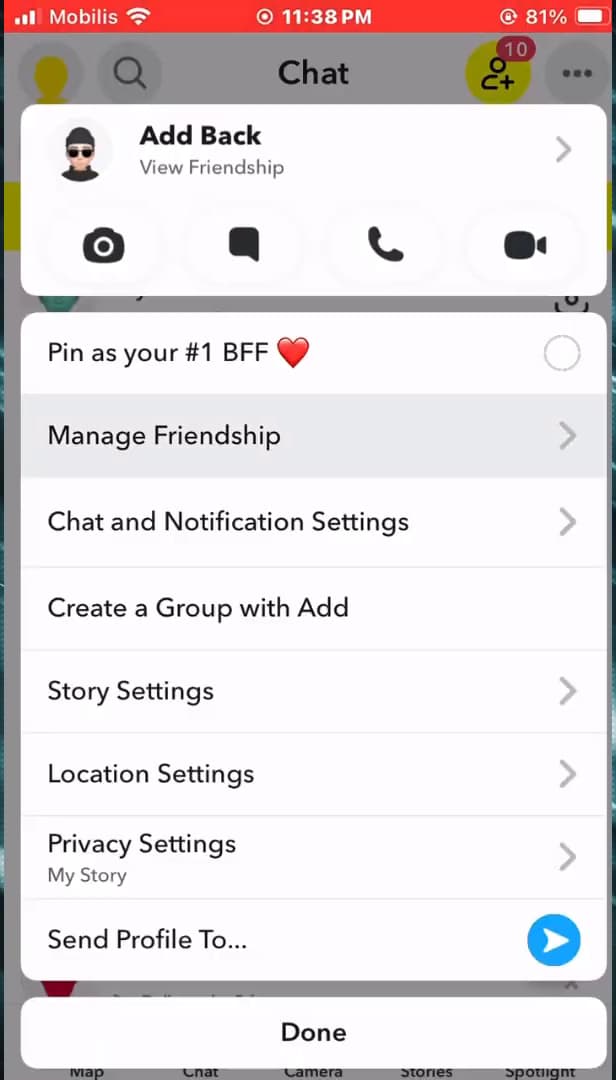
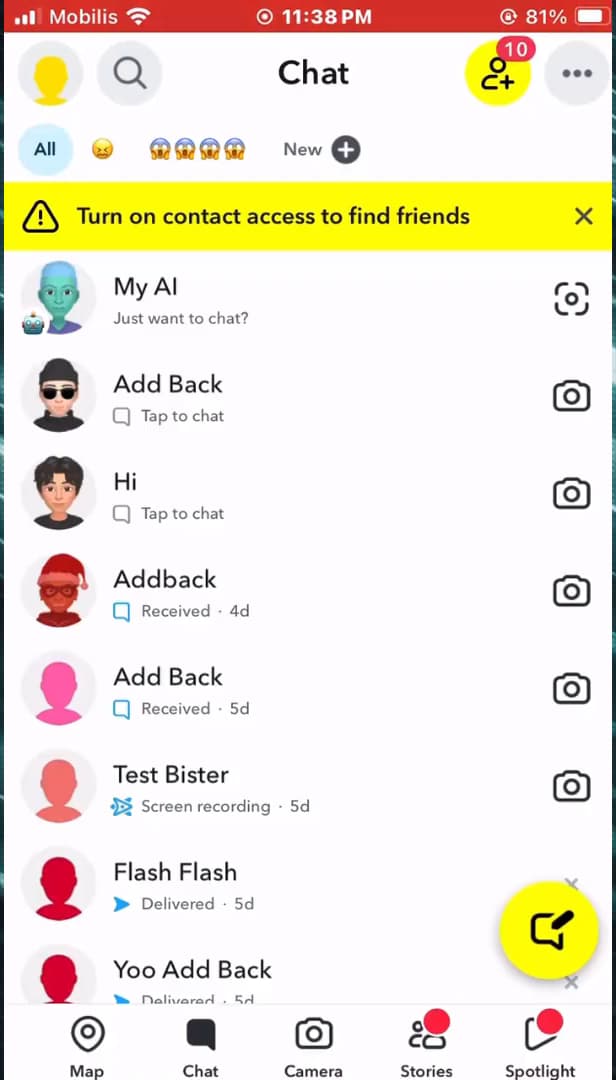
Press and hold the contact's name to open their options. Open "Snapchat", swipe right or tap the "Chat" icon to open your conversations. Find the person and press and hold their "name".
Block the person
"Manage Friendship" gives you access to the "Block" option. In the menu, tap "Manage Friendship", then "Block". Snapchat asks you to confirm: tap "Block" once more. The person can no longer send you messages or see your activity.
To unblock, open the blocked list
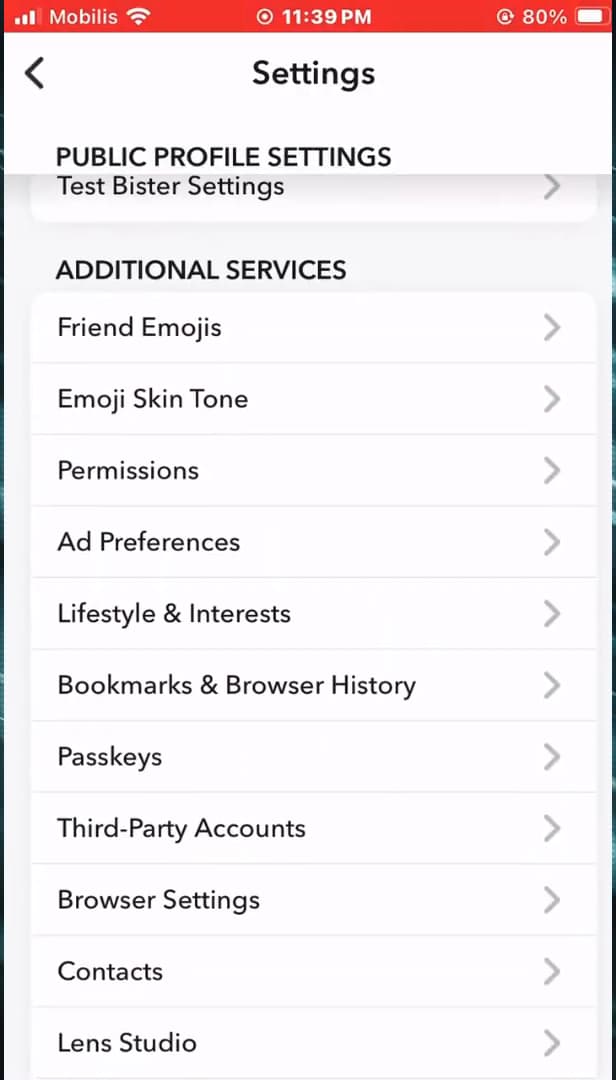
The "Blocked" list is found under "Privacy Control". Go back to your "profile", tap the "settings" icon (gear), scroll down to "Privacy Control", then open "Blocked".
Unblock the person
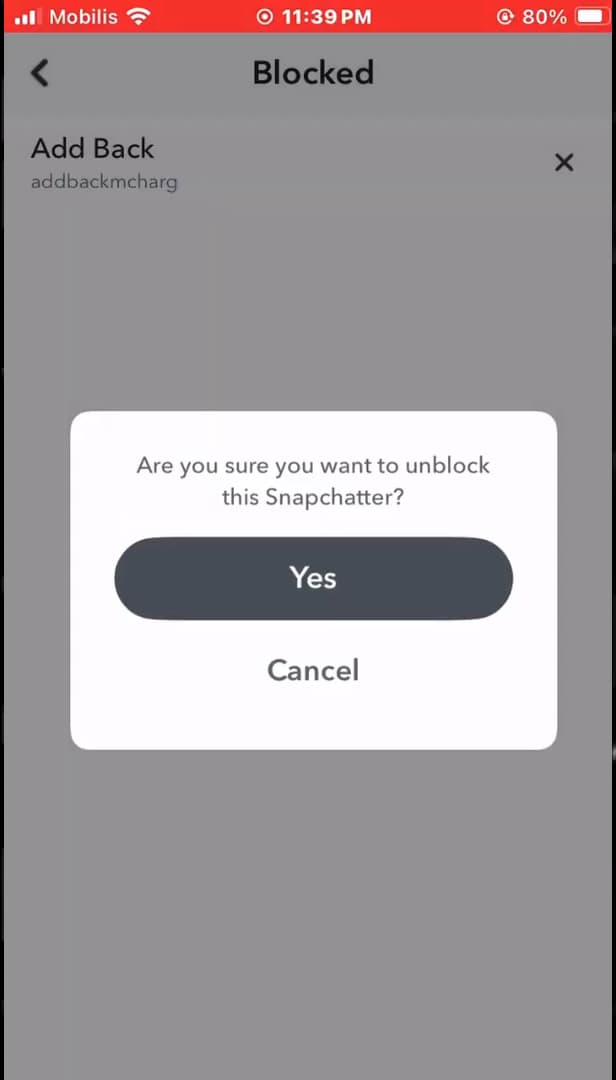
The X next to the name, then "Unblock": the person is unblocked. In the blocked list, tap the "X" next to the name you want to unblock, then confirm with "Unblock". The person can add you and message you again.
Good to know
Blocking someone removes them from your friends list and stops them from contacting you. Unblocking them does "not add them back automatically": you'll need to add each other again.
Good to know
- The blocked person is "not notified", but they can no longer find you in their contacts.
- After unblocking, you have to "re-add" each other to chat again.
- You can block as many people as you need: they all appear in the "Blocked" list.
Frequently asked questions
- Is the person notified when I block them?
- No. Snapchat sends no block notification. The person only notices that they can no longer find you in their conversations or in search.
- Does unblocking someone add them back to my friends?
- No. Unblocking only removes the block. To chat again, you have to re-add each other like any new contact.
- Where is the blocked list?
- On your profile, open the settings (gear), go to the "Privacy Control" section, then "Blocked". Everyone you've blocked is listed there.
Related tutorials
 SnapchatHow to tell if someone has blocked you on SnapchatA contact has disappeared from Snapchat? Here are the signs that point to a block and how to check them, step by step.
 SnapchatHow to tell if someone is active on SnapchatWant to know if a friend is active on Snapchat right now? Here are the signs to look for and how to get notified, step by step.
 SnapchatHow to Fix the SS06 Error on SnapchatIs the Snapchat SS06 error keeping you from logging in? Here's why it shows up and how to fix it, step by step, to get back into your account.
 SnapchatHow to change your email address on SnapchatWant to change the email linked to your Snapchat account? Here's how to do it, step by step.