
How to add friends on Snapchat
Just joined Snapchat or looking to reconnect with people you know? You can add friends on Snapchat by username, contacts or suggestions. Here's how to do it, step by step.
Prefer a video? Watch the full tutorial below.
Adding friends on Snapchat, step by step
Search for a username
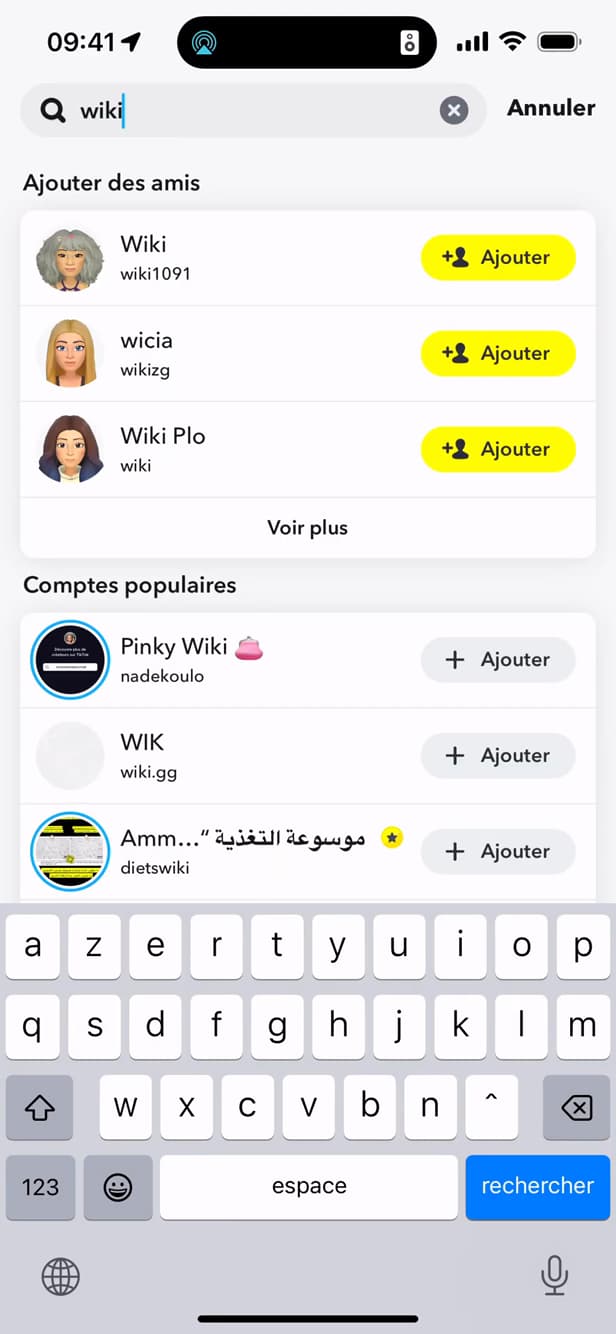
Look the person up by their "username". Tap the "Add Friends" icon (at the top of the camera screen), then type the "username" you're looking for into the search bar.
Tap "Add"
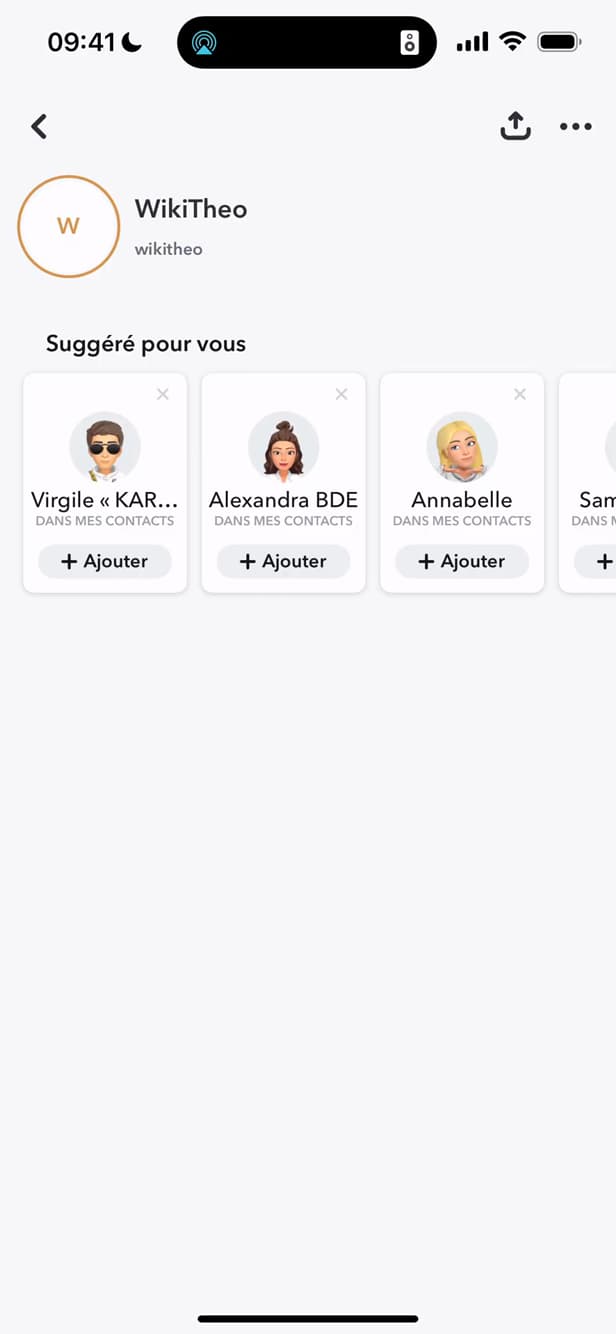
The yellow "Add" button sends the friend request. Next to the right result, tap the yellow "Add" button. The person receives your friend request.
Add from suggestions
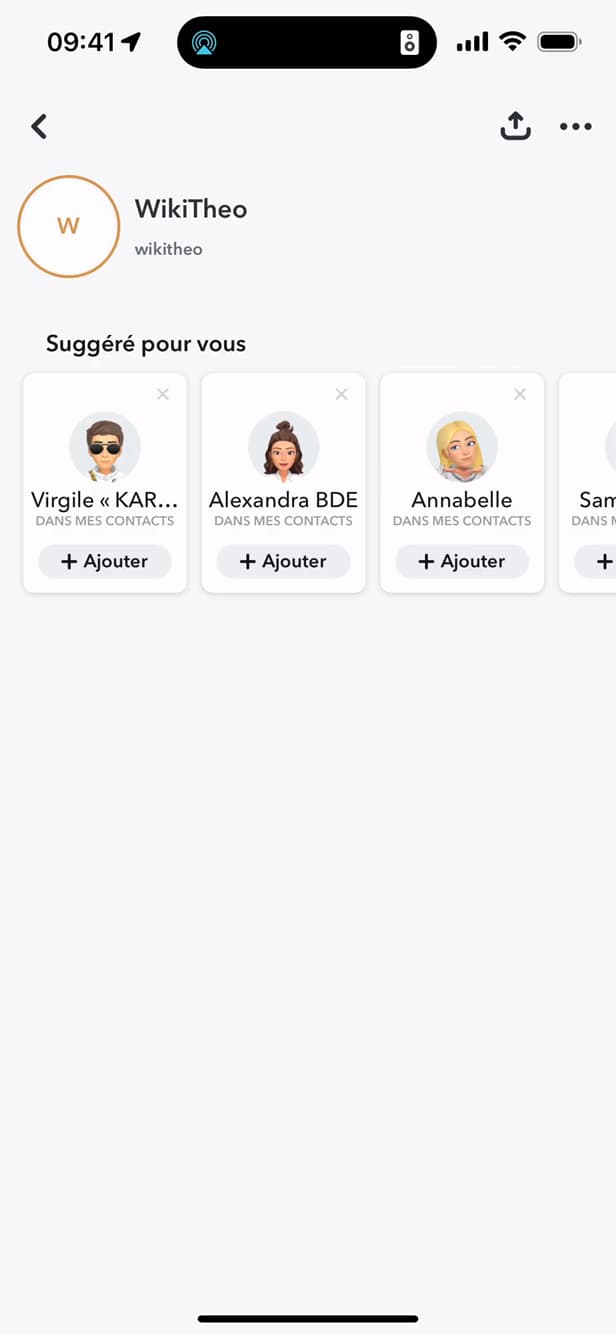
"Suggested for you" surfaces mutual friends to add. You can also add people from "Suggested for you" (based on your contacts and mutual friends) by tapping "+ Add".
Good to know
Your requests are sent: as soon as the person "adds you back", you become friends and can send each other Snaps. Remember to allow access to your "contacts" to find people you know faster.
Good to know
- Allow "contact syncing" to find your friends automatically.
- You can also add someone by scanning their "Snapcode".
- A person has to "add you back" to see your private Snaps.
Frequently asked questions
- How do I add someone without their username?
- Scan their Snapcode (point the camera at the code), or turn on contact syncing to find people you know by phone number.
- Will the person know I added them?
- Yes, they get a "so-and-so added you" notification and can add you back.
- Why can't I see their Snaps after adding them?
- Because they haven't added you back yet. The friendship has to be mutual to see private Snaps.
Related tutorials
 SnapchatHow to Identify a Song on SnapchatIs music playing around you? Here's how to identify it with Snapchat (Shazam), step by step.
 SnapchatHow to recover your deleted Snaps on SnapchatWant to find old Snaps or memories? Here's how to recover your Snapchat data, step by step.
 SnapchatHow to tell if someone is active on SnapchatWant to know if a friend is active on Snapchat right now? Here are the signs to look for and how to get notified, step by step.
 SnapchatHow to change your email address on SnapchatWant to change the email linked to your Snapchat account? Here's how to do it, step by step.