
How to turn off read receipts on iPhone
Want to read your iMessages without the other person seeing "Read"? You can turn off read receipts on iPhone in the Messages settings. Here's how to do it, step by step.
Prefer a video? Watch the full tutorial below.
Turning off read receipts on iPhone, step by step
Open "Messages" in Settings
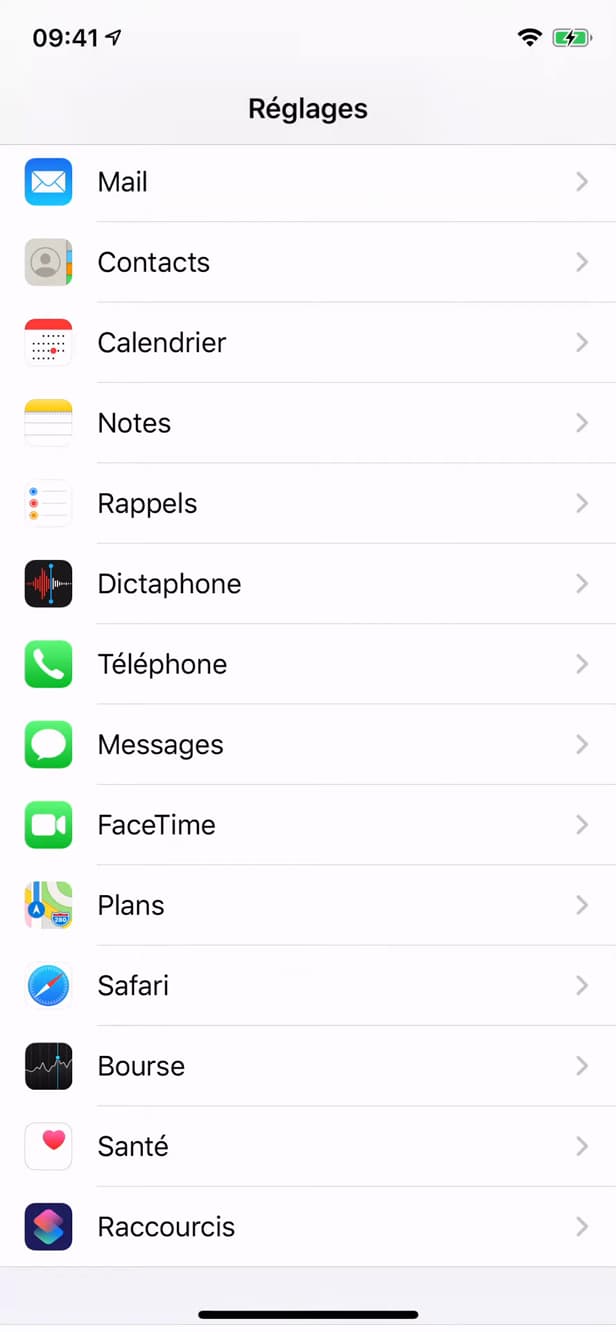
Read receipts are set in "Messages". In your iPhone "Settings", scroll down to "Messages".
Find "Send Read Receipts"
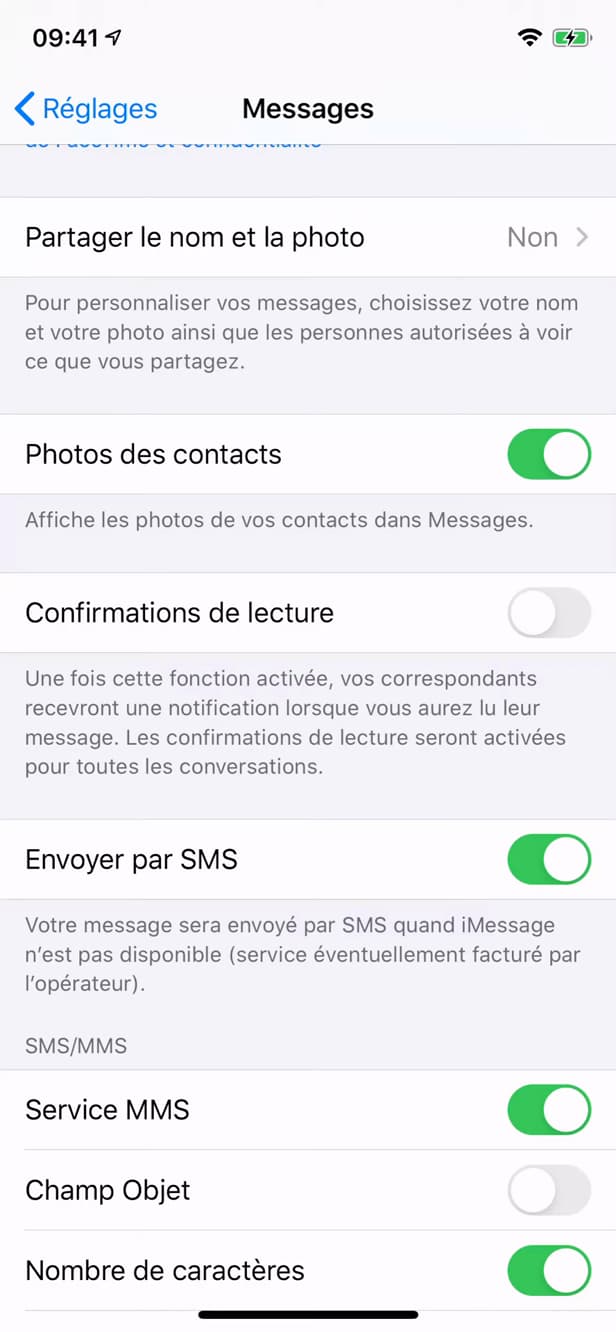
"Send Read Receipts" sends a "Read" tag to your contacts. In "Messages", find the "Send Read Receipts" option.
Turn off the option
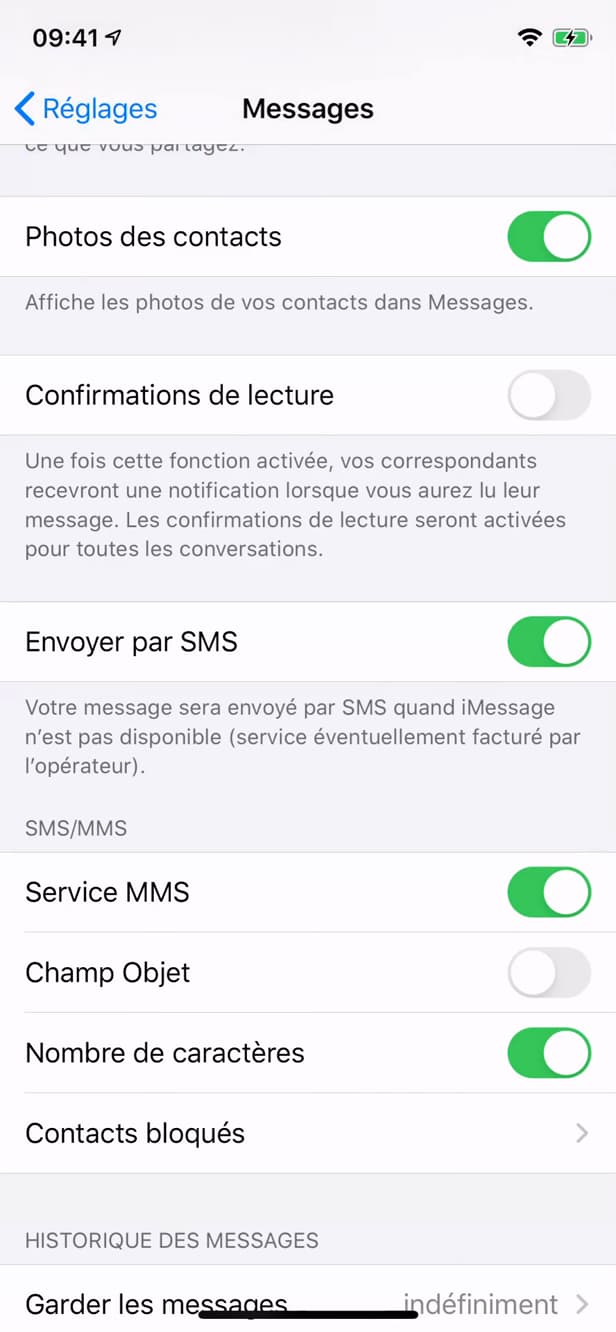
Turned off, the option no longer sends a read receipt. Turn off the toggle: your contacts will no longer see "Read" under their messages.
Good to know
The people you message no longer see "Read" when you open their iMessages. Note: you won't see "their" read receipts either, by reciprocity in some cases.
Good to know
- This setting only affects "iMessage" (blue bubbles), not SMS.
- You can turn it on/off "on a case-by-case basis" from each conversation (Info).
- Turned off globally, it applies to "all your conversations".
Frequently asked questions
- Does this work for SMS too?
- No. Read receipts only exist on iMessage (blue bubbles), not on regular SMS texts (green bubbles).
- Can I turn off "Read" for just one contact?
- Yes. Open the conversation › "Info" › and set "Send Read Receipts" for that contact only.
- Will I still see if the other person read my messages?
- If your contact has their own read receipts turned on, you'll see their "Read" tag. The setting only controls what YOU send.
Related tutorials
 iPhoneHow to Create a PDF from the Files App on iPhoneWant to turn one or more images into a PDF? Here's how to create a PDF from the Files app on iPhone, step by step.
 iPhoneHow to Disable Call Forwarding on iPhoneAre your calls being forwarded to another number? Here's how to turn off call forwarding on iPhone, step by step.
 iPhoneHow to Block Spam Calls on iPhoneTired of unwanted calls? Here's how to block spam calls on iPhone using Silence Unknown Callers, step by step.
 iPhoneHow to Change Your App Store Region on iPhoneWant to access apps from another country? Here's how to change your App Store region on iPhone, step by step.