
How to Block Spam Calls on iPhone
Telemarketers, robocalls, unknown numbers… To block spam calls on iPhone, iOS offers an option that silently declines every number you don't know. Here's how to turn it on, step by step.
Prefer a video? Watch the full tutorial below.
Blocking spam calls on iPhone, step by step
Open Settings, then Apps
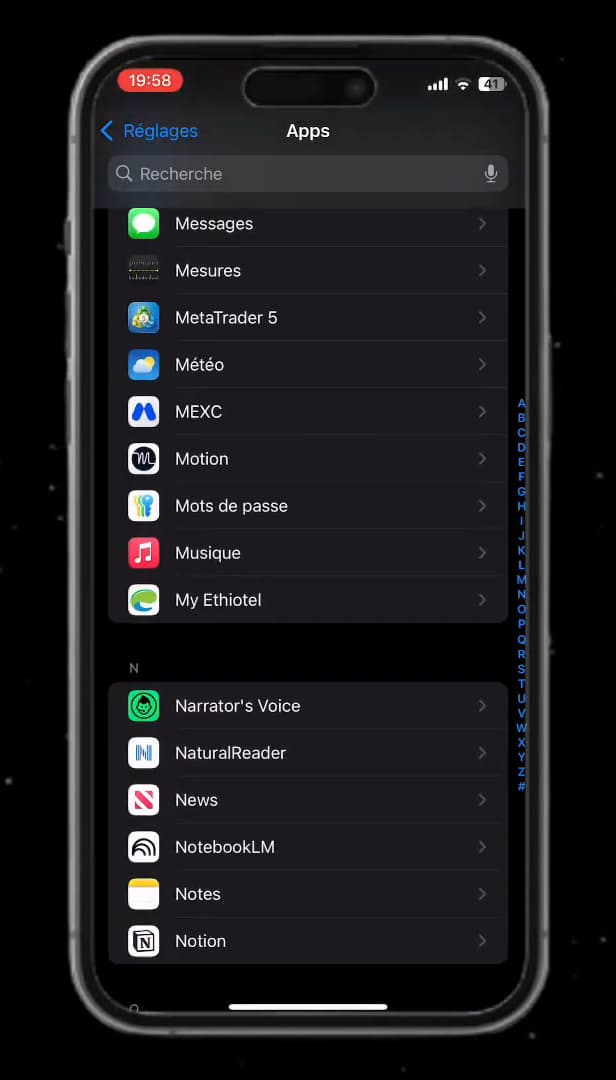
The option is found under "Settings" › "Apps" › "Phone". Open your iPhone's "Settings", go to "Apps", then tap "Phone".
Open the Phone settings
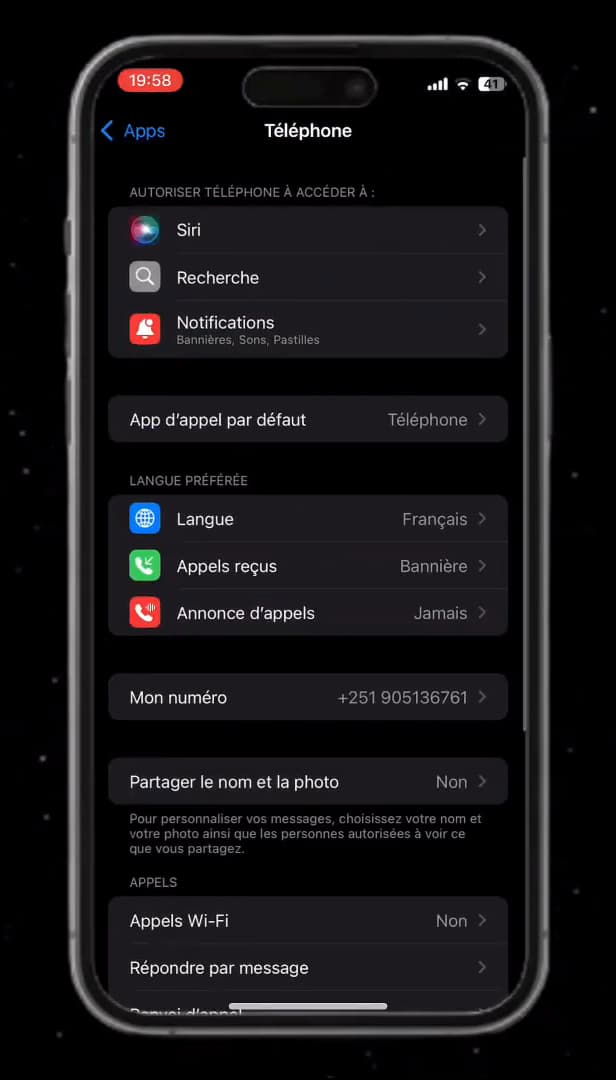
The call options are grouped together in the Phone settings. In the "Phone" settings, scroll down to the calls section to find "Silence Unknown Callers".
Turn on "Silence Unknown Callers"
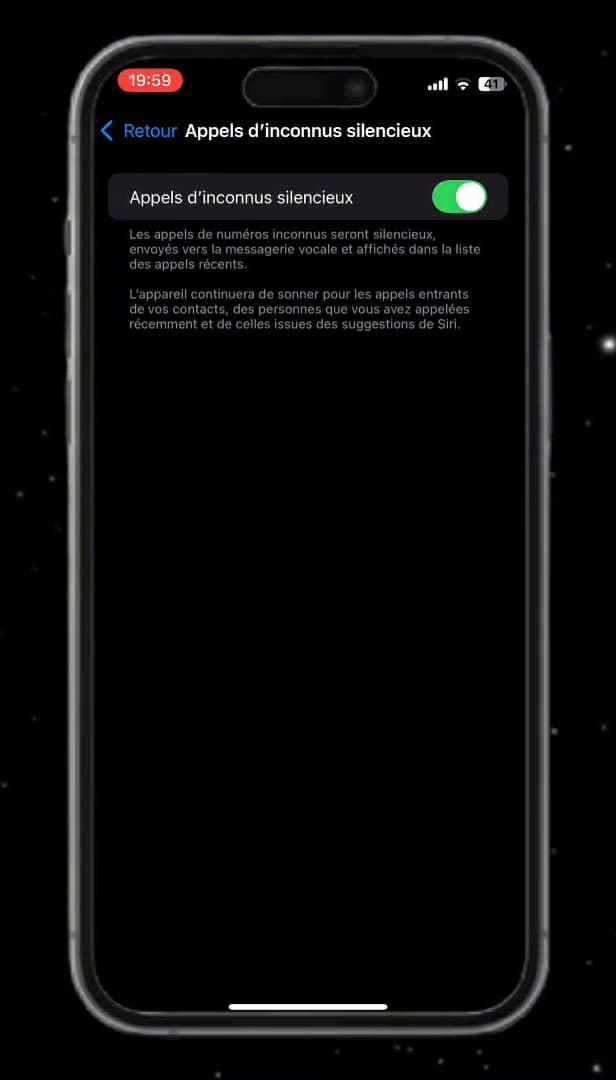
Once on, unknown callers are silenced and go to voicemail. Open "Silence Unknown Callers" and flip the switch on. Numbers that aren't in your contacts, recent calls or Siri suggestions will be sent straight to voicemail.
Good to know
Calls from unknown numbers no longer interrupt your day: they're "silenced" and still listed in your recent calls, just in case. You call back whoever you want, whenever you want.
Good to know
- Numbers in your "contacts" and your recent calls still ring normally.
- An important call from an unknown number (a delivery driver, a doctor) will go "to voicemail": remember to check.
- You can also "block a specific number" from the call details.
Frequently asked questions
- Will I miss important calls?
- Unknown callers aren't blocked, just silenced: they go to voicemail and show up in your recent calls. So you can always call them back.
- Does this option block numbers permanently?
- No, it only mutes the ringer for unknown callers. To block a specific number, open its details and choose "Block this Caller".
- Are my contacts affected?
- No. Only numbers that aren't in your contacts, recent calls or Siri suggestions are silenced.
Related tutorials
 iPhoneHow to Disable Call Forwarding on iPhoneAre your calls being forwarded to another number? Here's how to turn off call forwarding on iPhone, step by step.
 iPhoneHow to turn off read receipts on iPhoneDon't want to send read receipts in Messages anymore? Here's how to turn them off, step by step.
 iPhoneHow to Change Your App Store Region on iPhoneWant to access apps from another country? Here's how to change your App Store region on iPhone, step by step.
 iPhoneHow to Create a PDF from the Files App on iPhoneWant to turn one or more images into a PDF? Here's how to create a PDF from the Files app on iPhone, step by step.