
How to Change Your App Store Region on iPhone
Is an app only available in another country? You can change your App Store region on iPhone by changing your Apple account's country. Here's how to do it, step by step.
Prefer a video? Watch the full tutorial below.
Changing your App Store region, step by step
Open your Apple account
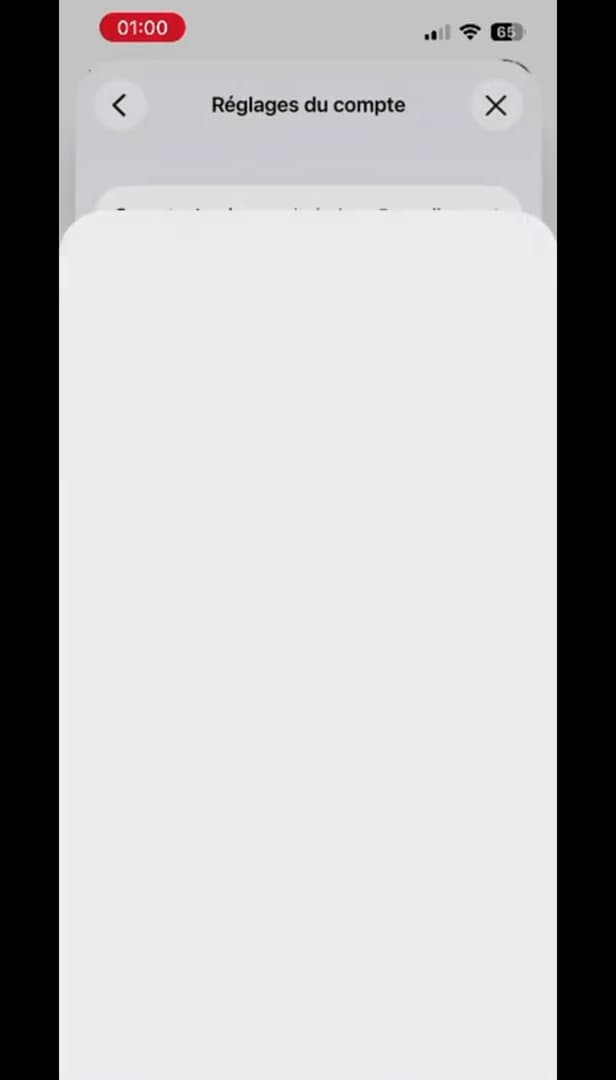
Open your Apple account settings from the App Store. Open the "App Store," tap your "profile picture" in the top right, then tap your "name" to open your account settings.
Open Country/Region and choose the country
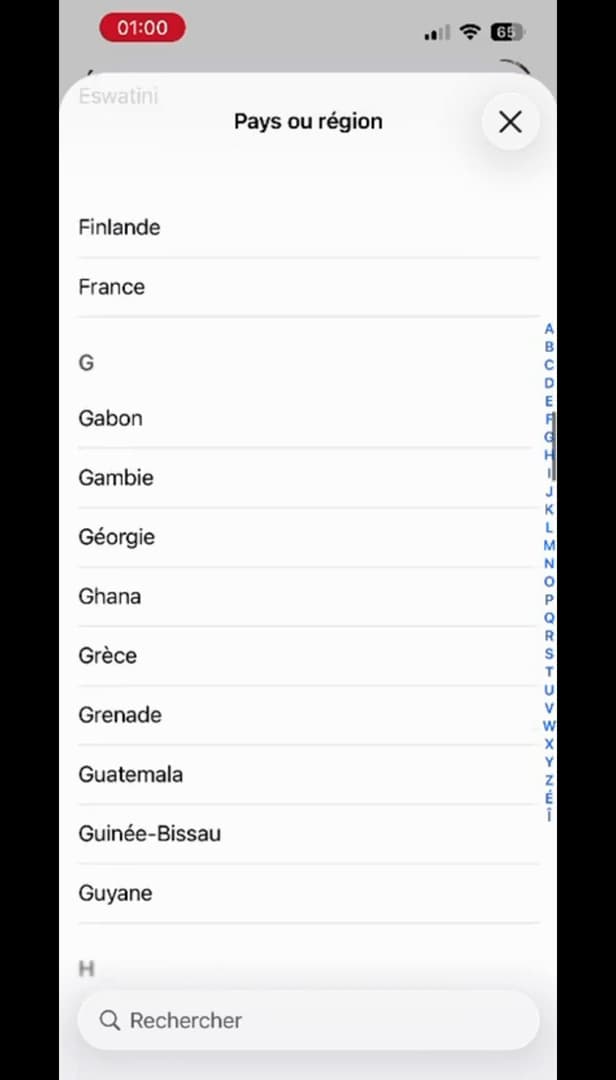
Choose the new country from the "Country or Region" list. Tap "Country/Region," then "Change Country or Region" and select the "new country" from the list.
Confirm the payment and address
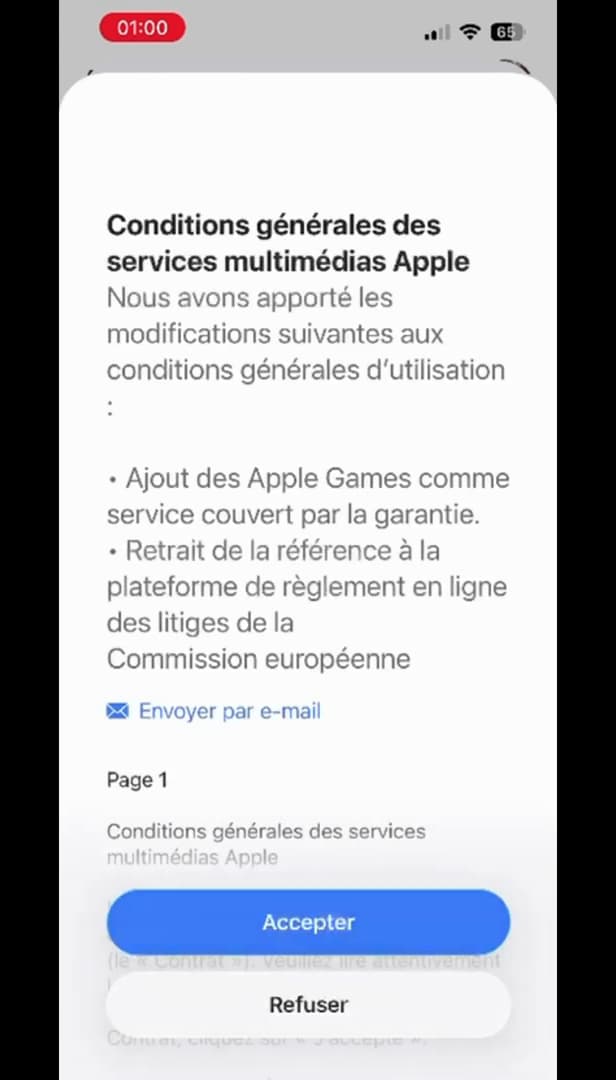
Enter a payment method (or "None") and a local address. Accept the terms, choose a "payment method" (or "None" if available) and enter a valid "address" in that country, then tap "Next."
Good to know
Your App Store now shows the apps and prices of the "new country." You can change region again whenever you like by repeating the same steps.
Good to know
- You must first "spend your entire balance" and "cancel your active subscriptions."
- A "valid address" in the chosen country is often required; the "None" payment option isn't always offered.
- Some apps you've already installed may no longer receive "updates" from the other region.
Frequently asked questions
- Why is the change being refused?
- Most often because there's a remaining balance on the account, an active subscription, or an invalid address in the new country.
- Will I lose my apps when I change region?
- No, installed apps stay. However, some may no longer update if they don't exist in the new region.
- Do I need a payment method from that country?
- Often yes. The "None" option only appears in certain cases; otherwise, a card or valid address from the country is required.
Related tutorials
 iPhoneHow to turn off read receipts on iPhoneDon't want to send read receipts in Messages anymore? Here's how to turn them off, step by step.
 iPhoneHow to Block Spam Calls on iPhoneTired of unwanted calls? Here's how to block spam calls on iPhone using Silence Unknown Callers, step by step.
 iPhoneHow to Create a PDF from the Files App on iPhoneWant to turn one or more images into a PDF? Here's how to create a PDF from the Files app on iPhone, step by step.
 iPhoneHow to Disable Call Forwarding on iPhoneAre your calls being forwarded to another number? Here's how to turn off call forwarding on iPhone, step by step.