
How to Disable Call Forwarding on iPhone
Are your calls being automatically forwarded to another number and you don't know why? You can disable call forwarding on iPhone in a few seconds, either with a code or in Settings. Here are both methods, step by step.
Prefer a video? Watch the full tutorial below.
Disabling call forwarding on iPhone, step by step
Dial the code ##002#
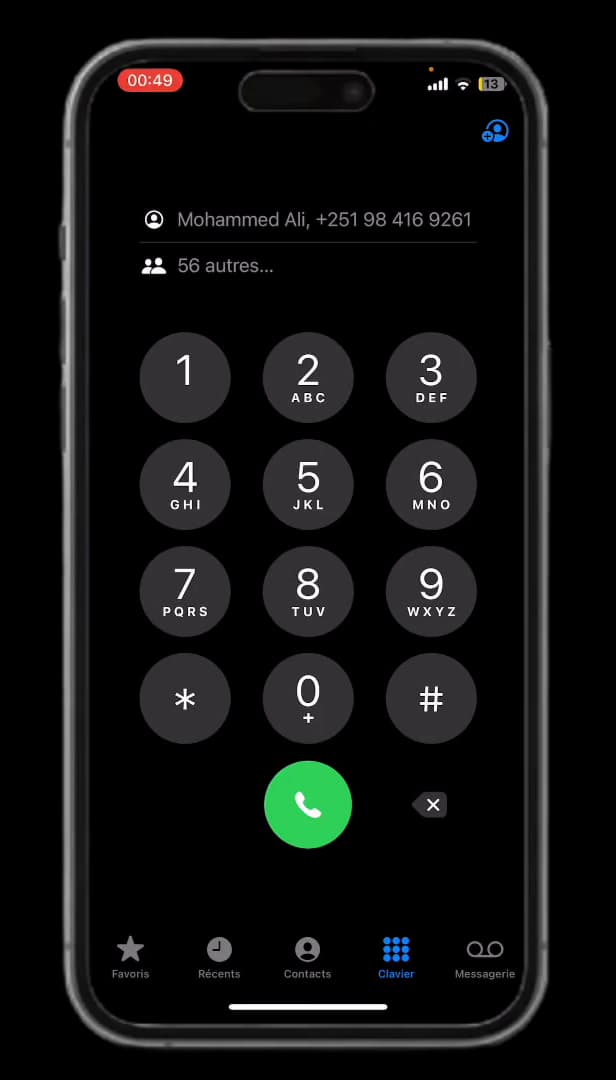
The code "##002#" cancels all call forwarding at once. Open the phone "keypad" and dial "##002#". This universal code cancels all call forwarding (voice, data, SMS) in one go.
Place the call to confirm
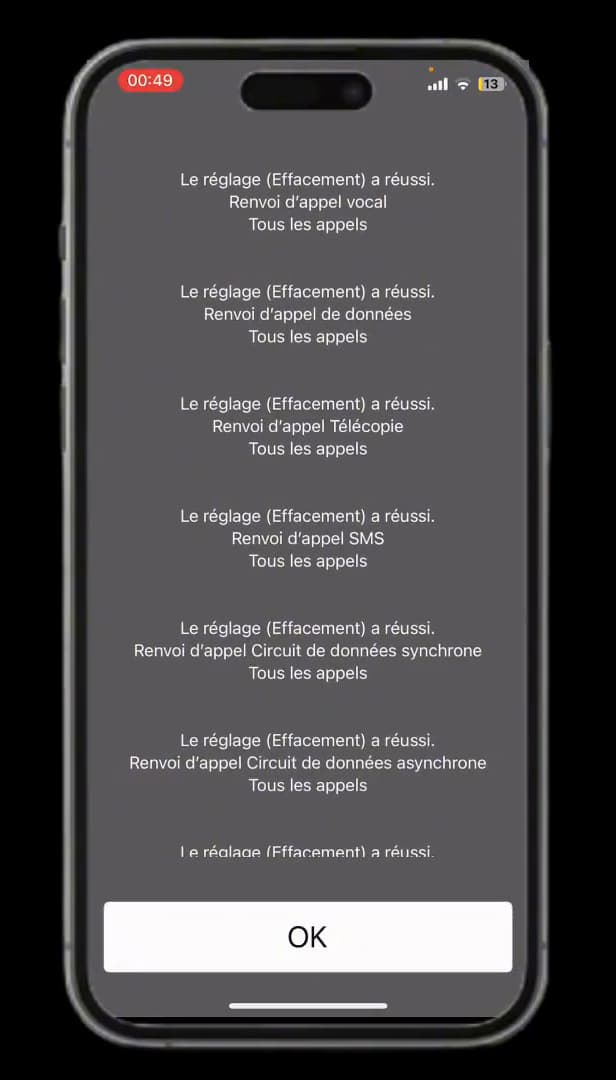
"Erasure was successful": call forwarding is disabled. Tap the "Call" button. An "Erasure was successful" message confirms that call forwarding is disabled for all call types.
Check in Settings › Phone
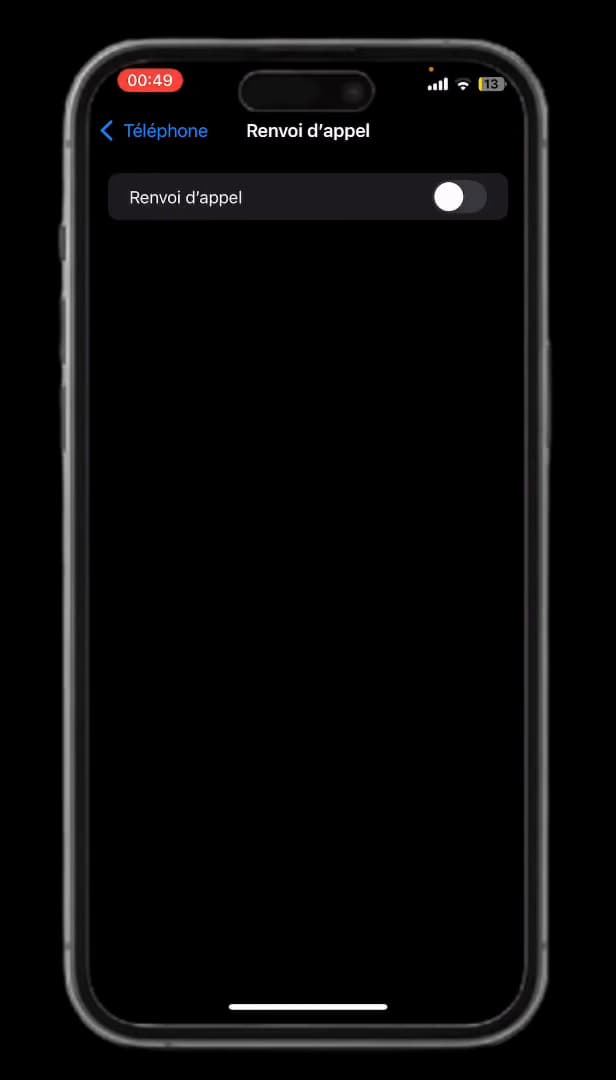
In Settings › Phone, the "Call Forwarding" switch should be grey. You can also go to "Settings" › "Apps" › "Phone" › "Call Forwarding" and check that the switch is "grey" (off).
Good to know
Call forwarding is now "disabled": your calls ring on your iPhone again. The code "##002#" works on most carriers, whatever the iPhone model.
Good to know
- "##002#" cancels "all" forwarding; "##21#" only disables unconditional forwarding.
- If forwarding persists, the setting may come from your "carrier": contact them.
- To re-enable forwarding, use "Settings" › "Phone" › "Call Forwarding".
Frequently asked questions
- What is the ##002# code for?
- It cancels all types of call forwarding at once (unconditional, on busy, on no answer, and on unreachable), for all services.
- Why does forwarding turn back on by itself?
- Some plans enable forwarding to voicemail by default. If forwarding comes back without your action, check with your carrier.
- Can I disable forwarding without the code?
- Yes: go to Settings › Apps › Phone › Call Forwarding and turn off the switch.
Related tutorials
 iPhoneHow to turn off read receipts on iPhoneDon't want to send read receipts in Messages anymore? Here's how to turn them off, step by step.
 iPhoneHow to Block Spam Calls on iPhoneTired of unwanted calls? Here's how to block spam calls on iPhone using Silence Unknown Callers, step by step.
 iPhoneHow to Create a PDF from the Files App on iPhoneWant to turn one or more images into a PDF? Here's how to create a PDF from the Files app on iPhone, step by step.
 iPhoneHow to Change Your App Store Region on iPhoneWant to access apps from another country? Here's how to change your App Store region on iPhone, step by step.