
How to Show Your Wi-Fi Password on iPhone
Need to share your Wi-Fi password but can't remember it? Good news: you can show your Wi-Fi password on iPhone in plain text, right from Settings. Here's how to find it and copy it, step by step.
Prefer a video? Watch the full tutorial below.
Show your Wi-Fi password on iPhone, step by step
Open Settings › Wi-Fi
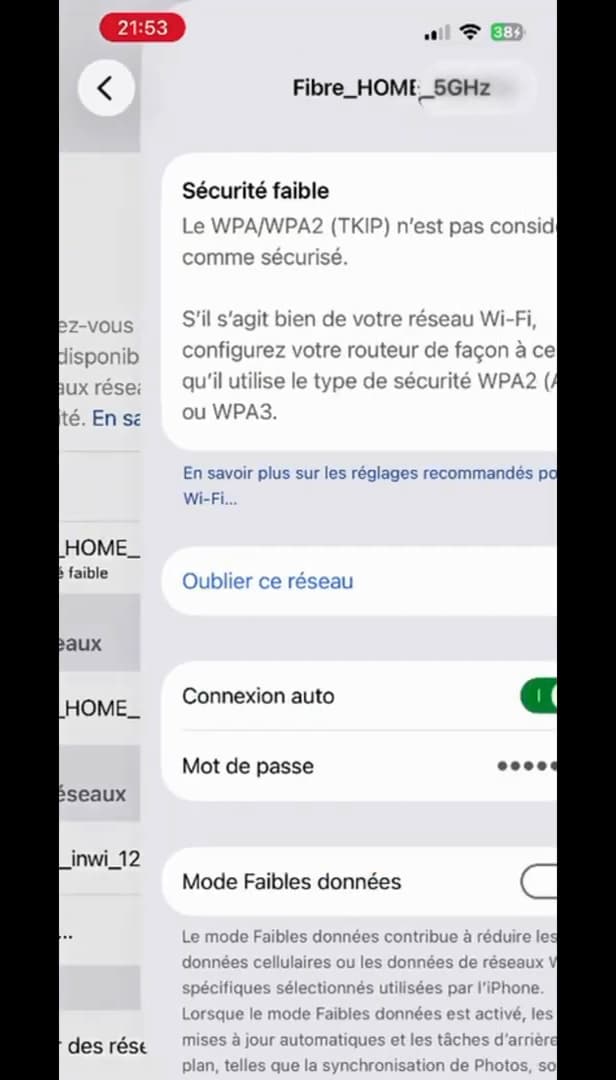
Open "Settings" › "Wi-Fi" to see your network. Open "Settings" and tap "Wi-Fi". The network you're connected to appears at the top with a checkmark.
Open the network details
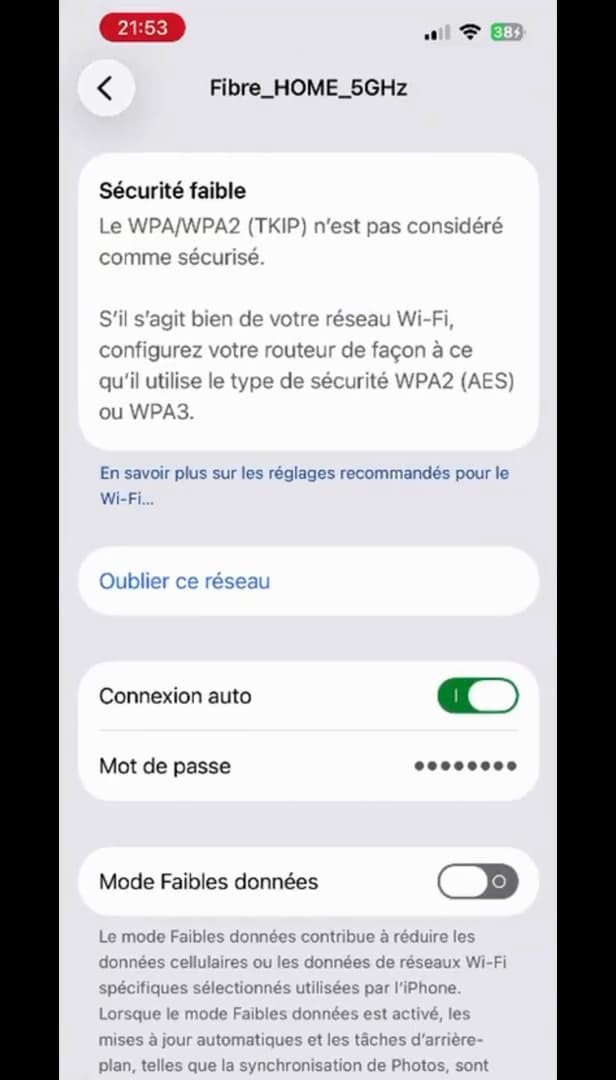
The network details include a "Password" line. Tap the network name (or the "ⓘ"). The "Password" line shows hidden dots.
Reveal and copy the password
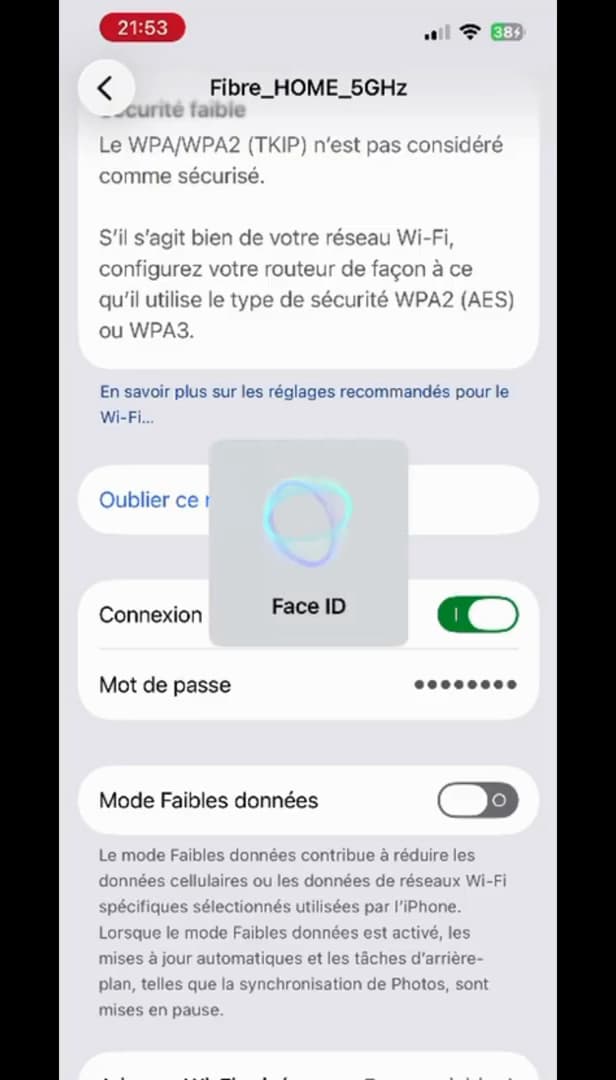
The password appears in plain text, ready to copy. Tap the dots on the "Password" line. After authenticating (Face ID / passcode), the "password" appears in plain text and you can tap "Copy".
Good to know
You can finally see your Wi-Fi password in plain text and "copy" it to share. This method works on recent versions of iOS, with no app needed.
Good to know
- You need to be "connected" to the network (or have been) to see its password.
- Revealing it requires "Face ID", Touch ID or your iPhone passcode, for security.
- You can also "share the Wi-Fi" automatically by holding another Apple device close by.
Frequently asked questions
- Why is the password hidden at first?
- For security. iOS only shows it after you authenticate with Face ID, Touch ID or your passcode, so no one else can read it.
- Can I see the password for a network I'm not connected to?
- Only if it's among your saved networks. Otherwise, the iPhone doesn't have the password.
- Is this option available on every iPhone?
- Showing the password in plain text is available on recent versions of iOS. Otherwise, you can share the Wi-Fi device to device between Apple products.
Related tutorials
 iPhoneHow to Share Your Location on iPhone with Find MyWant to share your live location with someone close to you? Here's how to do it with the Find My app on iPhone, step by step.
 iPhoneHow to turn off read receipts on iPhoneDon't want to send read receipts in Messages anymore? Here's how to turn them off, step by step.
 iPhoneHow to Block Spam Calls on iPhoneTired of unwanted calls? Here's how to block spam calls on iPhone using Silence Unknown Callers, step by step.
 iPhoneHow to Change Your App Store Region on iPhoneWant to access apps from another country? Here's how to change your App Store region on iPhone, step by step.