
How to Share Your Location on iPhone with Find My
Want your loved ones to keep track of where you are? With the Find My app, you can share your location on iPhone in real time, for an hour, a day, or indefinitely. Here's how to do it, step by step.
Prefer a video? Watch the full tutorial below.
Sharing your location with Find My, step by step
Open Find My › People
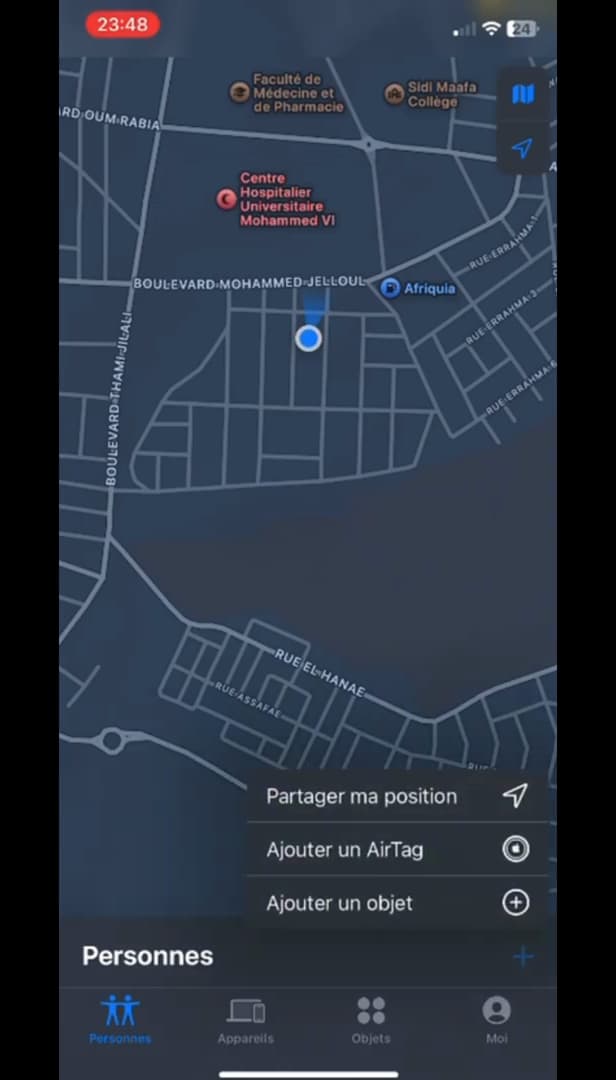
The "Share My Location" option is in the "People" tab. Open the "Find My" app, go to the "People" tab, then tap "Share My Location".
Choose the person
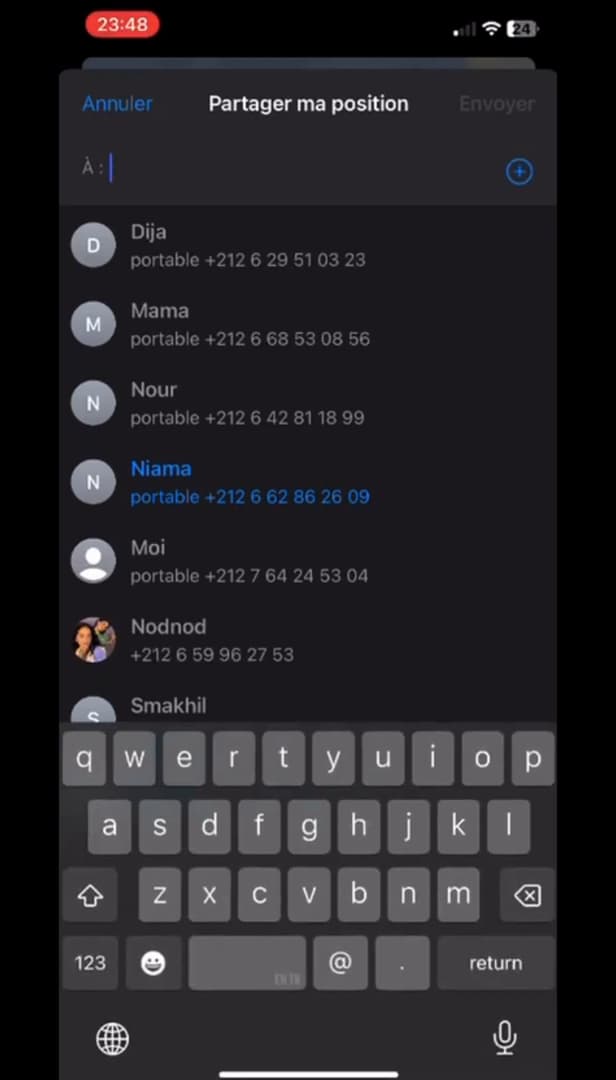
Choose the contact who will be able to see your location. Type the "name" or "number" of the contact you want to share with, select them, then tap "Send".
Choose the duration
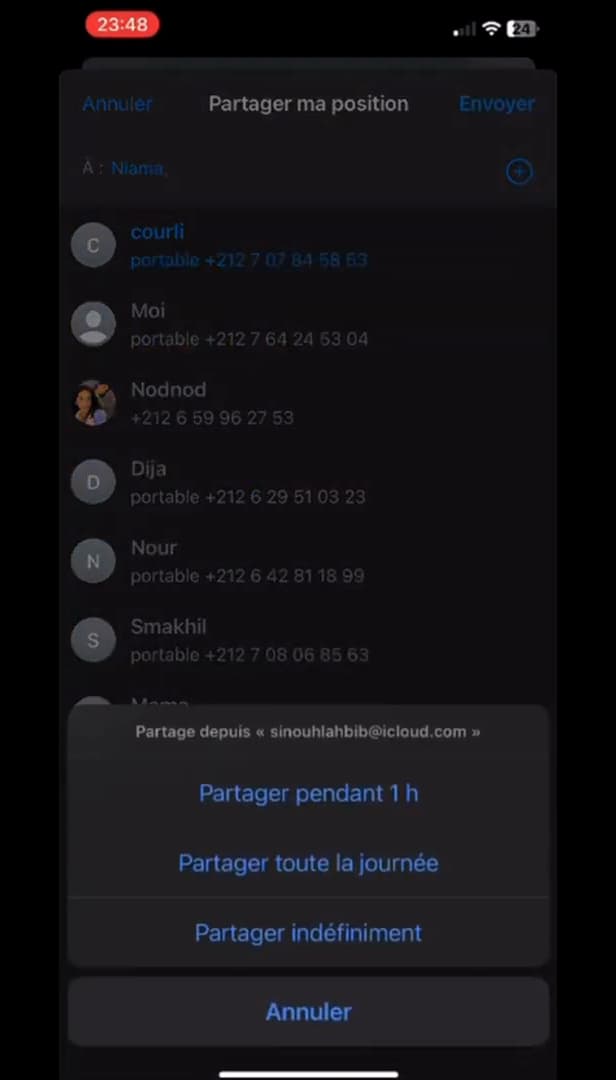
You choose the duration: one hour, end of day, or indefinitely. Select how long to share: "Share for One Hour", "Share Until End of Day" or "Share Indefinitely".
Good to know
Your contact receives an invitation and can track your location "live" in their Find My app. You can stop sharing at any time from the person's card.
Good to know
- Sharing "indefinitely" stays active until you stop it yourself.
- The person needs an "Apple device" to see your location in Find My.
- To stop, open the contact's card and tap "Stop Sharing My Location".
Frequently asked questions
- Is the person notified that I'm sharing my location?
- Yes, they receive an invitation. They can also, in return, share their location with you.
- Can I stop sharing later?
- Yes, at any time: open the person's card in Find My and choose "Stop Sharing My Location".
- Do both sides need an iPhone?
- To track a location via Find My, yes. Otherwise, you can share a one-off location through Messages or Maps.
Related tutorials
 iPhoneHow to Show Your Wi-Fi Password on iPhoneForgot your Wi-Fi password? Here's how to reveal and copy it right from your iPhone, step by step.
 iPhoneHow to turn off read receipts on iPhoneDon't want to send read receipts in Messages anymore? Here's how to turn them off, step by step.
 iPhoneHow to Block Spam Calls on iPhoneTired of unwanted calls? Here's how to block spam calls on iPhone using Silence Unknown Callers, step by step.
 iPhoneHow to Change Your App Store Region on iPhoneWant to access apps from another country? Here's how to change your App Store region on iPhone, step by step.