
How to Send a Message on Instagram
Want to reach someone privately instead of in the comments? You can send a message on Instagram through Direct (DM). Here's how to do it, step by step.
Prefer a video? Watch the full tutorial below.
Send a message on Instagram, step by step
Open Direct messages
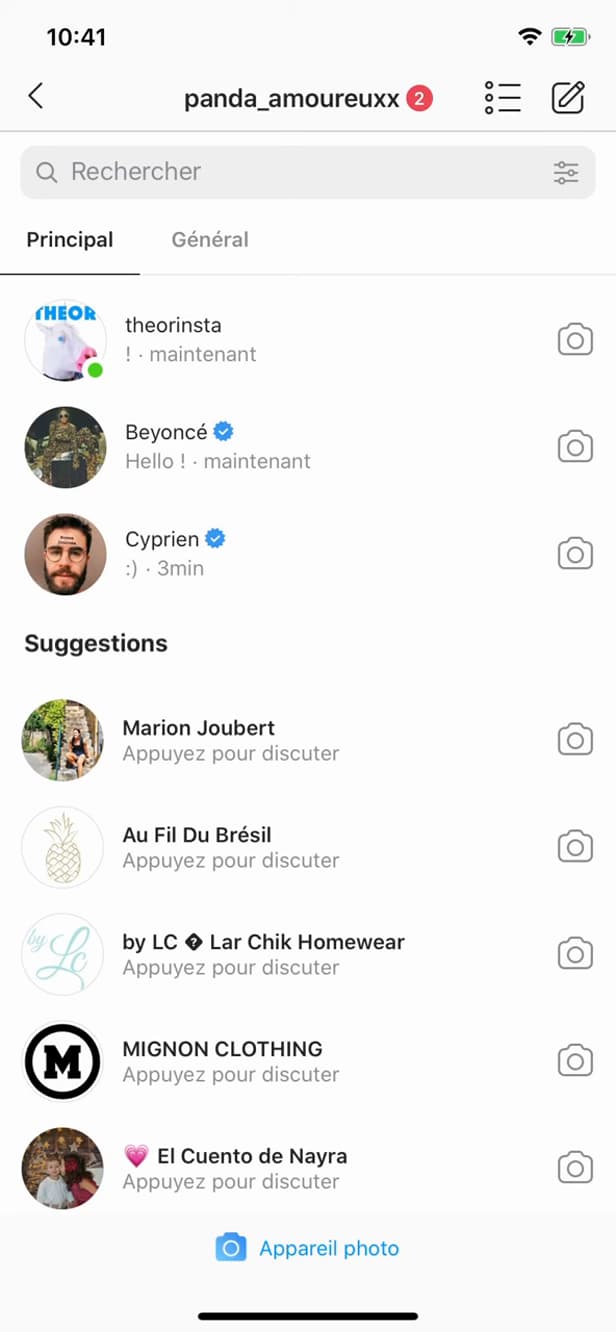
Direct gathers all your private conversations. On the home screen, tap the "messages" icon (paper plane) in the top right.
Choose the recipient
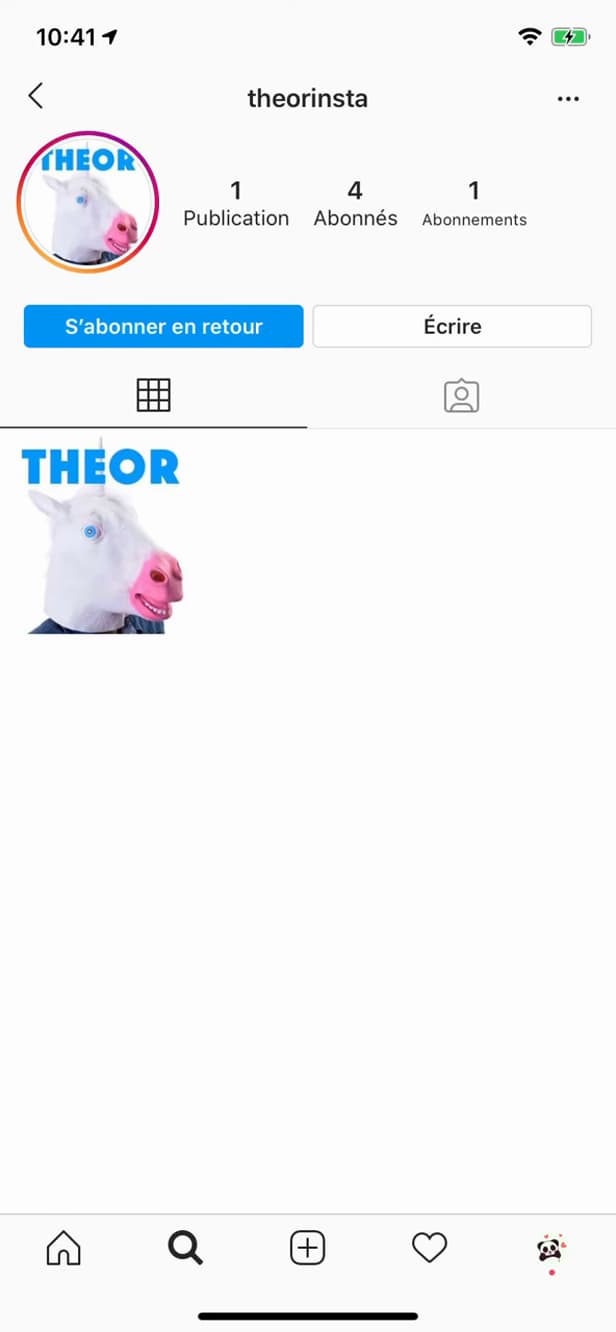
"Message" opens a private conversation with the person. Tap an existing conversation, or open the person's profile then "Message".
Write and send
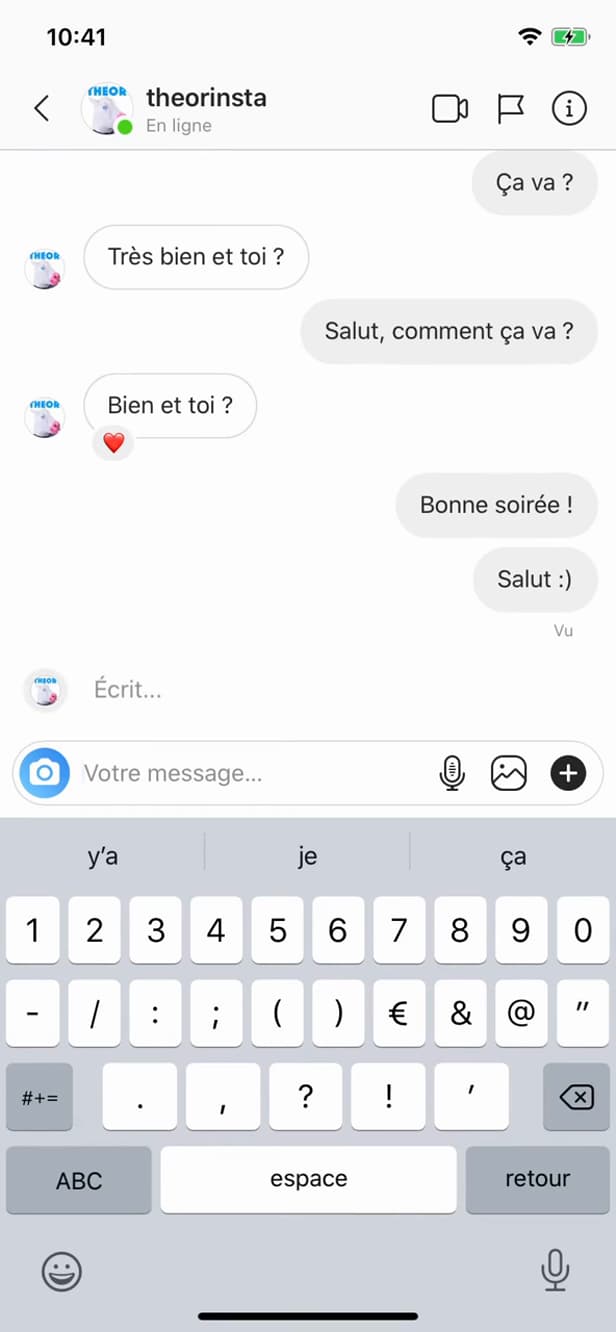
"Send" delivers your message privately. Type your message in the "Message…" field, then tap "Send".
Good to know
Your message lands "privately" in the recipient's inbox. You can also send "photos", "videos", "voice notes" or react with emojis.
Good to know
- A message to someone who doesn't follow you lands in their "requests" (message requests).
- You can send "photos, videos and voice notes", not just text.
- The small "Seen" label shows when your message has been read.
Frequently asked questions
- Can I message someone who doesn't follow me?
- Yes, but your message lands in their "requests": they'll have to accept it before the conversation opens normally.
- How do I know if my message has been read?
- The "Seen" label appears under your message once the recipient has opened it.
- Can you send anything other than text?
- Yes. Direct lets you send photos, videos, voice notes, GIFs and react to messages.
Related tutorials
 InstagramHow to change your bio on InstagramWant to edit your Instagram profile bio? Here's how to do it, step by step.
 InstagramHow to Delete a Chat on InstagramWant to clear a conversation from your Instagram messages? Here's how to delete it, step by step.
 InstagramHow to hide your followers and following on InstagramWant to keep your Instagram followers and following lists private? Here's the method, step by step.
 InstagramHow to Share a Link in an Instagram StoryWant to add a clickable link to your Instagram story? Here's how, step by step.