
How to Delete a Chat on Instagram
Want to tidy up your inbox? You can delete a chat on Instagram with one long press. Here's how, step by step.
Prefer a video? Watch the full tutorial below.
Deleting a chat on Instagram, step by step
Open your inbox
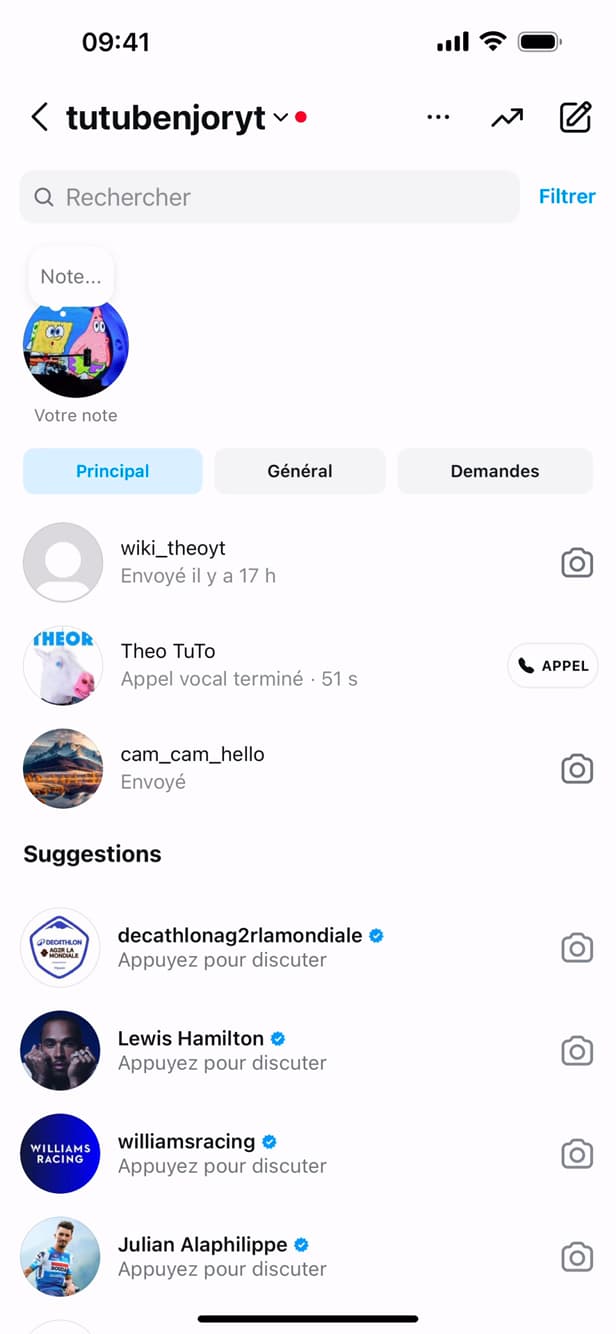
Open your messages via the icon in the top right. On the home screen, tap the "messages" icon (paper plane) in the top right.
Long-press the chat
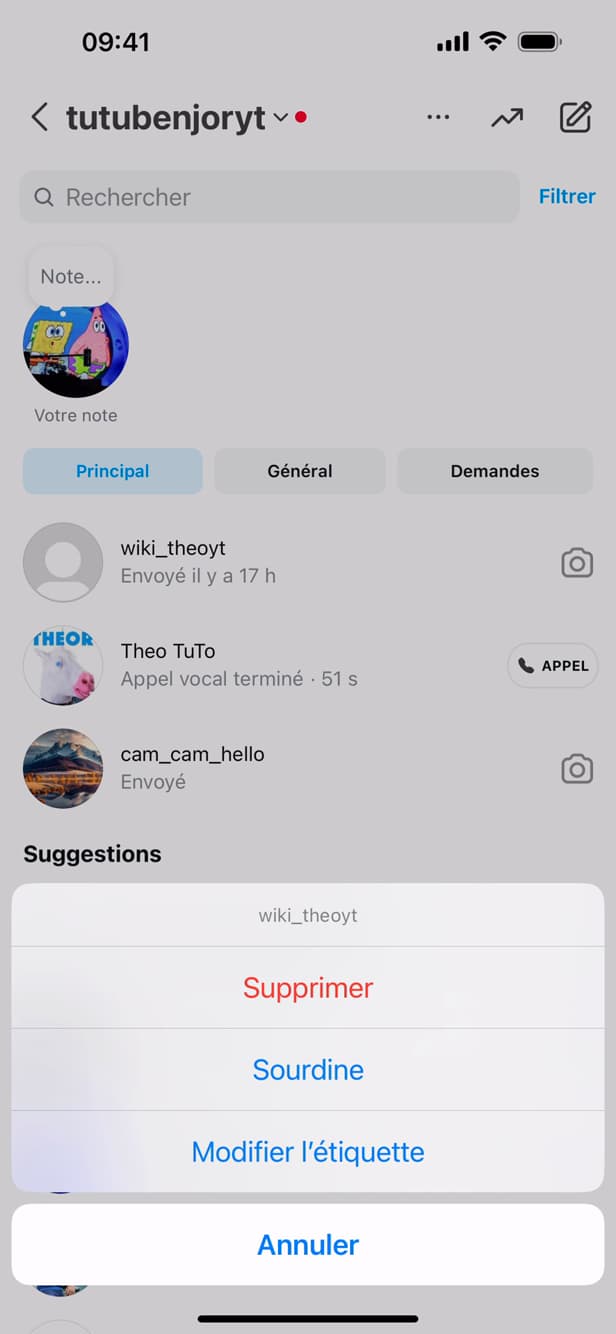
A long press opens the chat's menu. "Press and hold" the conversation you want to delete. A menu appears.
Tap "Delete"
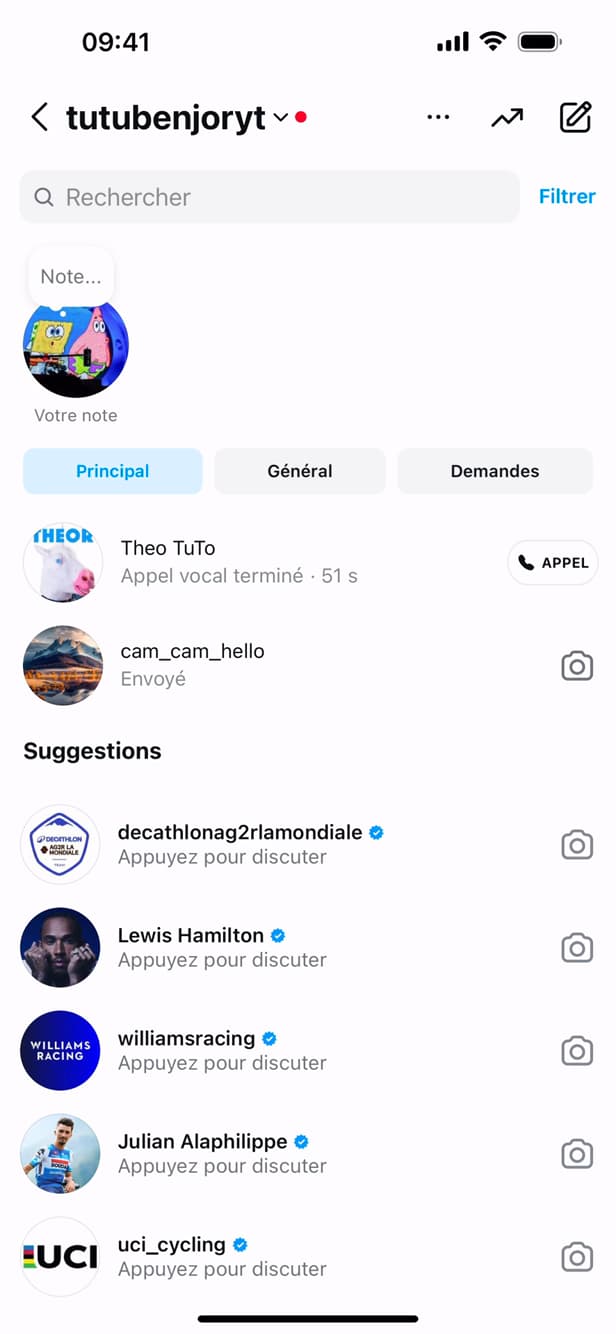
"Delete" removes the chat on your side. In the menu, tap "Delete". The conversation disappears from your inbox.
Good to know
The chat is "deleted" from your inbox. Note: it stays "visible to the other person". To erase a message for everyone, use "Unsend" instead.
Good to know
- Deleting a chat removes it "on your side only", not for the other person.
- To remove a message on both sides, press it and choose "Unsend".
- A deleted chat "can't be recovered": save what matters first.
Frequently asked questions
- Does deleting erase the chat for the other person?
- No. The conversation only disappears from your inbox; the other person keeps it.
- How do I delete a message for everyone?
- Press and hold the specific message and choose "Unsend": it disappears on both sides.
- Can I recover a deleted chat?
- No, deletion is permanent within the app. You can only download your Instagram data beforehand.
Related tutorials
 InstagramHow to Send a Message on InstagramWant to send a private message on Instagram? Here's how to do it, step by step.
 InstagramHow to Share a Link in an Instagram StoryWant to add a clickable link to your Instagram story? Here's how, step by step.
 InstagramHow to change your bio on InstagramWant to edit your Instagram profile bio? Here's how to do it, step by step.
 InstagramHow to Change Your Instagram Account LanguageInstagram showing in the wrong language? Here's how to change the app's language, step by step.