
How to Share a Link in an Instagram Story
Want to send your followers to a website or a video? You can add a link to your Instagram story using the "Link" sticker. Here's how, step by step.
Prefer a video? Watch the full tutorial below.
Sharing a link in an Instagram story, step by step
Create your story
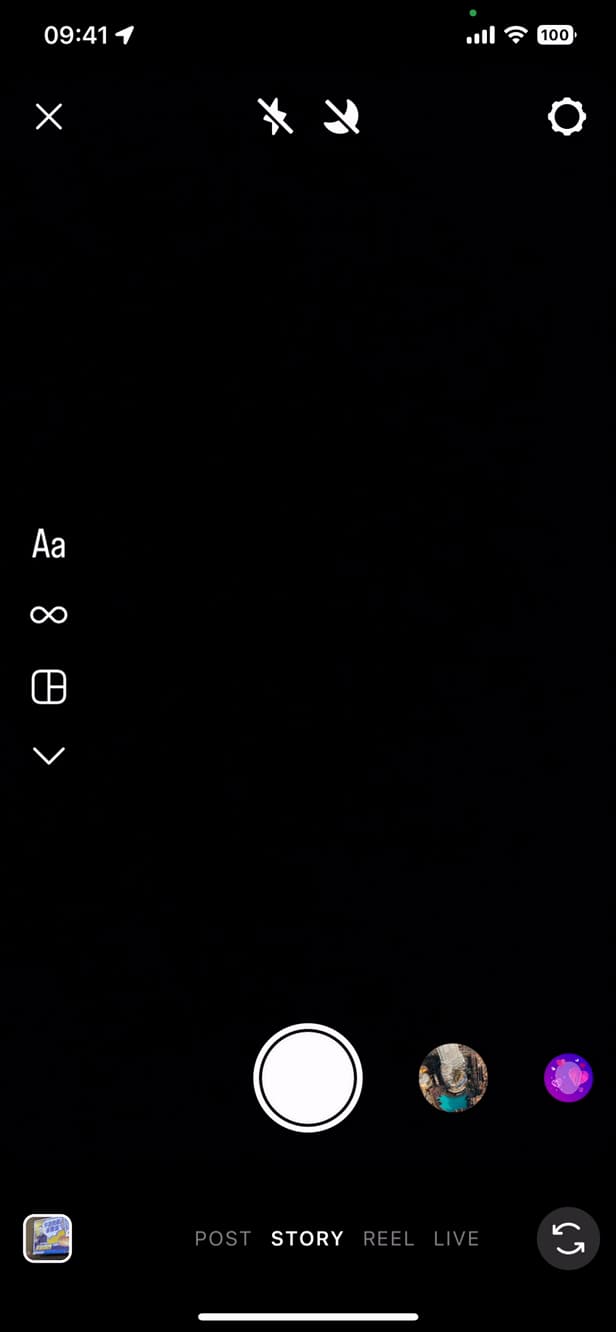
From the story, the sticker bar gives you access to the link. Open the "Story" camera and take or choose a photo/video.
Add the "Link" sticker
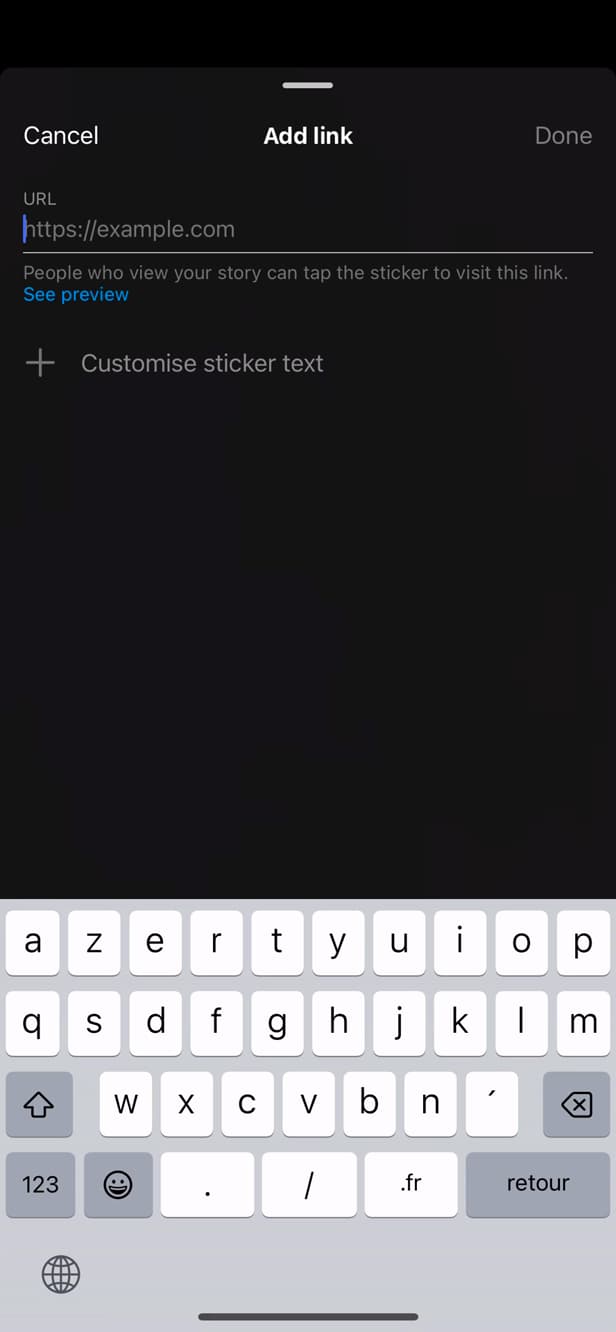
The "Link" sticker turns the URL into a clickable button. Tap the sticker icon, choose "Link", then enter the URL.
Customize and post
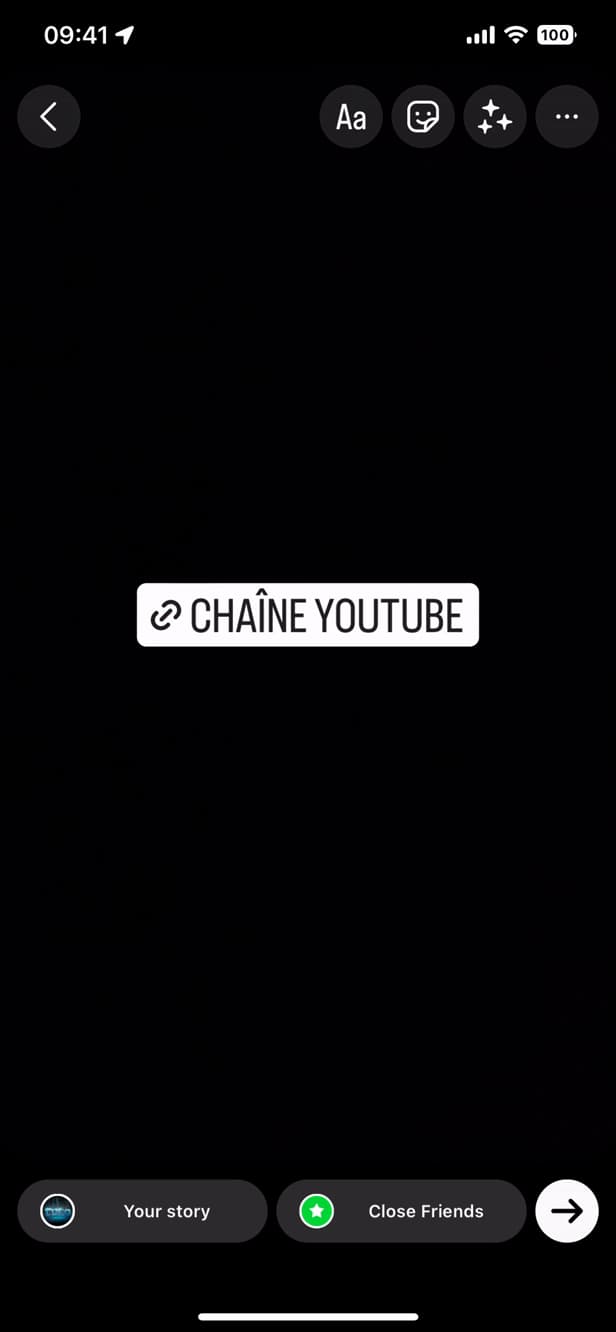
The sticker shows a label instead of the raw URL. Edit the displayed text (optional), place the sticker, then post the story.
Good to know
Your followers can "tap" the sticker to open the link. You can replace the URL with more readable "text" ("My channel", "Shop"…).
Good to know
- The "Link" sticker is available to "all accounts" — no more 10,000-follower requirement.
- Customize the sticker's "text" for a cleaner look than the URL.
- The link is only active "while the story is live" (24 h), unless you add it to a highlight.
Frequently asked questions
- Do I need 10,000 followers to add a link to a story?
- No, that's no longer the case. The "Link" sticker is now available to every Instagram account.
- Can I hide the URL behind text?
- Yes. After pasting the URL, customize the sticker's text: that's the text that shows, not the full address.
- Does the link stay active after 24 hours?
- No, unless you add the story to a "highlight": the link then stays clickable as long as the story is pinned to your profile.
Related tutorials
 InstagramHow to Get Your Instagram QR CodeWant to share your Instagram profile easily? Here's how to get and download your QR code, step by step.
 InstagramHow to Make Your Instagram Story PublicWant everyone to see your Instagram story? Here's how to open your story to the public, step by step, even from a "Close Friends" story.
 InstagramHow to change your bio on InstagramWant to edit your Instagram profile bio? Here's how to do it, step by step.
 InstagramHow to Change Your Instagram Account LanguageInstagram showing in the wrong language? Here's how to change the app's language, step by step.