
How to Turn Instagram Captions On or Off
To watch without sound or improve accessibility, you can turn on captions on Instagram. Here's how to enable or disable them, step by step.
Prefer a video? Watch the full tutorial below.
Turning on Instagram captions, step by step
Open the menu and Settings
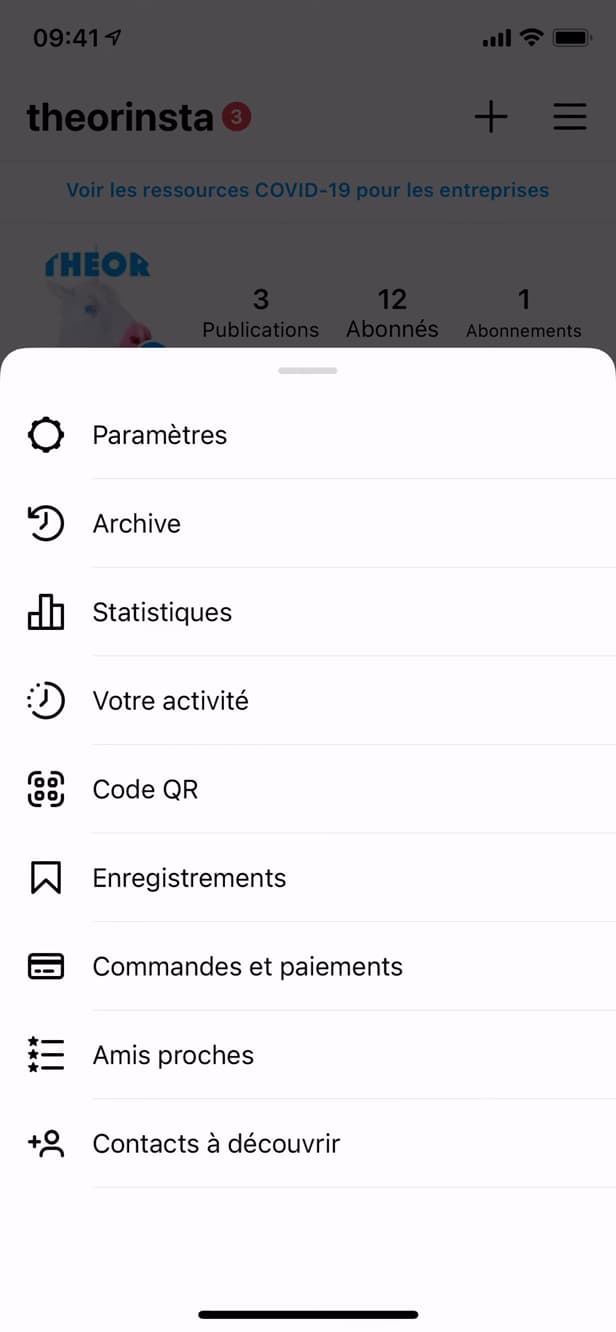
Open "Settings" from your profile menu. On your "profile," tap "☰" in the top right, then tap "Settings."
Open "Captions"
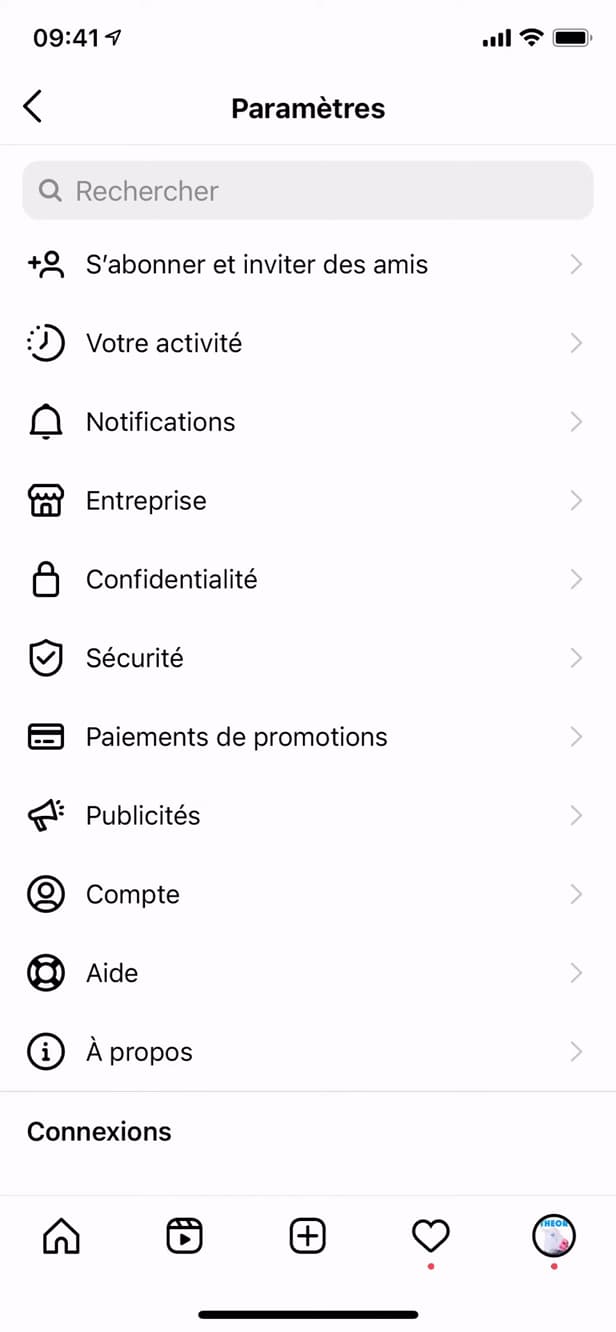
The "Captions" option lives in your account settings. Under "Account" (or via search), open "Captions."
Turn on "Auto-generated captions"

The switch enables automatic captions on videos. Turn the "Auto-generated captions" switch on (or off). Optionally pick your "default language."
Good to know
Videos that support it now display "automatic captions." You can "turn them off" any time in the same place.
Good to know
- Captions are "auto-generated," so they may contain small errors.
- Set a "default language" for the best results.
- Some videos let you hide captions directly during playback.
Frequently asked questions
- Do captions appear on every video?
- On most Reels and supported videos. Quality depends on how clear the audio is and the language spoken.
- How do I turn captions off?
- Go back to Settings › Captions and turn off the "Auto-generated captions" switch.
- Can I change the caption language?
- You can set a "default language." Captions follow the spoken language detected in the video.
Related tutorials
 InstagramHow to turn on dark mode on InstagramWant to switch Instagram to a dark theme? Here's how to turn on dark mode, step by step.
 InstagramHow to Share a Link in an Instagram StoryWant to add a clickable link to your Instagram story? Here's how, step by step.
 InstagramHow to change your bio on InstagramWant to edit your Instagram profile bio? Here's how to do it, step by step.
 InstagramHow to Change Your Instagram Account LanguageInstagram showing in the wrong language? Here's how to change the app's language, step by step.