
How to turn on dark mode on Instagram
Want an Instagram that's easier on the eyes? On iPhone, Instagram follows your phone's theme: to turn on dark mode on Instagram, all you have to do is set your iPhone to dark appearance. Here's how to do it, step by step.
Prefer a video? Watch the full tutorial below.
Turning on dark mode on Instagram, step by step
Open Settings › Display & Brightness
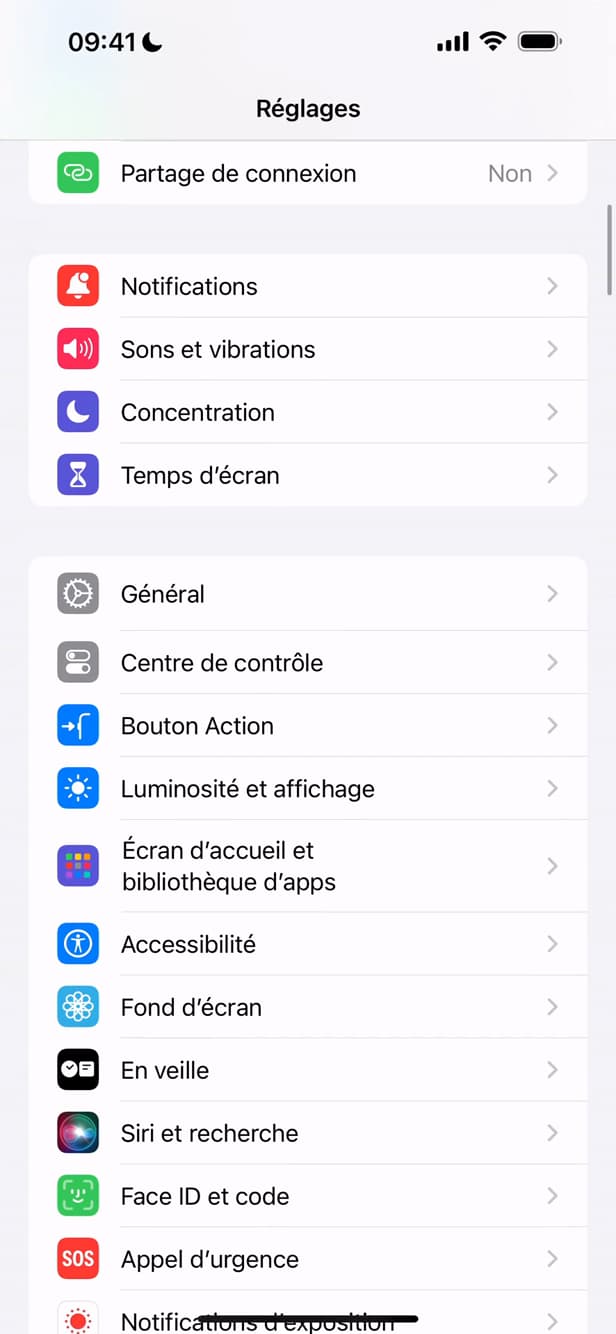
The phone's theme is set under "Display & Brightness". Open the iPhone "Settings", then "Display & Brightness".
Choose the "Dark" appearance
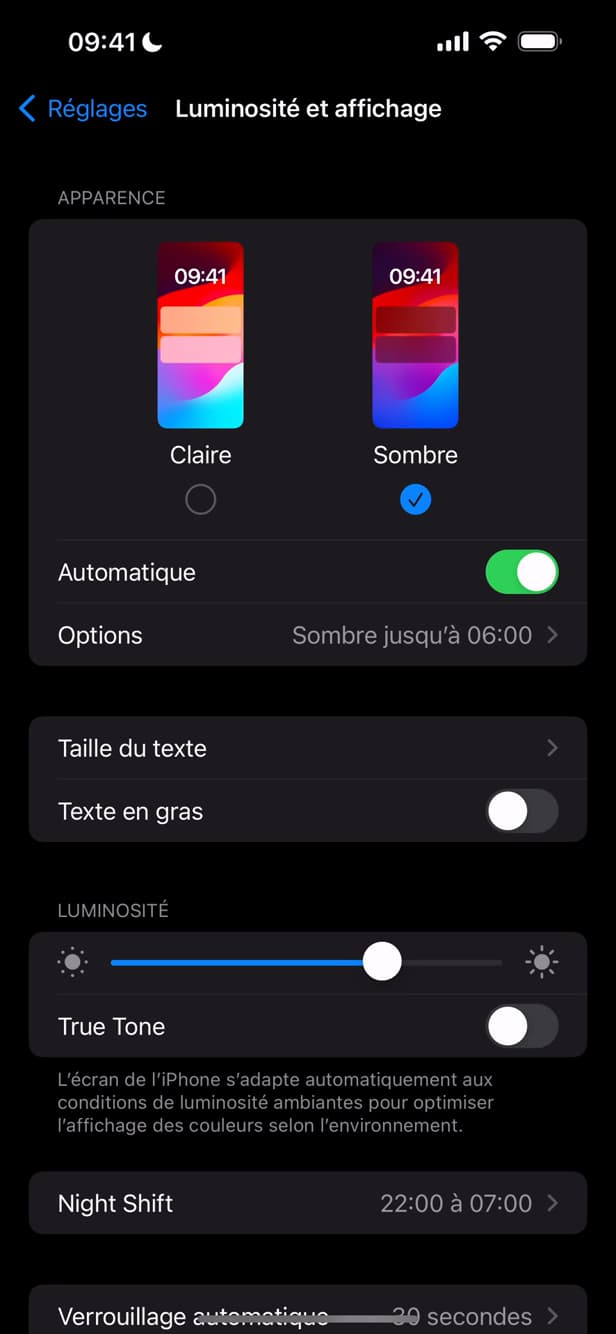
The "Dark" appearance applies the dark theme to iOS and Instagram. Under "Appearance", select "Dark". The whole system, including Instagram, switches to the dark theme.
Reopen Instagram
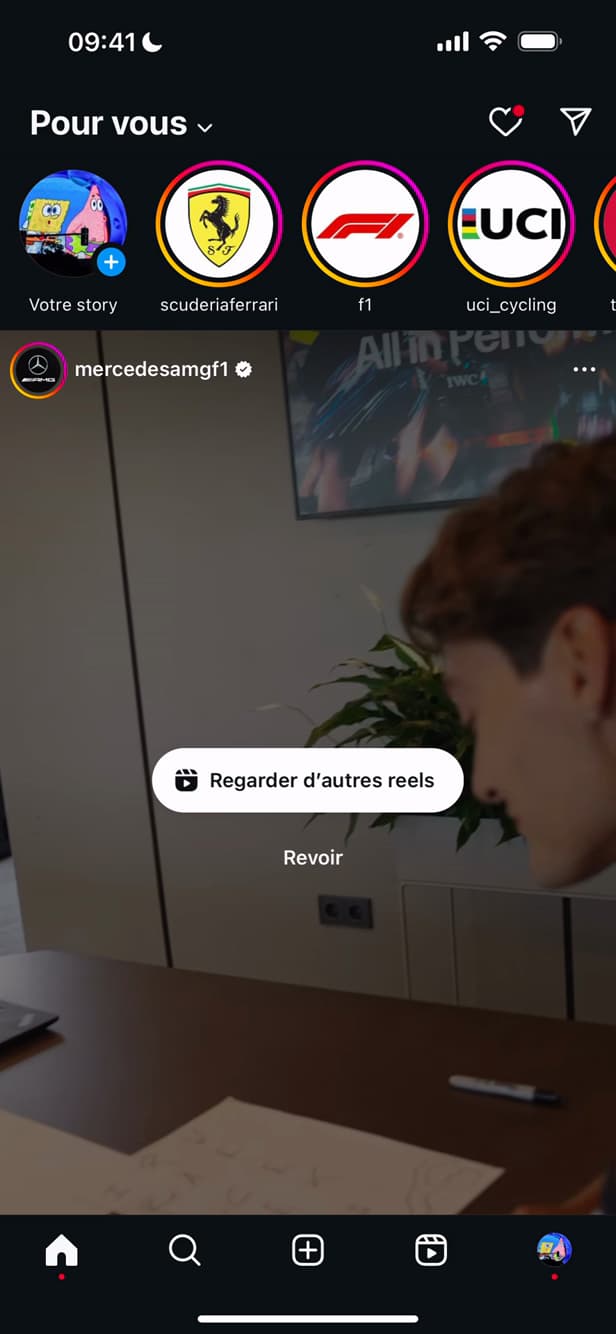
Instagram follows the iPhone's theme and switches to dark. Go back to "Instagram": the app is now displayed in "dark mode".
Good to know
Instagram displays in "dark mode" because it follows your iPhone's appearance. To switch back to light, set the appearance to "Light" again in Settings.
Good to know
- On iPhone, Instagram "follows the system theme"; it doesn't always have its own setting.
- Turn on the "Automatic" appearance for a light/dark switch based on the time of day.
- On "Android", Instagram sometimes offers its own theme setting in its options.
Frequently asked questions
- Does Instagram have its own dark mode?
- On iPhone, Instagram follows the system appearance. On Android, a theme setting may exist directly in the app's options.
- Does dark mode apply only to Instagram?
- With this method, no: setting the iPhone to dark affects the whole system. It's the simplest way to get a dark Instagram.
- How do I switch back to the light theme?
- Settings › Display & Brightness › Appearance "Light". Instagram turns light again right away.
Related tutorials
 InstagramHow to Turn Instagram Captions On or OffWant automatic captions on Instagram videos? Here's how to turn them on or off, step by step.
 InstagramHow to Share a Link in an Instagram StoryWant to add a clickable link to your Instagram story? Here's how, step by step.
 InstagramHow to change your bio on InstagramWant to edit your Instagram profile bio? Here's how to do it, step by step.
 InstagramHow to Change Your Instagram Account LanguageInstagram showing in the wrong language? Here's how to change the app's language, step by step.