
How to Change Your Instagram Account Language
Is Instagram displaying in a language you don't understand? You can change Instagram's language from your phone's settings. Here's how to do it, step by step.
Prefer a video? Watch the full tutorial below.
Changing Instagram's language, step by step
Open Settings and find "Instagram"
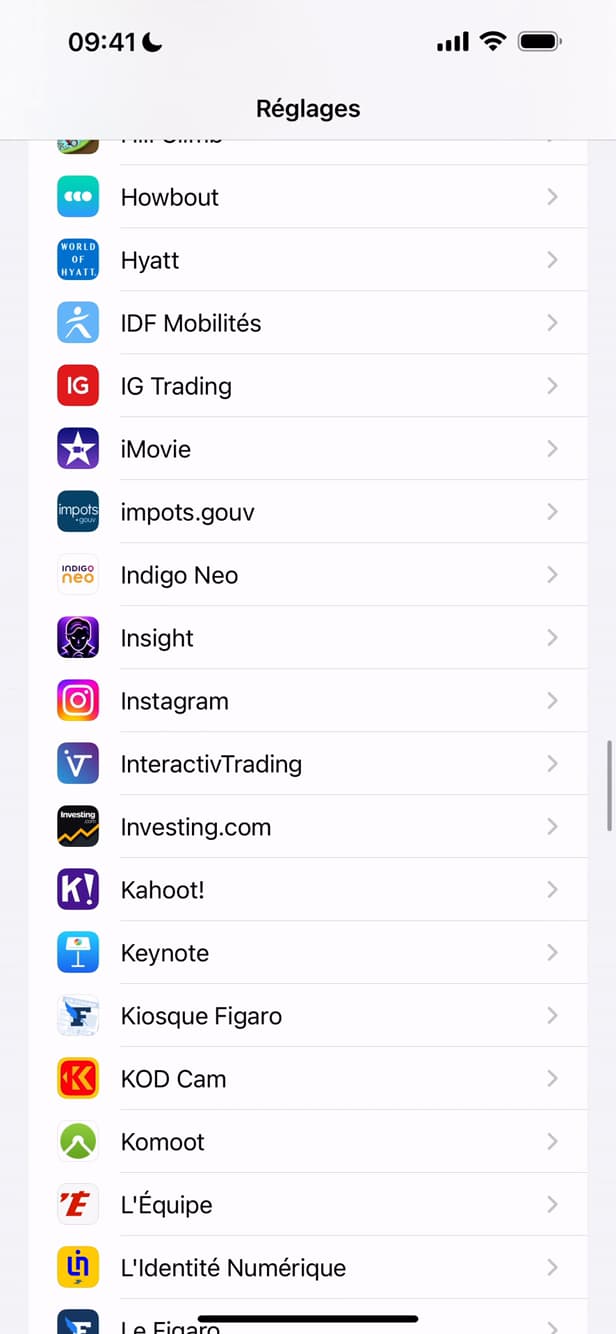
Each app has its own language in the phone settings. In your phone's "Settings", scroll down to "Instagram".
Open "Language"
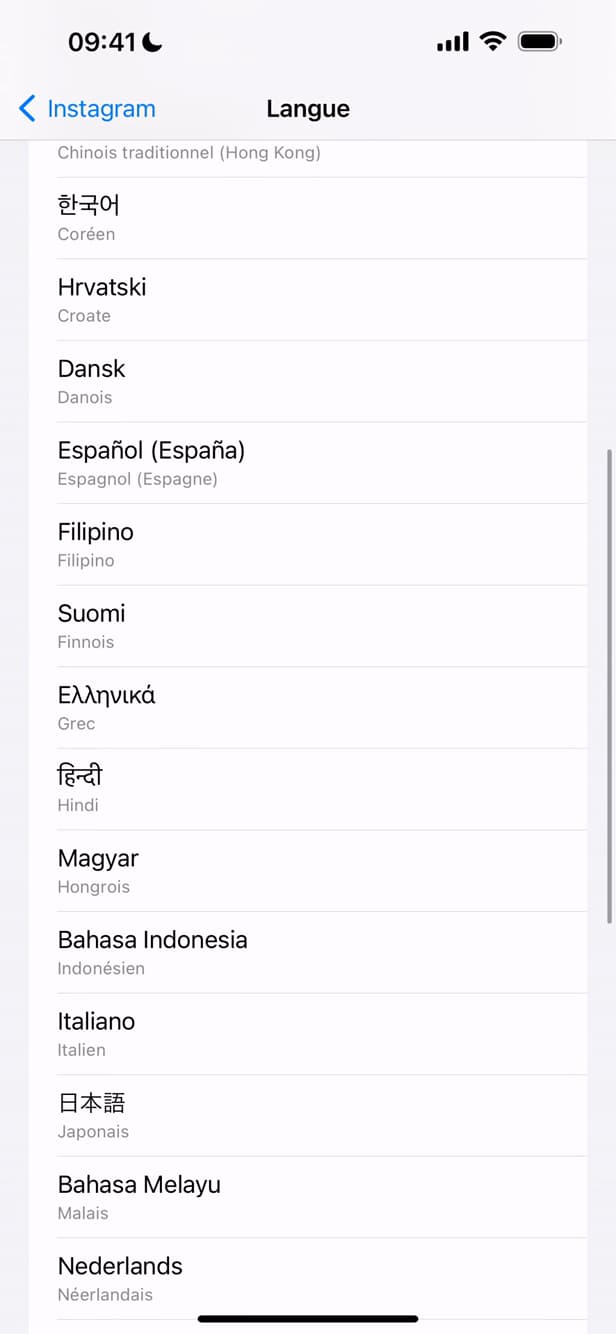
"Language" lists all the available languages. In Instagram's settings, tap "Language".
Choose the language
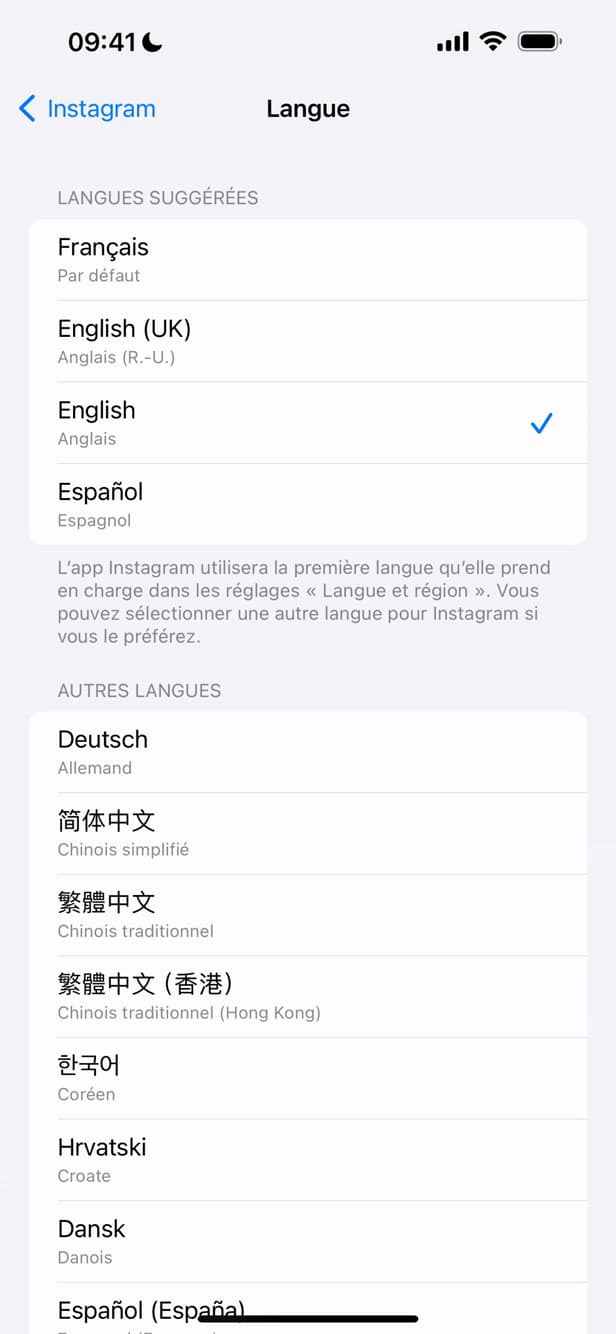
The chosen language applies to the app immediately. Select the language you want (e.g. "English"): Instagram switches right away.
Good to know
Instagram now displays in the "language you chose". This setting only affects "Instagram" and doesn't change your other apps.
Good to know
- On iPhone, per-app language is set in "Settings" › the app › "Language".
- This setting does "not change your phone's language", only Instagram.
- The change is "immediate", with no need to restart the app.
Frequently asked questions
- Where do I change Instagram's language?
- On iPhone, in your phone's Settings: open Instagram in the app list, then "Language". On Android, in the app's settings.
- Does this change my phone's language?
- No. Only Instagram's language changes; the rest of the system keeps its language.
- Do I need to restart the app?
- No. The new language applies immediately as soon as you select it.
Related tutorials
 InstagramHow to change your bio on InstagramWant to edit your Instagram profile bio? Here's how to do it, step by step.
 InstagramHow to change your birthday on InstagramWant to update your date of birth on Instagram? Here's how to change it, step by step.
 InstagramHow to set or change your Instagram profile photoWant to change your Instagram profile photo? Here's how to update it, step by step.
 InstagramHow to Temporarily Deactivate Your Instagram AccountWant to take a break without deleting everything? Here's how to temporarily deactivate your Instagram account, step by step.