
How to set or change your Instagram profile photo
Fancy a new look on your account? You can change your Instagram profile photo in a few taps, from your gallery, Facebook or the camera. Here's how to do it, step by step.
Prefer a video? Watch the full tutorial below.
Changing your Instagram profile photo, step by step
Open your profile and the photo
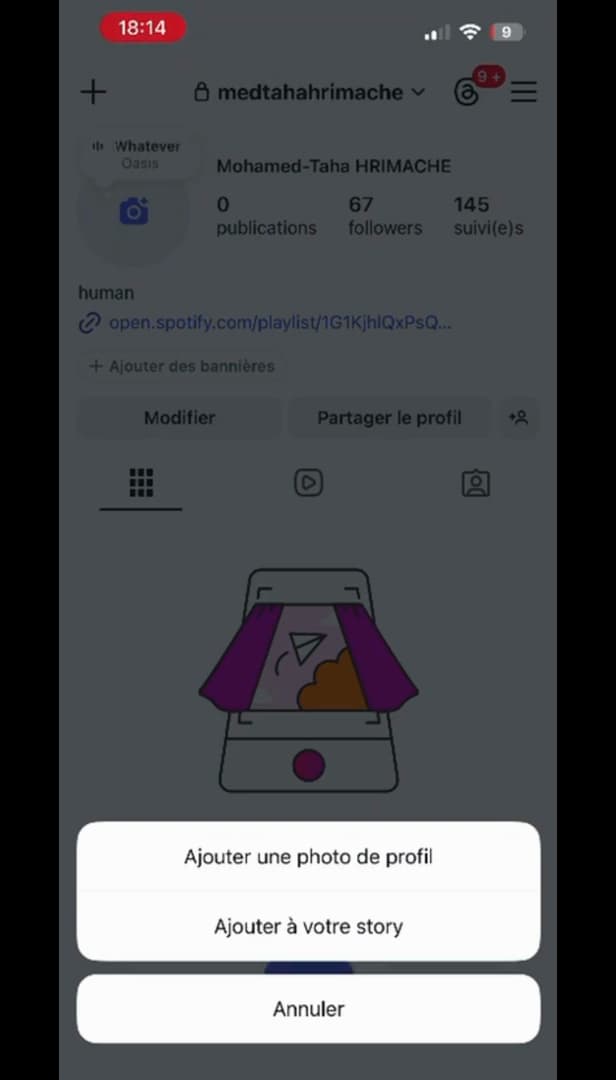
Tap your profile photo to change it. Go to your profile and tap your profile photo (or "Edit" › "Edit profile picture").
Choose the source
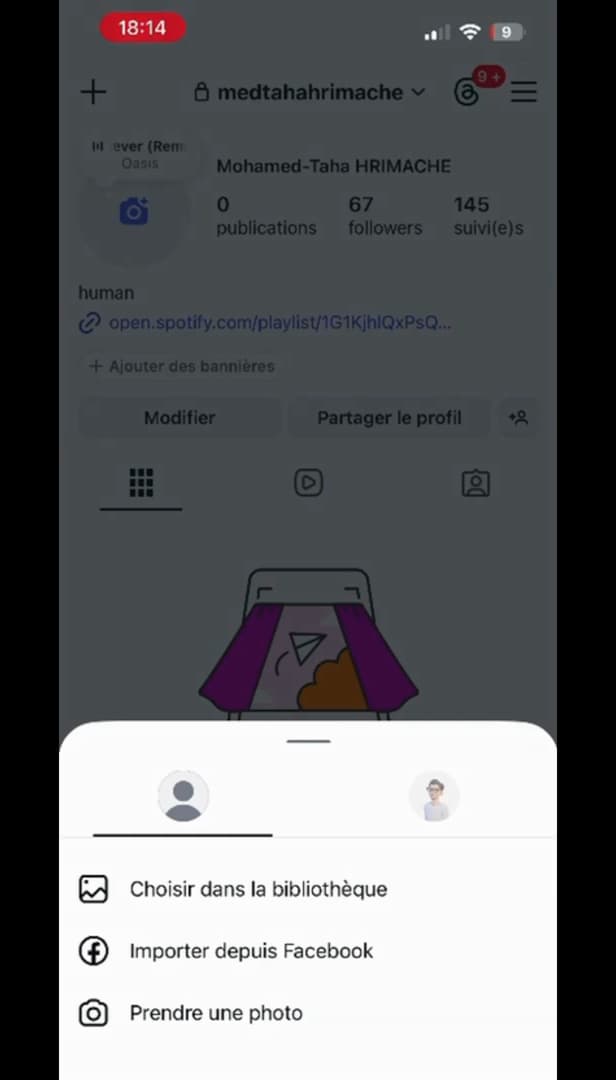
Select the source: gallery, Facebook or camera. Choose "Choose from library", "Import from Facebook" or "Take photo".
Crop, then confirm
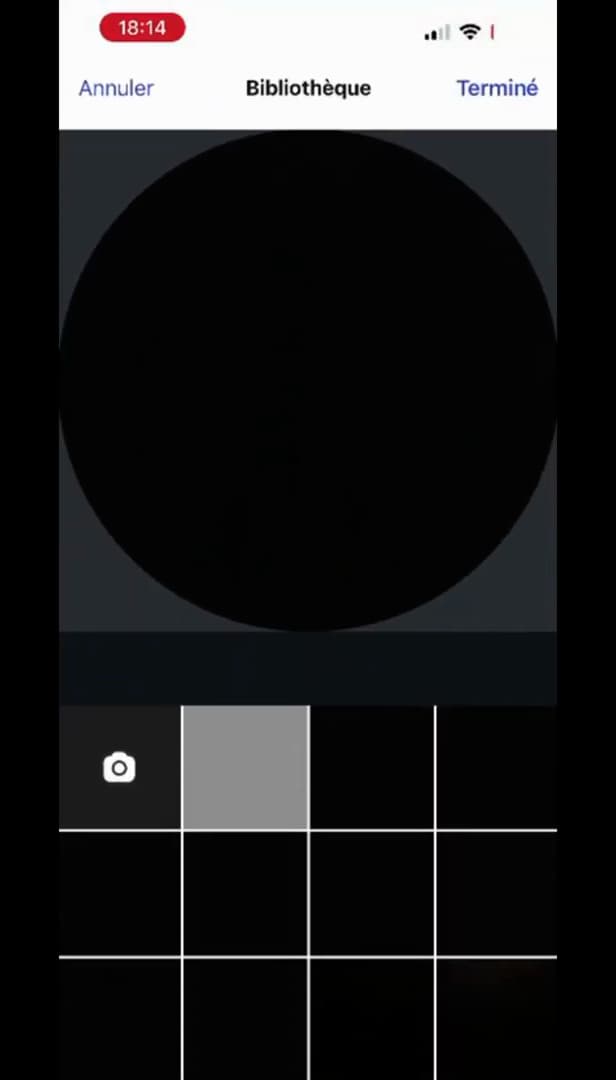
Frame the photo within the circle, then confirm with "Done". Select the photo, adjust the crop within the circle, then tap "Done". A "Profile photo updated" message appears.
Good to know
Your new profile photo is live immediately, visible everywhere your account appears. You can change it as often as you like.
Good to know
- Use a sharp, centered image: Instagram displays it in a small circle.
- The "Import from Facebook" option only appears if your accounts are linked.
- You can also remove the photo to go back to the default avatar.
Frequently asked questions
- What size should the Instagram profile photo be?
- A square image of at least 320×320 px is enough. It'll be cropped into a circle, so keep the subject well centered.
- Can I reuse my Facebook photo?
- Yes, via "Import from Facebook", as long as your Instagram and Facebook accounts are linked.
- How do I remove my profile photo?
- Open the photo editing menu and choose "Remove current photo" to go back to the default avatar.
Related tutorials
 InstagramHow to change your bio on InstagramWant to edit your Instagram profile bio? Here's how to do it, step by step.
 InstagramHow to Change Your Instagram Account LanguageInstagram showing in the wrong language? Here's how to change the app's language, step by step.
 InstagramHow to change your birthday on InstagramWant to update your date of birth on Instagram? Here's how to change it, step by step.
 InstagramHow to Get Your Instagram QR CodeWant to share your Instagram profile easily? Here's how to get and download your QR code, step by step.