
How to View and Change Your Facebook Password
Want to find your Facebook password? For your security, Facebook never shows it in plain text. You can, however, "change" it easily or find it in your device's password manager. Here's how to do it, step by step.
Prefer a video? Watch the full tutorial below.
Viewing or changing your Facebook password, step by step
Open "Password and security"
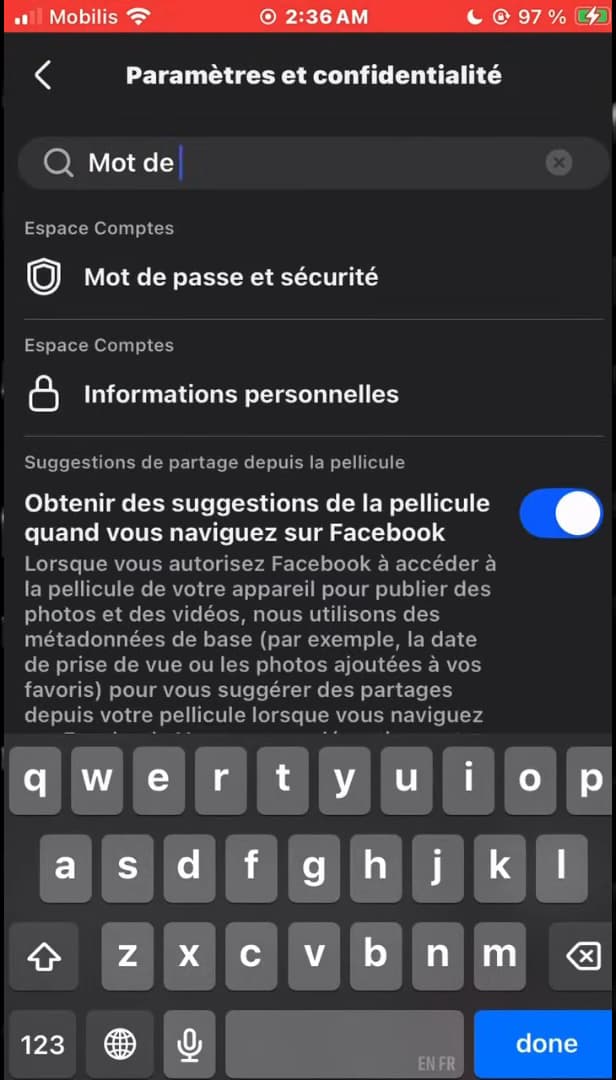
"Password and security" gathers the login options. Open "Menu" › "Settings & privacy", search for "Password", and open "Password and security".
Open "Change password"

Facebook doesn't show the old password: you can replace it. Tap "Change password" and select your account.
Set a new password
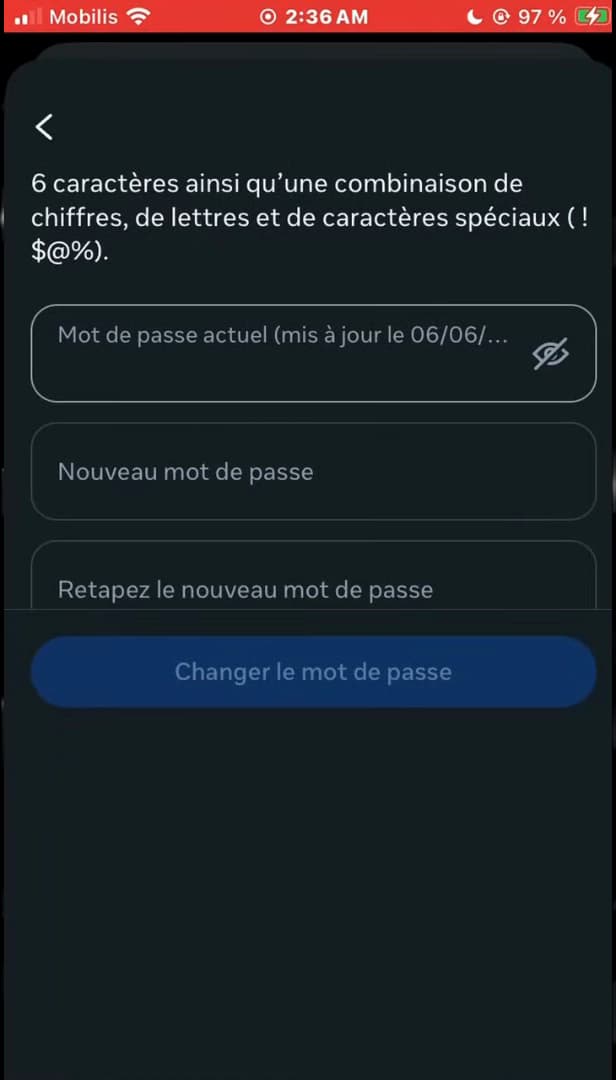
Enter the old password, then the new one, and save. Enter your "current password", then a "new password" (at least 6 characters, numbers and letters) and confirm.
Good to know
Facebook "never reveals" your current password, for security reasons. You can only "change" it. To recover a forgotten password, check your phone or browser's "password manager", or use "Forgot password".
Good to know
- Your saved password is visible in "Settings" › "Passwords" (iPhone) or the Google manager.
- Check "Log out of other devices" if you suspect unauthorized access.
- A good password is "long, unique", and hard to guess.
Frequently asked questions
- Can you see your Facebook password in plain text?
- No. Facebook never shows it, for security reasons. You can only change it or find it in your device's password manager.
- Where can I find my saved password?
- On iPhone: Settings › Passwords. On Android/Chrome: the Google password manager. It'll be there if it was saved.
- I forgot my password, what should I do?
- On the login screen, use "Forgot password" to reset it by email or SMS.
Related tutorials
 FacebookHow to Change Your Facebook Cover Photo SecretlyWant to change your Facebook cover photo without your friends seeing it? Here's the discreet method, step by step.
 FacebookHow to Change Your Facebook Cover Photo Without Losing Your LikesWant to switch your Facebook cover photo without losing its reactions and comments? Here's the method, step by step.
 FacebookHow to Change Your Facebook Profile Photo Without Losing Your LikesWant to set a Facebook profile photo again without losing its likes and comments? Here's the method, step by step.
 FacebookHow to add a poll to your Facebook storyWant to ask your friends a question in a story? Here's how to add a poll, step by step.