
How to Save a Draft on Facebook
Prepared a post but don't want to publish it just yet? Facebook lets you save a draft so you can pick your post back up later without losing it. Just close the post you're working on and choose "Save as draft". Here's how to do it, step by step.
Prefer a video? Watch the full tutorial below.
Saving a post draft on Facebook, step by step
Start a new post
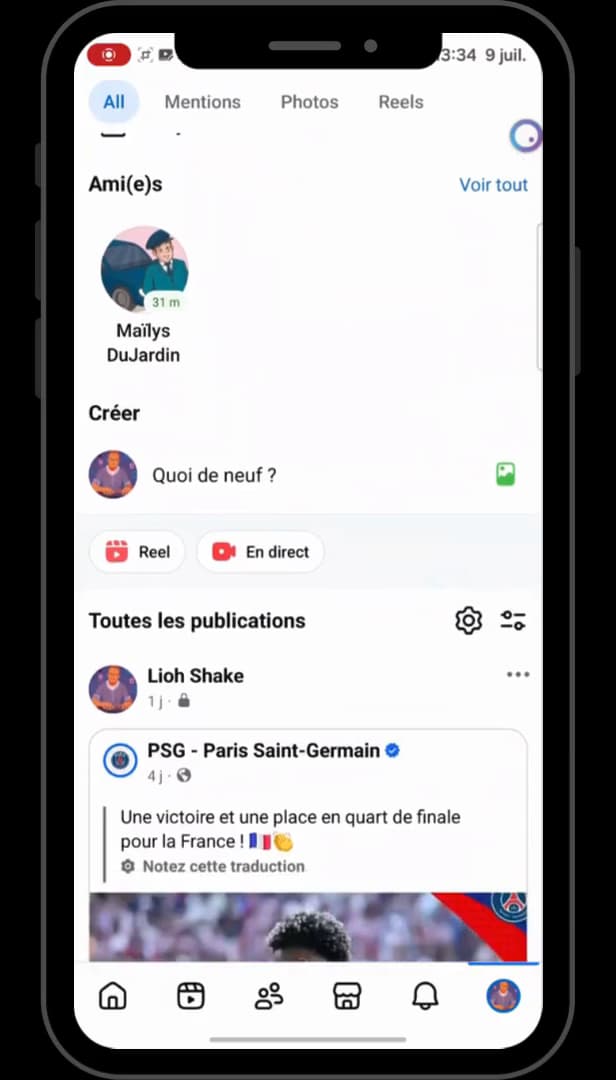
It all starts with a normal post, via "What's on your mind?". Open "Facebook", tap your "profile" then "What's on your mind?" to open the post editor.
Write your post
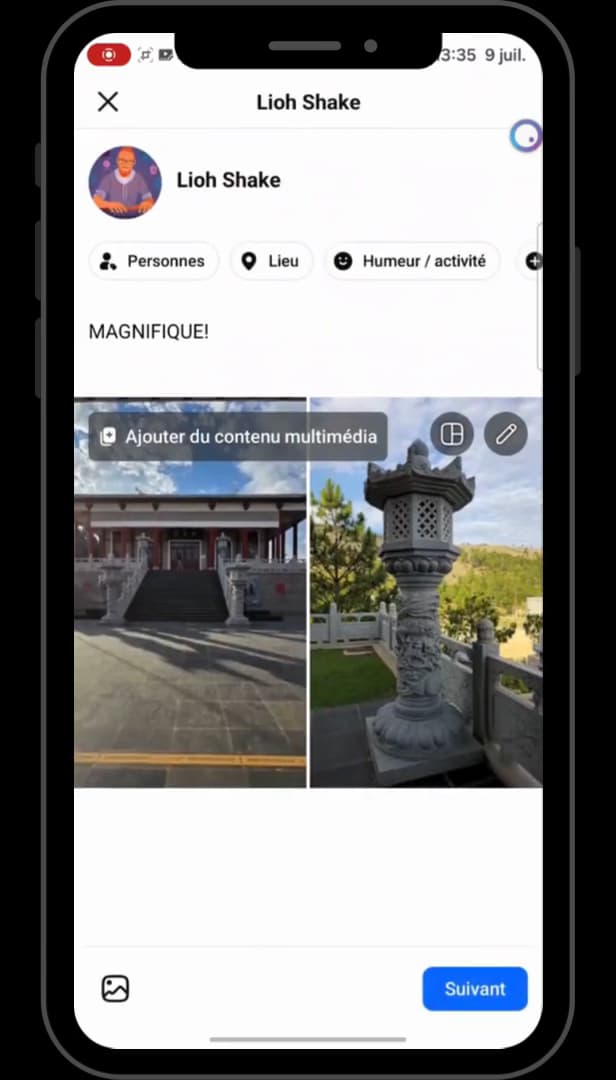
Prepare the post completely: photo, text, everything you want to keep. Compose your post as usual: add one or more "photos" with the image icon, write your text, then tap "Done".
Close with the X
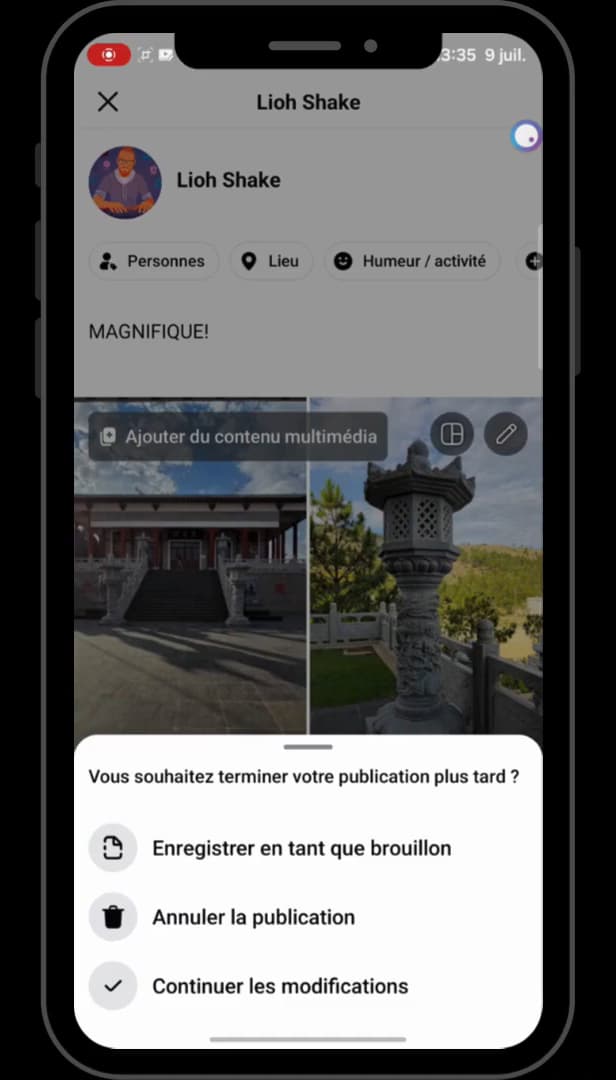
The X opens the menu that lets you save the draft. At the top left of the screen, tap the "X". Three options appear: "Save as draft", "Discard post" or "Continue editing".
Choose "Save as draft"
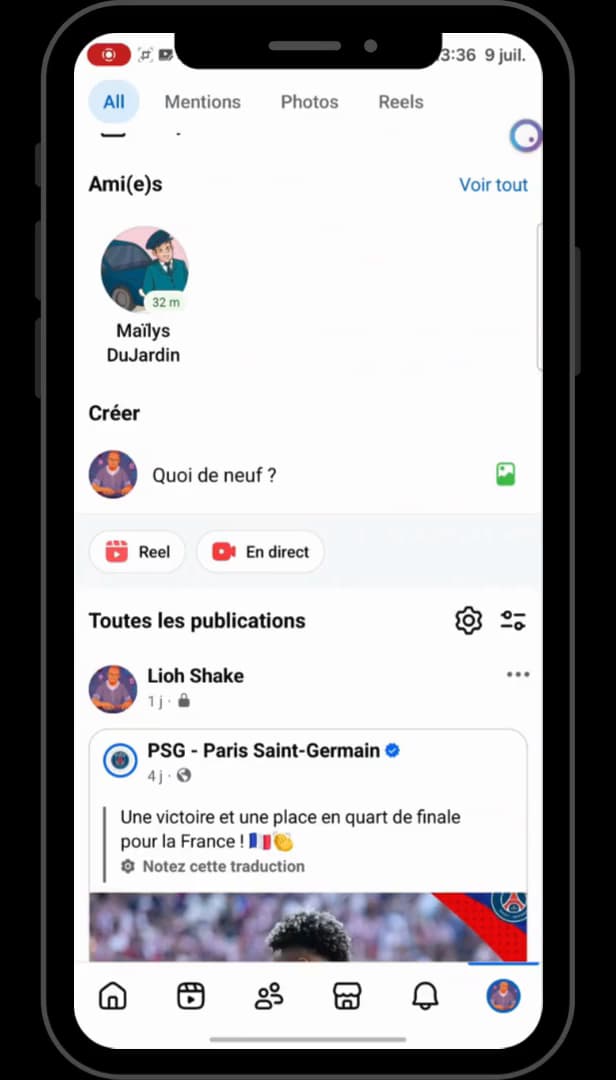
The draft is saved, ready to be picked up later. Tap "Save as draft". Your post is saved: you can pick it back up and publish it whenever you like.
Good to know
Your post is set aside without being visible to your friends. Note: "Facebook drafts are deleted automatically after 3 days".
Good to know
- To finish or publish your post, you need to find your drafts on Facebook.
- To tidy up, you can also delete your drafts on Facebook.
- A draft not picked up within 3 days disappears for good.
Frequently asked questions
- How long is a Facebook draft kept?
- A post draft is kept for 3 days. After that, Facebook deletes it automatically if it hasn't been published or edited.
- Where do I find a saved draft?
- Via the "You saved a draft" notification, which opens the Drafts section of "Your posts". The details are explained in our dedicated tutorial.
- Can you save a draft with photos?
- Yes. Add your photos and text, tap Done, then the X and "Save as draft": everything is kept, including the images.
Related tutorials
 FacebookHow to Delete Your Drafts on FacebookPost drafts piling up on your Facebook account? Here's how to find them and delete them one by one, step by step.
 FacebookHow to find your drafts on FacebookSaved a Facebook post as a draft and can't find it again? Here's where to find it and reopen it, step by step.
 FacebookHow to Create a Facebook StoryWant to post a story on Facebook? Here's how to create one with a photo, text and stickers, step by step.
 FacebookHow to add a poll to your Facebook storyWant to ask your friends a question in a story? Here's how to add a poll, step by step.