
How to Create a Facebook Story
Want to share a moment for 24 hours? You can create a Facebook story with a photo, text, stickers or music. Here's how to do it, step by step.
Prefer a video? Watch the full tutorial below.
Creating a Facebook story, step by step
Tap "Create story"

"Create story" is at the top of your News Feed. At the top of your News Feed, tap "Create story". Choose a "photo", a video or a color/text background.
Customize your story

Add text, stickers, music or a poll to your story. Add "text", "stickers", a "poll", "music" or drawings to make it your own.
Set the privacy and share
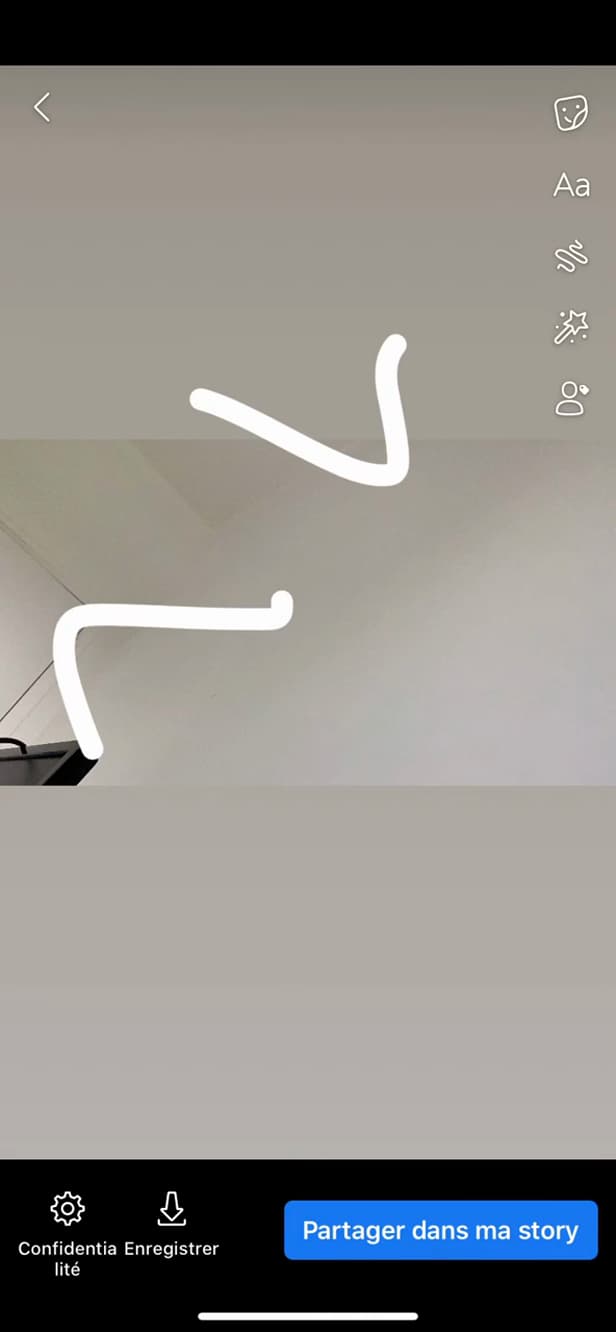
Set the privacy, then "Share to story". Choose who can see the story ("Public", "Friends"…), then tap "Share to story".
Good to know
Your story is live for "24 hours". You can see "who viewed it" and "delete" it at any time from your profile.
Good to know
- The story disappears automatically after "24 hours".
- Set the privacy to "Friends" or "Custom" to limit the audience.
- You can see the "viewer list" by opening your own story.
Frequently asked questions
- How long does a Facebook story last?
- 24 hours. After that, it disappears automatically, unless you add it to the highlights on your profile.
- Who can see my story?
- It depends on the privacy you chose: Public, Friends, or a custom list. Set it before sharing.
- Can you tell who has viewed your story?
- Yes. Open your own story: the list of viewers appears at the bottom of the screen.
Related tutorials
 FacebookHow to add a poll to your Facebook storyWant to ask your friends a question in a story? Here's how to add a poll, step by step.
 FacebookHow to Delete Your Drafts on FacebookPost drafts piling up on your Facebook account? Here's how to find them and delete them one by one, step by step.
 FacebookHow to find your drafts on FacebookSaved a Facebook post as a draft and can't find it again? Here's where to find it and reopen it, step by step.
 FacebookHow to Make Your Cover Photo Private on FacebookWant to hide an old Facebook cover photo? Here's how to switch it to "Only me", step by step.