
How to find your drafts on Facebook
Saved a post as a draft but can't lay your hands on it? On mobile, the easiest way to find your drafts on Facebook is through the "You saved a draft" notification, which opens the list of your unpublished posts directly. Here's how to find and reopen it, step by step.
Prefer a video? Watch the full tutorial below.
Finding a Facebook draft, step by step
Open the Facebook app

You find your drafts directly from the Facebook app. On your phone, open the "Facebook" app and log in to your account.
Open your notifications
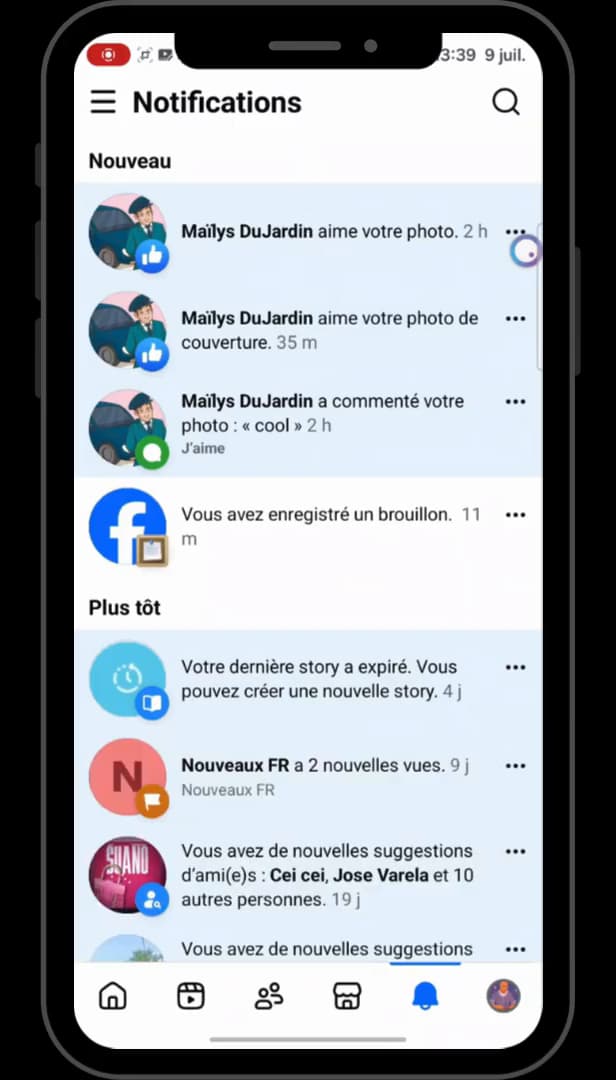
The "You saved a draft" notification leads straight to your drafts. Tap the "bell" icon (notifications) in the bottom right of the screen, then spot the "You saved a draft" notification.
Open the list of your drafts
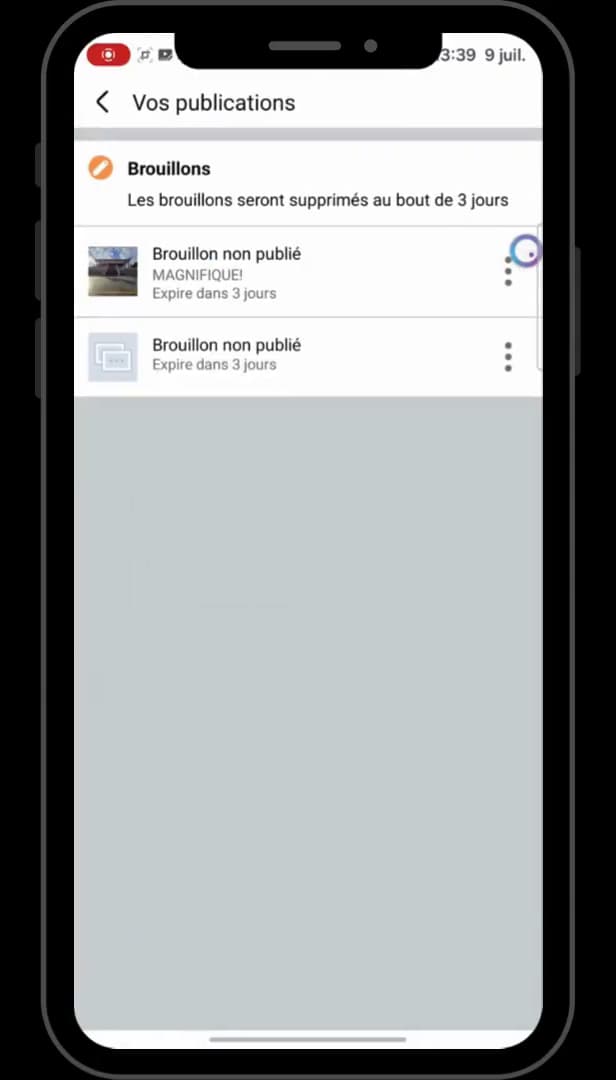
All your drafts appear here, with the note "Expires in 3 days". Tap that notification: you land in "Your posts", "Drafts" section, where all your unpublished drafts are listed.
Open the draft to edit it
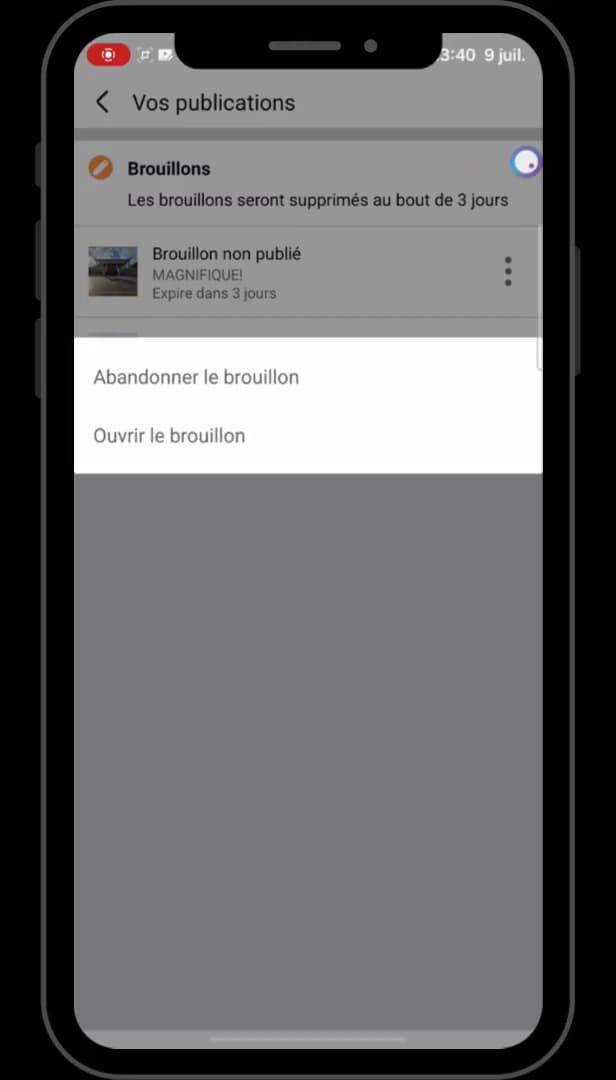
"Open draft" lets you pick it back up and publish it. To the right of the draft, tap the "three dots", then "Open draft" to pick it back up and publish it. (The same list also lets you "Discard" it.)
Good to know
Once the draft is open, you can finish it and then publish it normally. Keep in mind: a draft is "automatically deleted after 3 days".
Good to know
- Not sure how to create a draft? See saving a draft on Facebook.
- To tidy up, you can delete your drafts on Facebook.
- On desktop, drafts are found from your page, in the publishing tools.
Frequently asked questions
- Where are drafts saved on Facebook?
- In the "Drafts" section of "Your posts". On mobile, the quickest route is the "You saved a draft" notification.
- How do I open a draft to publish it?
- Open the list of drafts, tap the three dots to the right of the draft, then "Open draft": you can finish it and publish it.
- Can a draft disappear?
- Yes. Facebook automatically deletes drafts after 3 days. Reopen and publish it before that deadline so you don't lose it.
Related tutorials
 FacebookHow to Delete Your Drafts on FacebookPost drafts piling up on your Facebook account? Here's how to find them and delete them one by one, step by step.
 FacebookHow to Save a Draft on FacebookWant to prepare a Facebook post without publishing it right away? Here's how to save it as a draft, step by step.
 FacebookHow to Create a Facebook StoryWant to post a story on Facebook? Here's how to create one with a photo, text and stickers, step by step.
 FacebookHow to Log Out of Facebook on All DevicesSuspect a suspicious login? Here's how to log out of Facebook on all devices remotely, step by step.