
How to Log Out of Facebook on All Devices
Suspect an unknown login, or forgot to log out somewhere else? You can log out of Facebook on all devices remotely, in a single move. Here's how to do it, step by step.
Prefer a video? Watch the full tutorial below.
Log out of Facebook on all devices, step by step
Open Password and security
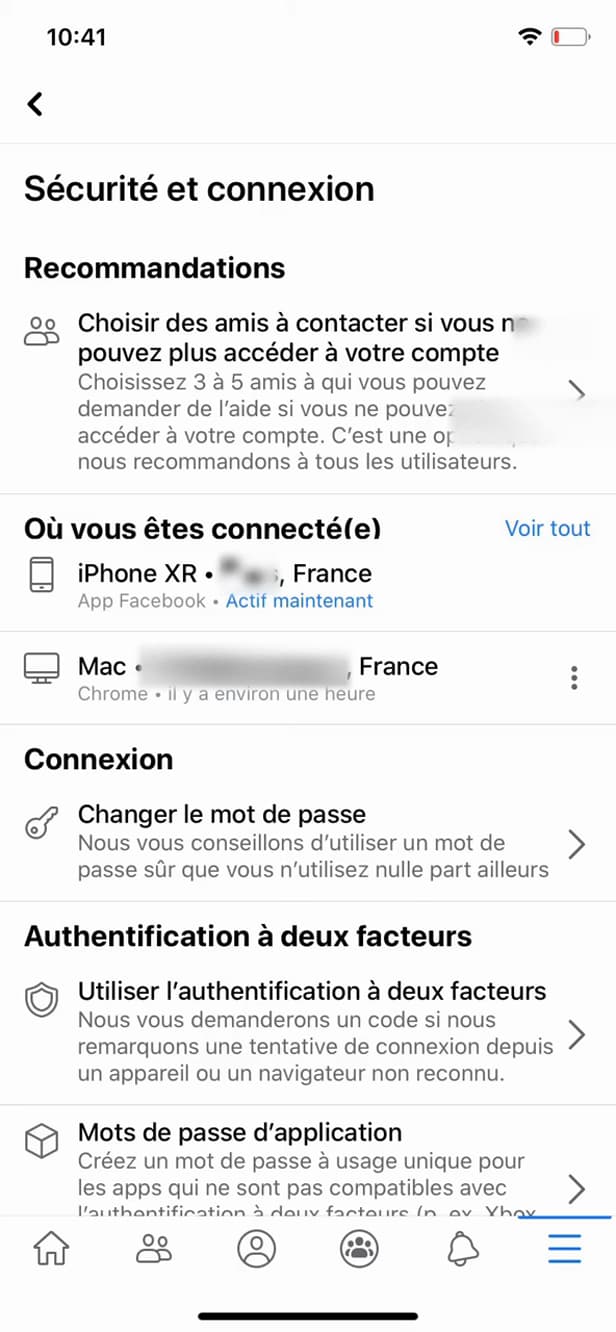
"Password and security" gathers your active sessions. Open "Menu" › "Settings & privacy" › "Settings", then "Password and security".
Open "Where you're logged in"
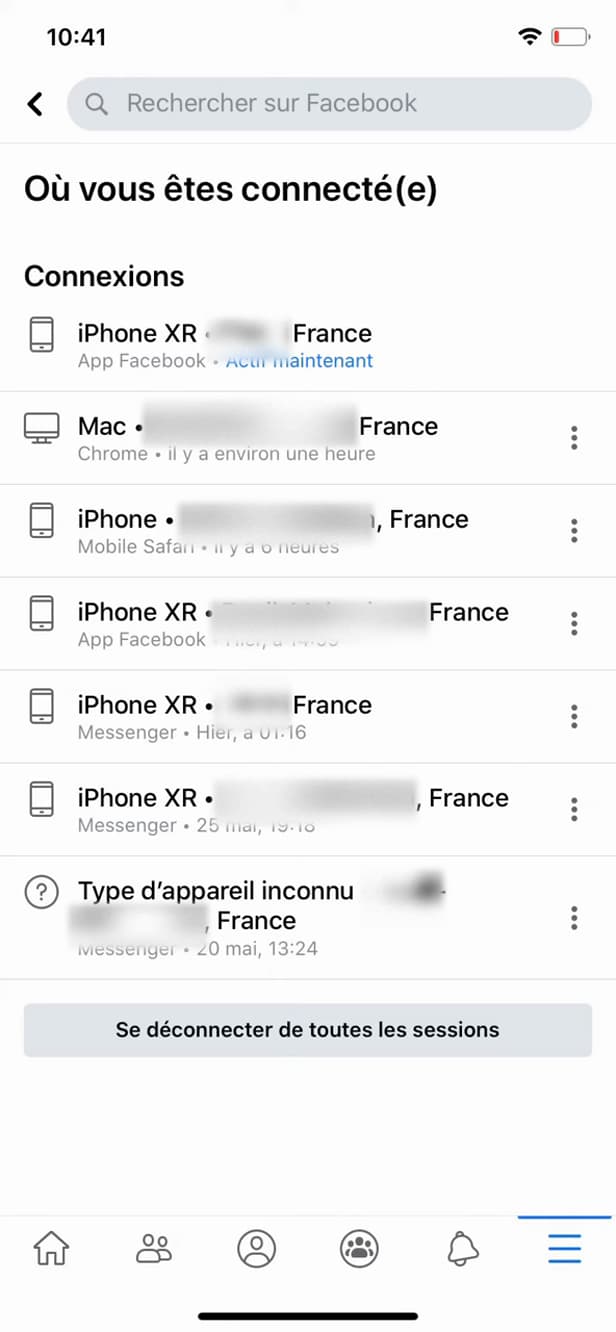
"Where you're logged in" lists every device and location. In the "Where you're logged in" section, tap "See all" to list "all devices" currently logged in.
Log out of all sessions
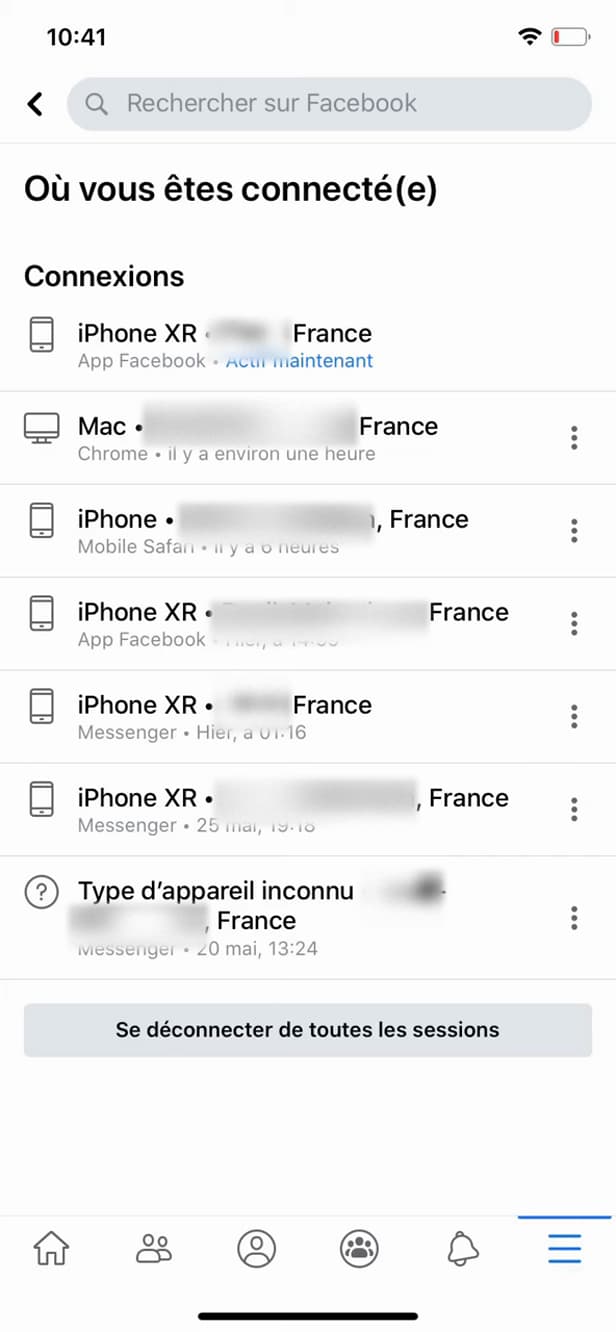
"Log out of all sessions" closes every login. Scroll to the bottom and tap "Log out of all sessions". Every login is closed.
Good to know
Every device is now "logged out": each one will need to sign in again with your credentials. If in doubt, "change your password" right afterward.
Good to know
- You can also log out "a single device" from its row (the "⋯").
- After a full logout, "change your password" and turn on "two-factor authentication".
- An "unknown" location or device should alert you to unauthorized access.
Frequently asked questions
- Will I be logged out of my phone too?
- Yes, a full logout closes every session, including yours. You'll have to log back in.
- What should I do after logging everything out?
- Change your password immediately and turn on two-factor authentication to prevent any unauthorized login.
- Can I log out just one device?
- Yes. In "Where you're logged in", open the "⋯" for the device in question and choose "Log out".
Related tutorials
 FacebookHow to find your drafts on FacebookSaved a Facebook post as a draft and can't find it again? Here's where to find it and reopen it, step by step.
 FacebookHow to add a poll to your Facebook storyWant to ask your friends a question in a story? Here's how to add a poll, step by step.
 FacebookHow to send a poke on FacebookWant to poke a friend on Facebook? Here's how to send one, step by step.
 FacebookHow to unfriend someone on FacebookWant to remove someone from your Facebook friends? Here's how to do it, discreetly, step by step.