
How to Delete a Profile Picture on Facebook
Want to remove an old profile picture? You can delete a profile picture on Facebook in a few taps, which also removes the associated post. Here's how to do it, step by step.
Prefer a video? Watch the full tutorial below.
Deleting a Facebook profile picture, step by step
Open your profile picture

Open "See profile picture" to view the photo full-size. Go to your "profile," tap your "profile picture," then choose "See profile picture."
Open the menu and "Delete"
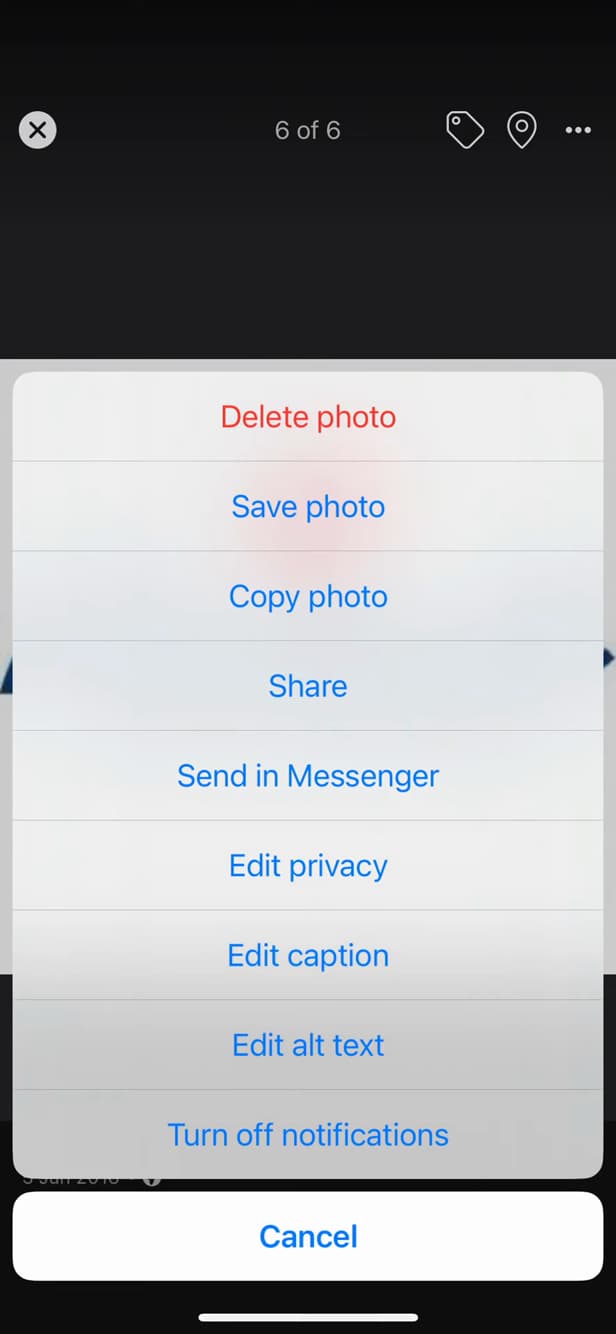
The photo's "⋯" menu contains "Delete photo." With the photo shown, tap "⋯" in the top right, then "Delete photo."
Confirm the deletion
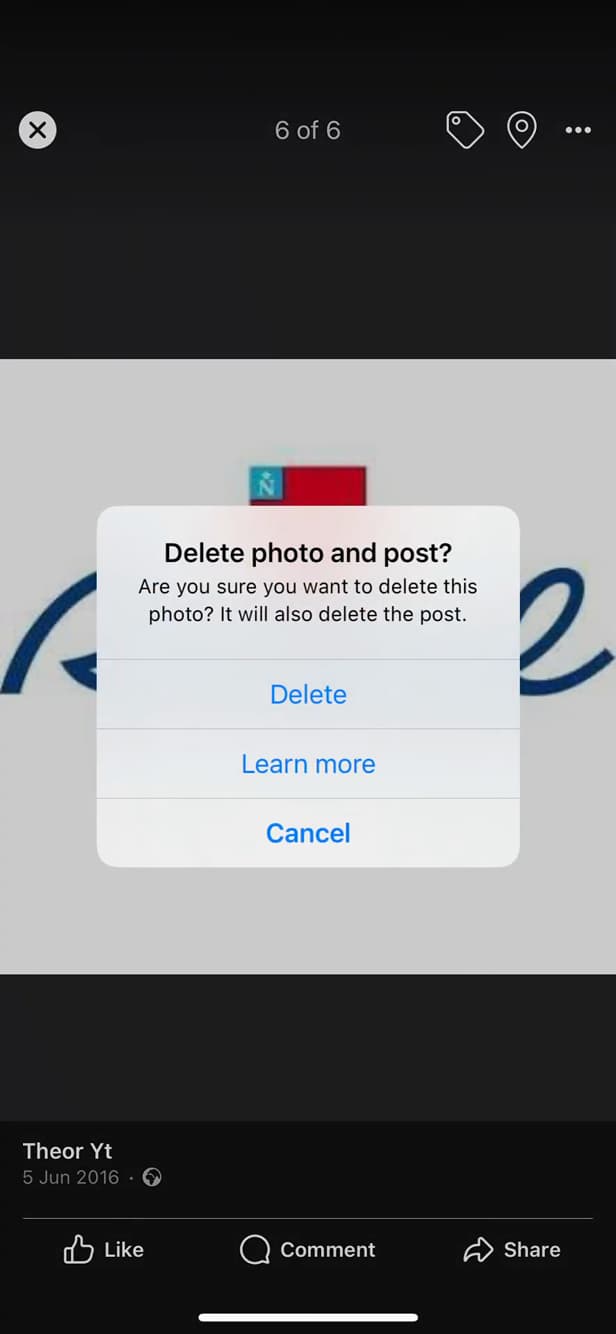
Confirm: the photo and its post are deleted. Facebook warns that the "associated post" will be deleted too. Tap "Delete" to confirm.
Good to know
The profile picture is "deleted," along with the linked post. If it was your "current" photo, your profile shows the previous one or a default avatar.
Good to know
- Deleting the photo also removes the "post" and its comments/reactions.
- To simply change it, use "Edit" › "Edit profile picture" instead.
- The deletion is "permanent": save the photo first if it matters to you.
Frequently asked questions
- Does deleting my profile picture remove the post?
- Yes. A profile picture is also a post: deleting it removes the post, its reactions and its comments.
- Will my profile be left without a photo?
- If you delete the current photo, Facebook shows your previous profile picture or the default avatar. You can add a new one at any time.
- Can I recover a deleted photo?
- No, the deletion is permanent. Save the photo to your phone before deleting it if needed.
Related tutorials
 FacebookHow to unfriend someone on FacebookWant to remove someone from your Facebook friends? Here's how to do it, discreetly, step by step.
 FacebookHow to Change Your Facebook Profile Photo Without Losing Your LikesWant to set a Facebook profile photo again without losing its likes and comments? Here's the method, step by step.
 FacebookHow to Change Your Facebook Cover Photo SecretlyWant to change your Facebook cover photo without your friends seeing it? Here's the discreet method, step by step.
 FacebookHow to Change Your Facebook Cover Photo Without Losing Your LikesWant to switch your Facebook cover photo without losing its reactions and comments? Here's the method, step by step.