
How to Block or Unblock a Friend on Facebook
Want to cut off contact with someone, or reverse a block? You can block or unblock a friend on Facebook in just a few taps. Here's how to do it, step by step.
Prefer a video? Watch the full tutorial below.
Blocking or unblocking a friend on Facebook, step by step
Block the person from their profile
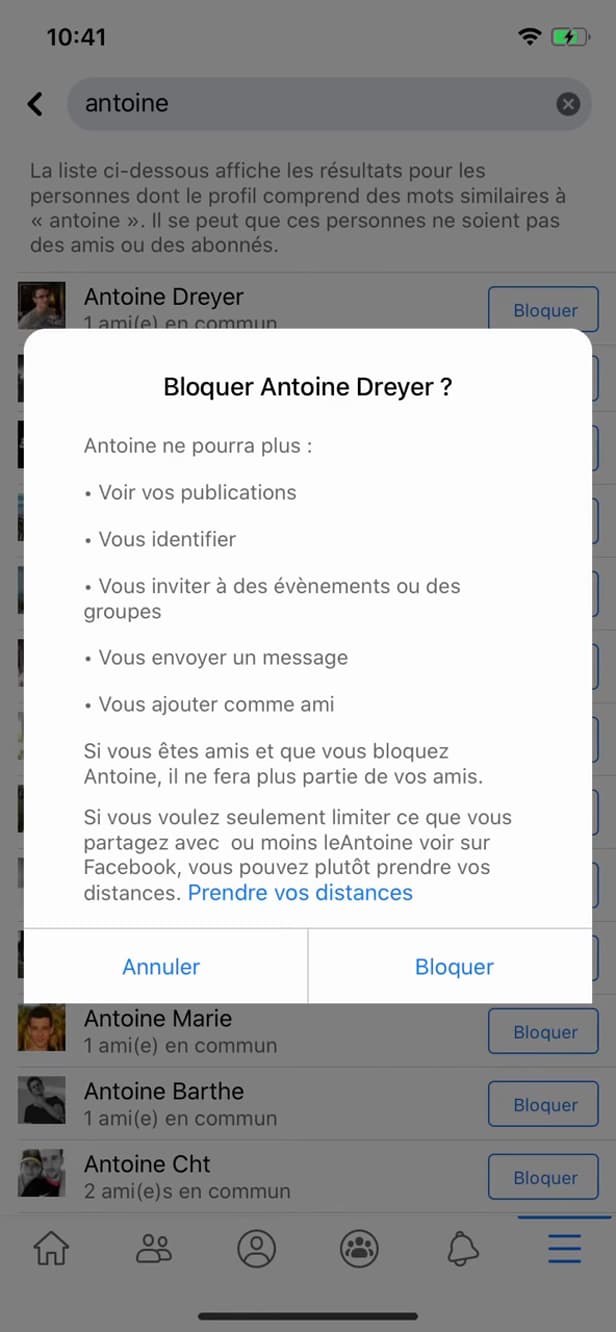
"Block" cuts off all contact and makes you invisible to that person. Open the person's profile, tap "⋯" then "Block", and confirm.
Open the block list
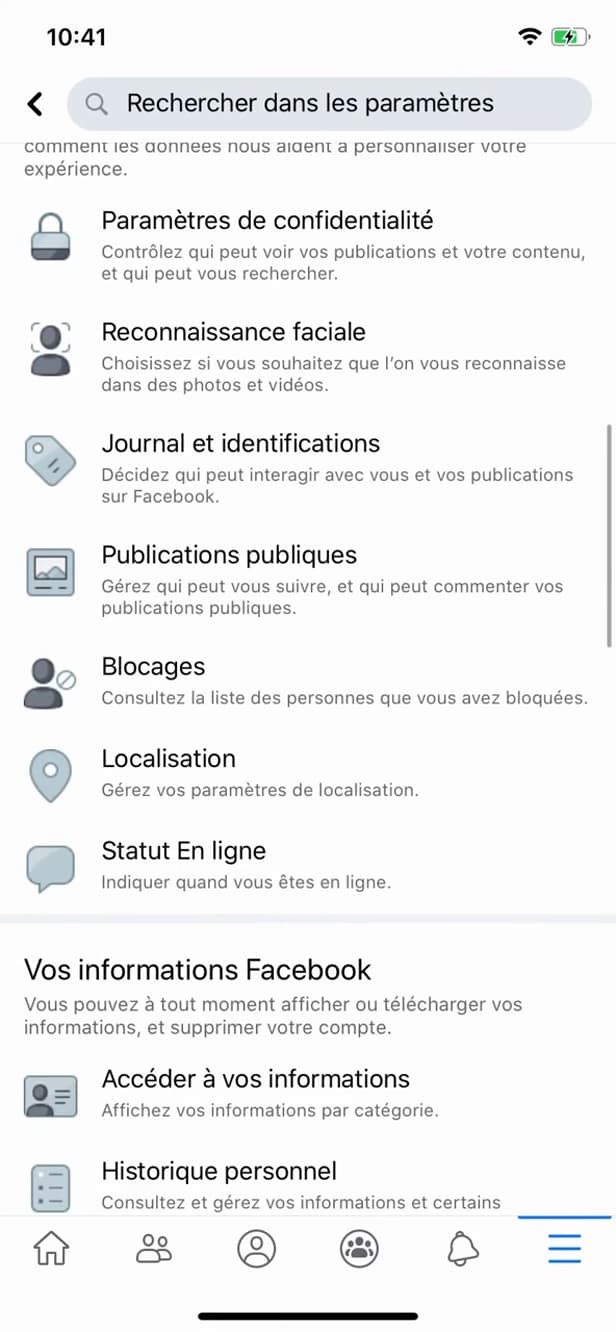
"Blocking" lists everyone you have blocked. To unblock, go to "Settings & privacy" › "Settings" › "Blocking".
Unblock the person
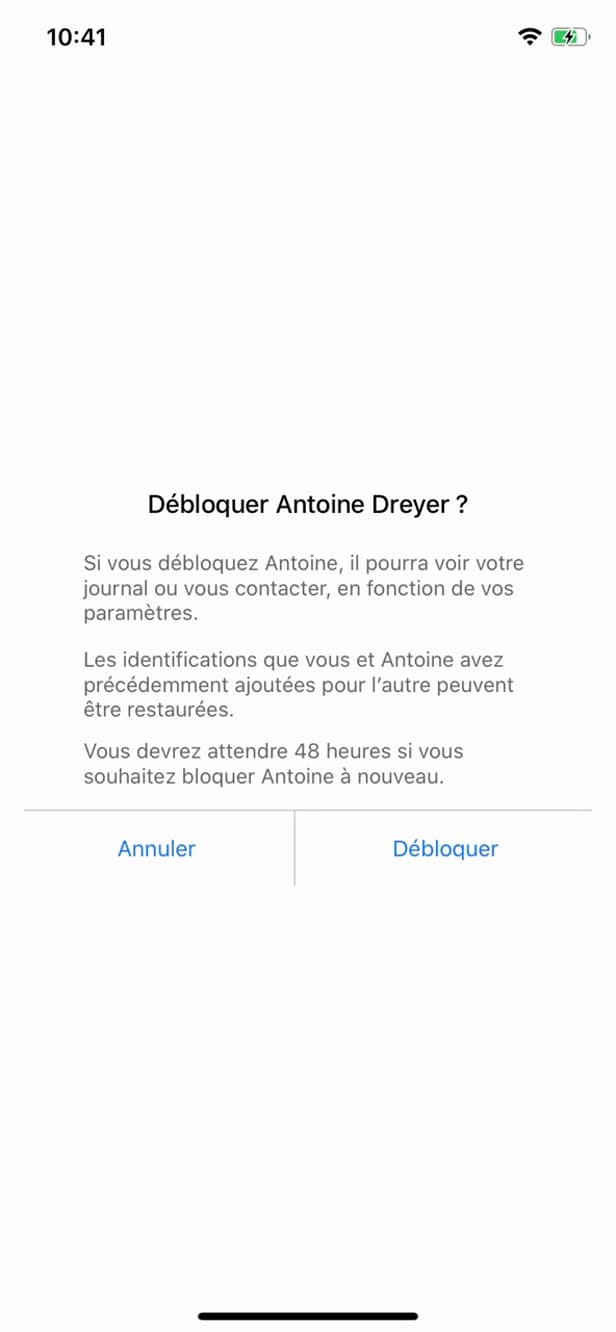
"Unblock" lifts the block; you'll need to add them back as a friend. Next to their name, tap "Unblock" then confirm.
Good to know
The blocked person can no longer see your profile or contact you. Once "unblocked", you'll need to "send a new friend request" to become friends again.
Good to know
- Blocking someone "automatically removes" them from your friends.
- After unblocking, you have to wait "48 hours" before you can block the person again.
- The person is "not notified" of the block, but may figure it out.
Frequently asked questions
- Is the person notified when I block them?
- No. Facebook sends no notification, but they may realize it because your profile becomes impossible for them to find.
- Does unblocking someone add them back to my friends?
- No. Blocking removes the friendship: after unblocking, you have to send a new friend request.
- Can I re-block someone right after unblocking them?
- No. Facebook enforces a delay of about 48 hours before you can block the same person again.
Related tutorials
 FacebookHow to unfriend someone on FacebookWant to remove someone from your Facebook friends? Here's how to do it, discreetly, step by step.
 FacebookHow to send a poke on FacebookWant to poke a friend on Facebook? Here's how to send one, step by step.
 FacebookHow to add a poll to your Facebook storyWant to ask your friends a question in a story? Here's how to add a poll, step by step.
 FacebookHow to Create a Facebook StoryWant to post a story on Facebook? Here's how to create one with a photo, text and stickers, step by step.