
How to send your location on Messenger
To make it easier for people to find you, you can send your location on Messenger live, for a limited time. Here's how to do it, step by step.
Prefer a video? Watch the full tutorial below.
Sending your location on Messenger, step by step
Allow location access
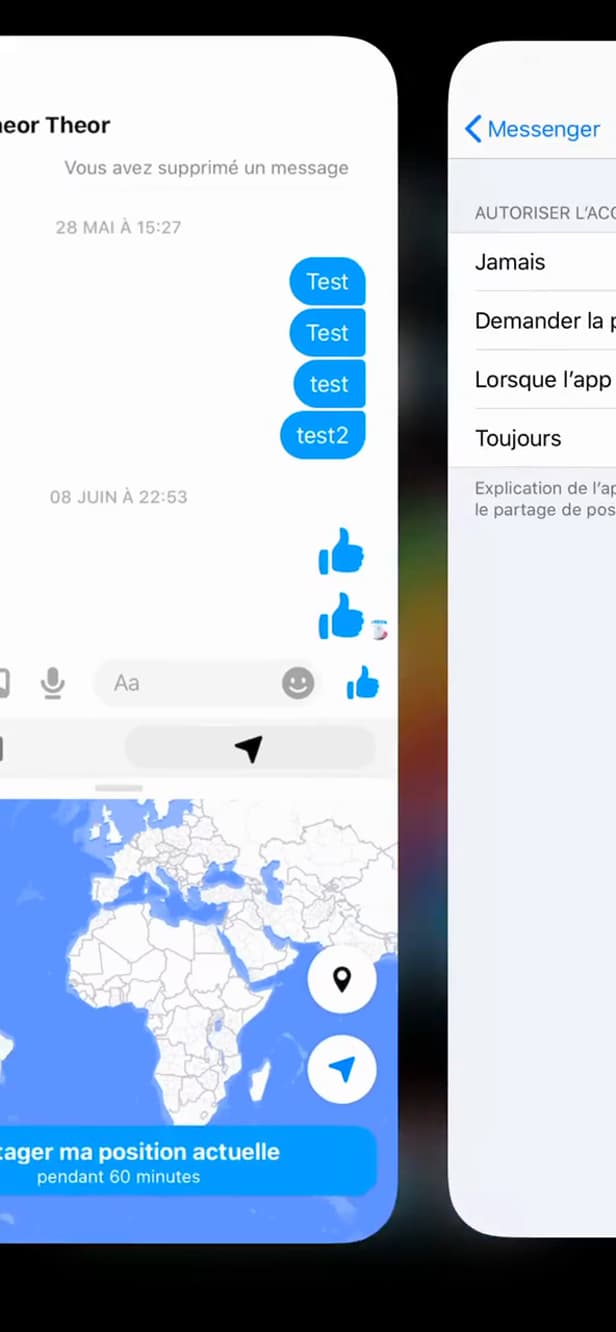
Allow location access so you can share it. In the conversation, open "Location". If prompted, allow access ("While Using the App") in "Settings" › "Messenger".
Tap "Share Live Location"
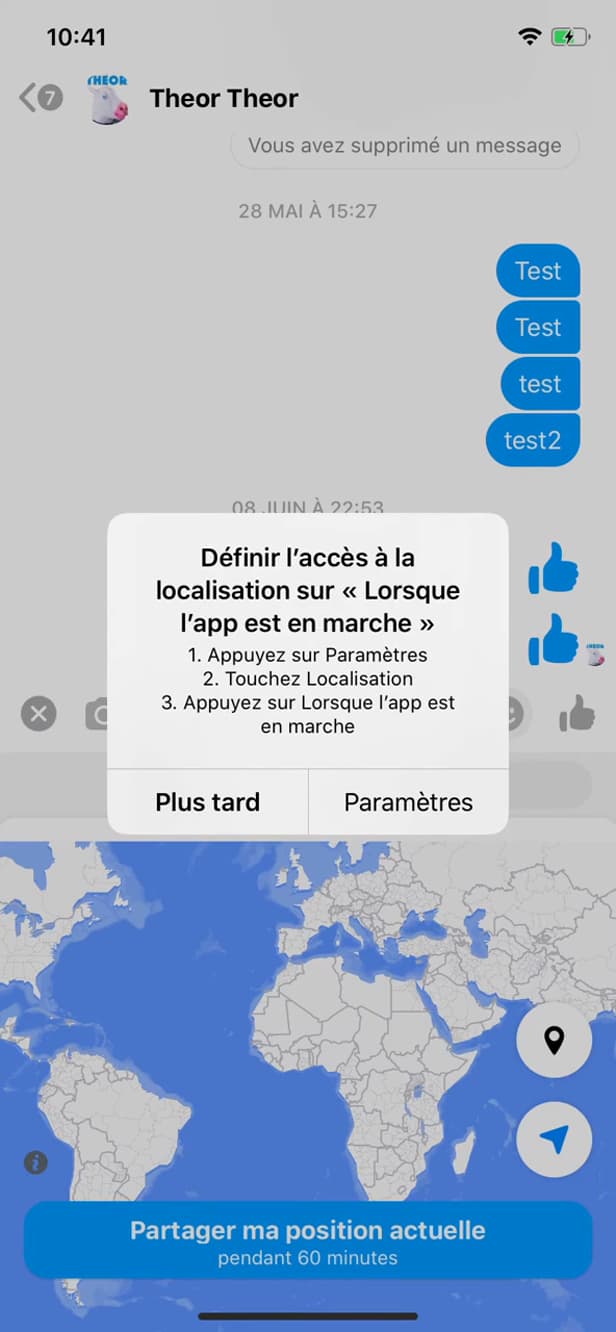
"Share Live Location" sends it for 60 minutes. On the map, tap "Share Live Location". Sharing lasts "60 minutes" by default.
Your location is sent
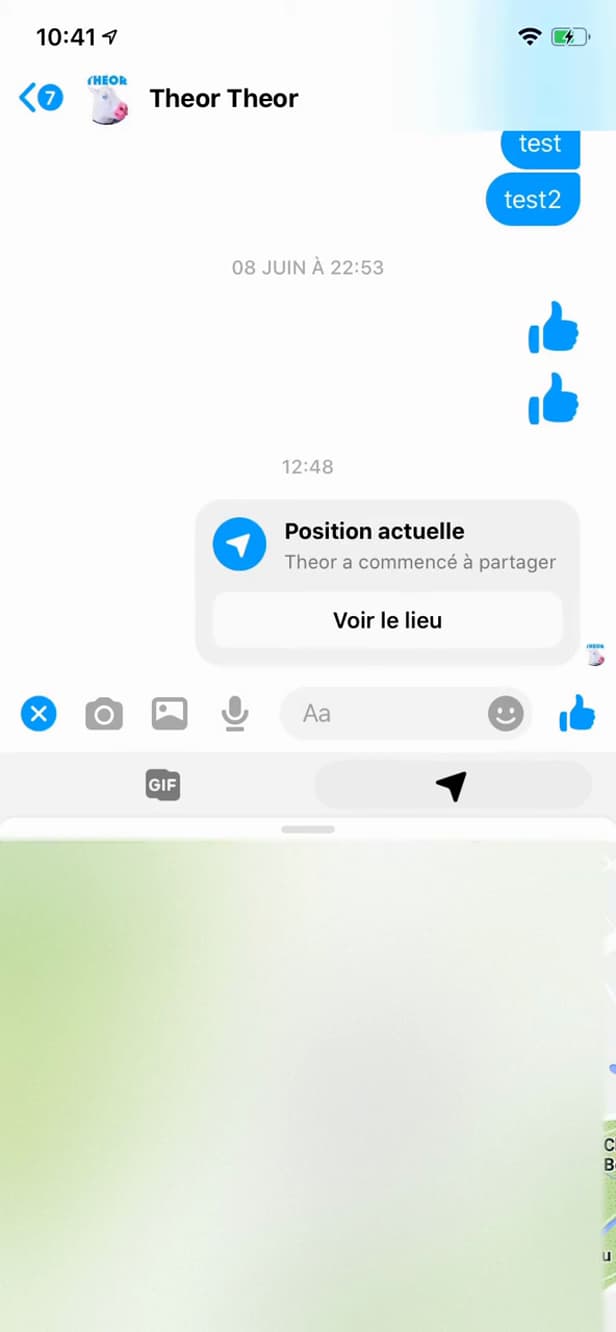
The contact sees your "Live Location" and can "View Location". The other person receives your "Live Location" with a "View Location" button to find you on the map.
Good to know
Your location is shared "live" for 60 minutes, then sharing stops on its own. You can "stop" sharing before it ends from the conversation.
Good to know
- Live sharing lasts "60 minutes", then stops automatically.
- You can "stop" sharing at any time in the conversation.
- To send a "fixed" place (not live), search for and select an address.
Frequently asked questions
- How long does my location stay shared?
- Live sharing lasts 60 minutes by default, then stops on its own. You can also stop it manually beforehand.
- Can I send a specific place without live sharing?
- Yes. In the Location tool, search for an address or place and send it as a fixed point.
- Do I have to allow location access?
- Yes. Messenger needs access to your location ("While Using the App") to be able to share it.
Related tutorials
 MessengerHow to send a file on MessengerWant to send a PDF or a document on Messenger? Here's how to attach a file, step by step.
 MessengerHow to Turn On Messenger NotificationsNot getting your Messenger notifications anymore? Here's how to turn them back on from the app, step by step.
 MessengerHow to Hide the Content of Messenger NotificationsWant to hide the message preview from Messenger on your lock screen? Here's how to do it, step by step.
 MessengerHow to Find an Old Message on MessengerLooking for an old message in a Messenger chat? Here's how to find it, step by step.